Rozhraní AlzaAds
Vítejte v nápovědě k rozhraní reklamního systému AlzaAds. Dostáváte do rukou jedinečný nástroj, který vám umožní zobrazovat vámi dodávané produkty těm správným uživatelům přesně ve chvíli, kdy dělají nákupní rozhodnutí. Reklama u jedničky na trhu v online nákupech má obrovský potenciál pomoct vám a vašim značkám růst a dosahovat vytyčené cíle.
AlzaAds vám umožňuje vytvářet a spravovat efektivní reklamní kampaně na webech a v aplikacích Alzy na základě dat aktualizovaných v reálném čase. Rozhraní běží na globální technologii CitrusAd od Epsilon Retail Media.
Vytvoření účtu v AlzaAds
Registrace týmu
Pokud jste aktuálně dodavatelem Alzy a máte zájem o registraci nového týmu a účtu v AlzaAds, postupujte všemi kroky. Jestli jste byli přizváni do již existujícího týmu, pro vytvoření vašeho účtu začněte od kroku č. 3.
Pokud již máte účet vytvořený a registrovaný, nikdo další z vašich kolegů si již nemusí účet registrovat. Stačí jim pouze poslat pozvánku v přehledu členů týmu viz krok č.12.
1. Navštivte web alza.cz/ads a klikněte na zelené tlačítko „Registrovat se“.
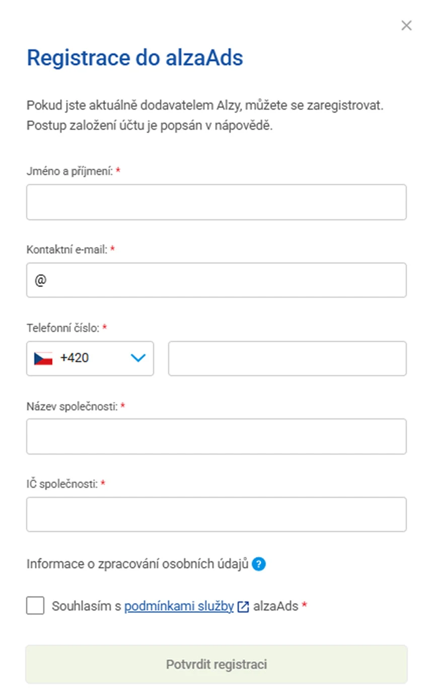
2. Vyplňte registrační formulář a klikněte na tlačítko „Potvrdit registraci“. Pro využívání služby AlzaAds je nutné souhlasit s podmínkami služby.
3. Vaši registraci ověříme, a pokud je vše v pořádku, založíme vám v AlzaAds účet. Na kontaktní e-mail vám do dvou pracovních dnů přijde pozvánka (v angličtině). Pozor, pozvánka může skončit mimo hlavní složku e-mailu, třeba ve složce „Hromadné“ nebo spam.
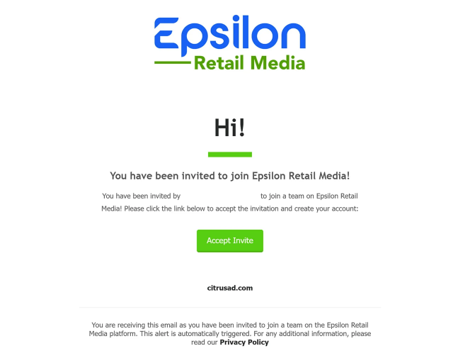
Ve formuláři vyplňte svoje jméno (First name) a příjmení (Last name), zároveň potvrďte souhlas s podmínkami CitrusAd (Terms and Conditions). Klikněte na zelené tlačítko „Register“.
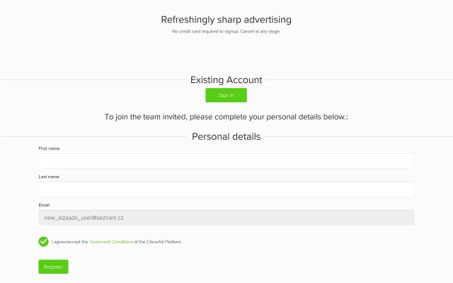
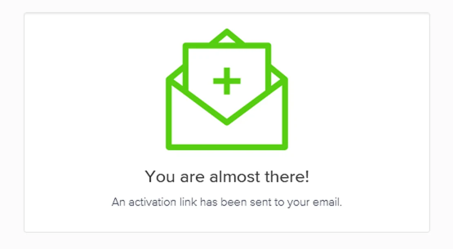
4. V e-mailové schránce najdete výzvu k aktivaci vašeho účtu. Na aktivaci máte 7 dní. Účet aktivujete kliknutím na modré tlačítko „Activate Your Account“.
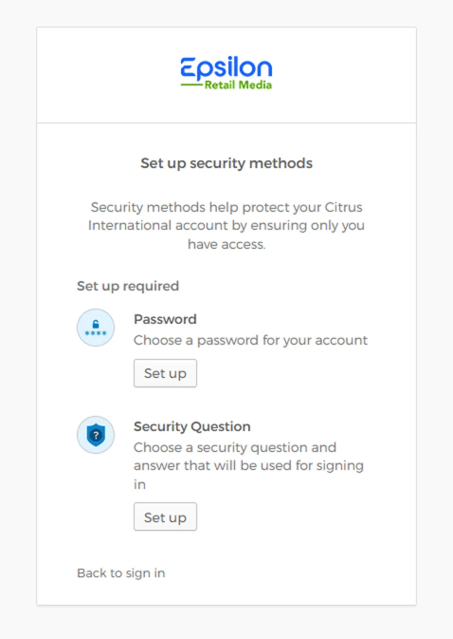
5. Nastavte si heslo. Pro nastavení hesla klikněte na tlačítko „Set up“ v sekci Password.
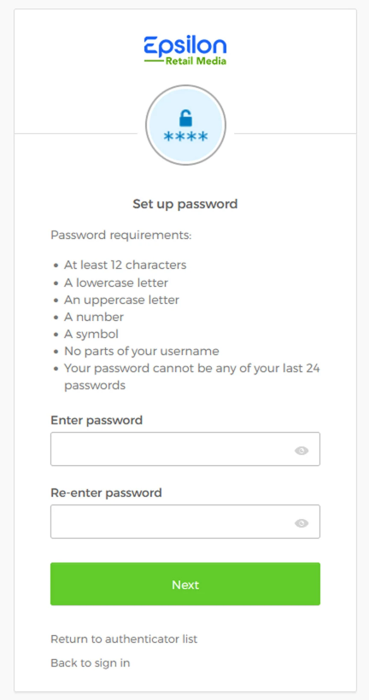
6. Zvolte si heslo. Musí splňovat všechny náležitosti v seznamu – alespoň 12 znaků, malé písmeno, velké písmeno, číslice, symbol (speciální znak, např. #), heslo nesmí obsahovat část uživatelského jména, heslo nesmí být stejné jako posledních 24 hesel. Heslo napište do pole „Enter password“. Heslo napište ještě jednou (pole „Re-enter password“) a pokračujte kliknutím na zelené tlačítko „Next“.
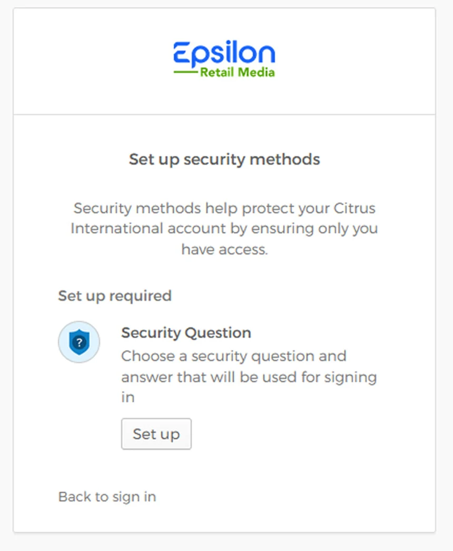
7. Nastavte si bezpečnostní otázku. Klikněte na tlačítko „Set up“ v sekci Security Question.
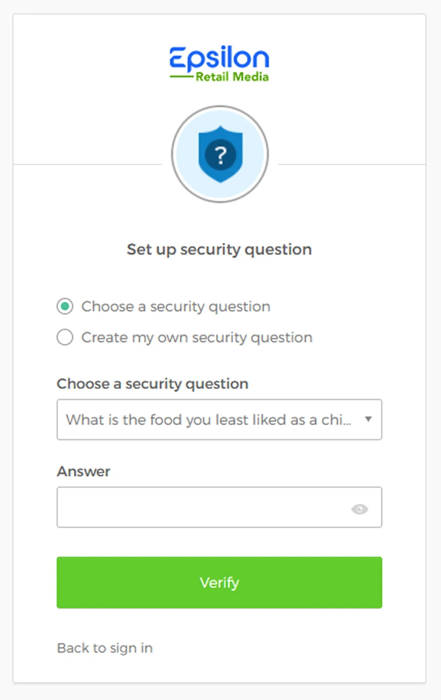
Vyberte si z předvolených otázek (Choose a security question), nebo si vytvořte vlastní otázku (Create my own security question). Odpověď napište do pole „Answer“. Klikněte na zelené tlačítko „Verify“.
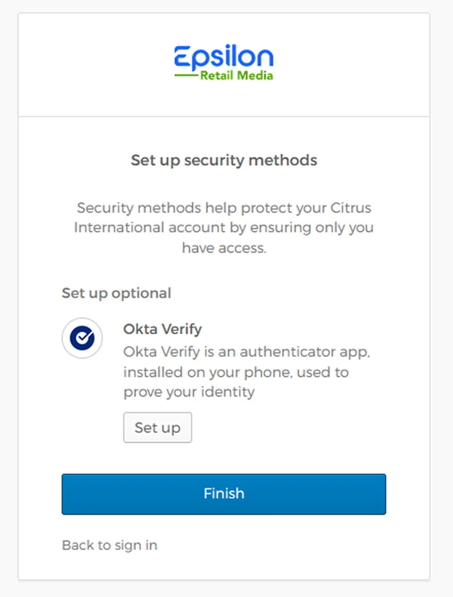
8. Pokud chcete, v dalším kroku si ještě můžete přidat zabezpečení pomocí autentizační aplikace Okta Verify. Není to ale nutné. Pokračujte kliknutím na modré tlačítko „Finish“.
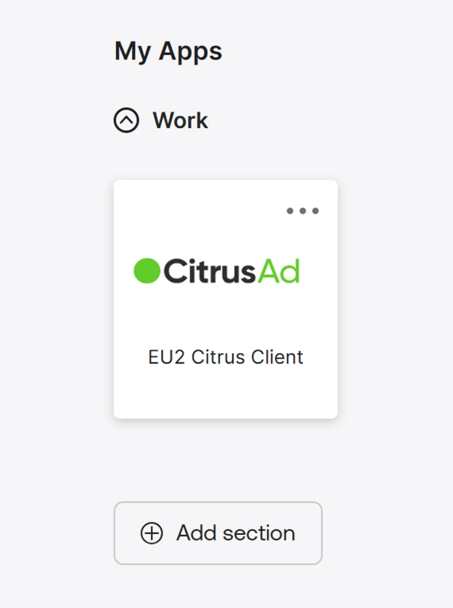
9. Klikněte na čtverec s nápisem CitrusAd.
10. Nyní se můžete přihlásit do rozhraní na adrese alzaads.citrusad.com. Odkaz na rozhraní najdete i na webu alza.cz/ads (bílé tlačítko „Přihlásit do alzaAds“).
Nová pozvánka do účtu
Po vytvoření účtu již není potřeba další registrace. Své kolegy a spolupracovníky můžete jednoduše přizvat do registrovaného týmu v záložce „Uživatelé“ a tlačítkem „Odeslat novou pozvánku“. Zde stačí zadat pouze e-mailovou adresu a nastavit práva na plný přístup či pouze pro čtení reportingu. Po odeslání přijde uživateli pozvánka, která ho odkáže přímo do rozhraní AlzaAds, kde tuto pozvánku potvrdí. Více v záložce Nastavení v sekci „Přidat uživatele“.
Pokud máte problémy s registrací nebo přihlášením do týmu, obraťte se na naši podporu [email protected].
Uživatelské nastavení rozhraní AlzaAds
Výběr jazyka
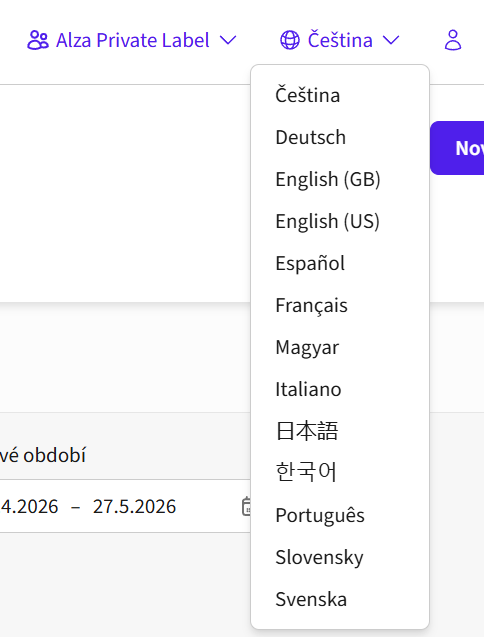
Jazyk rozhraní si můžete přepnout kliknutím na ikonku zeměkoule v pravé horní části rozhraní.
Můj profil
Po kliknutí na vaše jméno v pravém horním rohu rozhraní se vám rozbalí možnost editovat váš uživatelský profil.
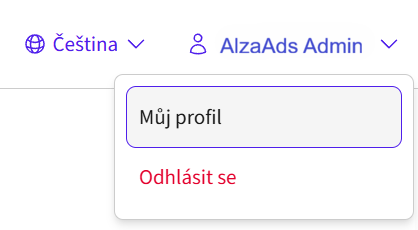
Po rozkliknutí tohoto pole se dostanete do nastavení svého uživatelského profilu „Můj profil“. K záložce svého profilu se dostanete i přes rolovací menu po levé straně v sekci „Nastavení“.
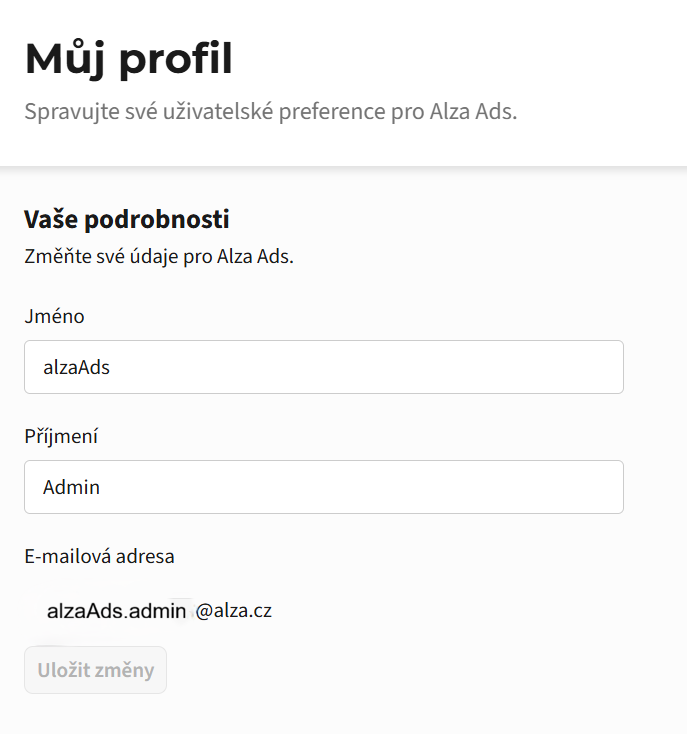
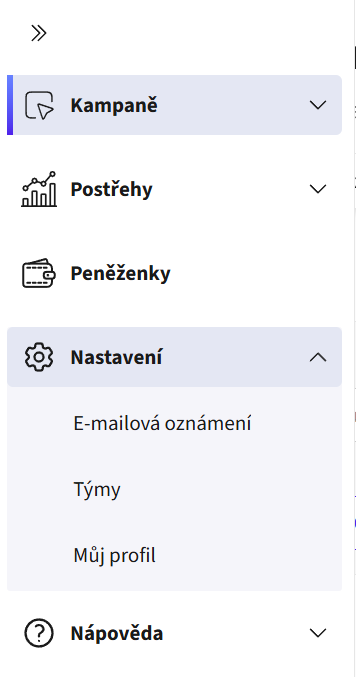
Záložka Nastavení
V záložce „Nastavení“ si můžete nastavit e-mailová oznámení, nastavení vašeho týmu / týmů a nastavení vašeho profilu.
E-mailová oznámení
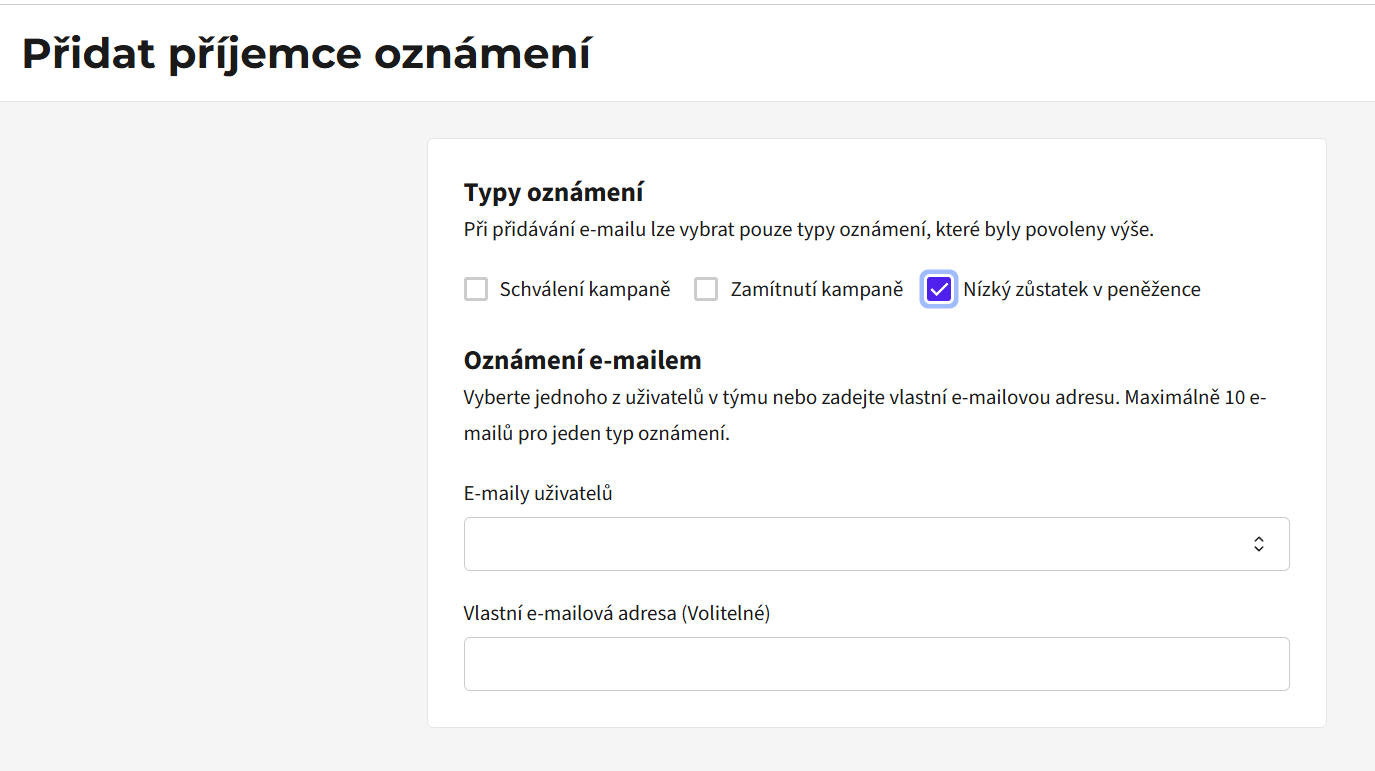
V této sekci můžete spravovat e-mailová oznámení vašeho týmu. Oznámení lze nastavit pro schválení či zamítnutí kampaně a nízký zůstatek v peněžence.
Doporučujeme nastavit si notifikace o nízkém zůstatku v peněženkách. Po zapnutí tohoto oznámení je možné nastavit konkrétní e-mailové adresy, na které budou notifikace chodit.
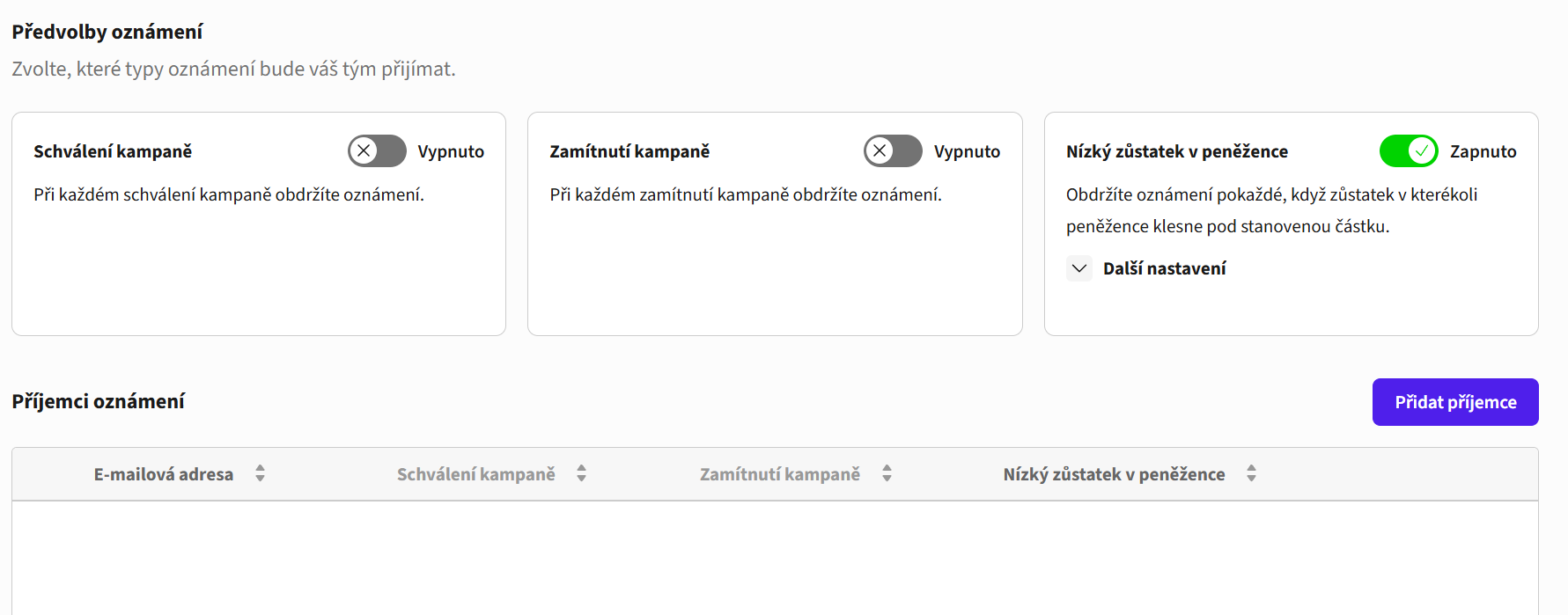
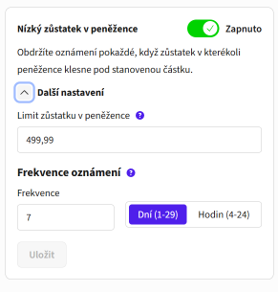
Při zapnutí oznámení na nízký zůstatek v peněžence si po rozkliknutí pole „Další nastavení“ můžete nastavit limit zůstatku v peněžence pro notifikace a jejich frekvenci.
Nastavení týmu
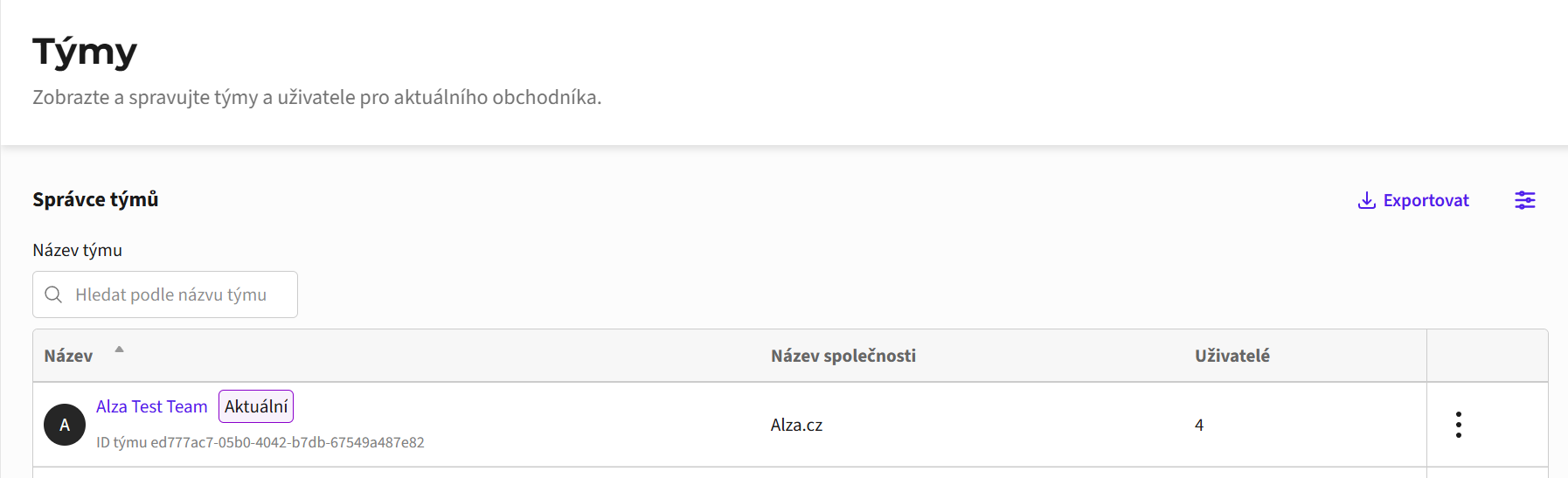
Přes záložku „Týmy“ se dostanete do přehledu vašeho týmu nebo týmů, v případě, že v AlzaAds spravujete více než jeden. Zde můžete upravovat informace o týmu a jeho uživatelích.
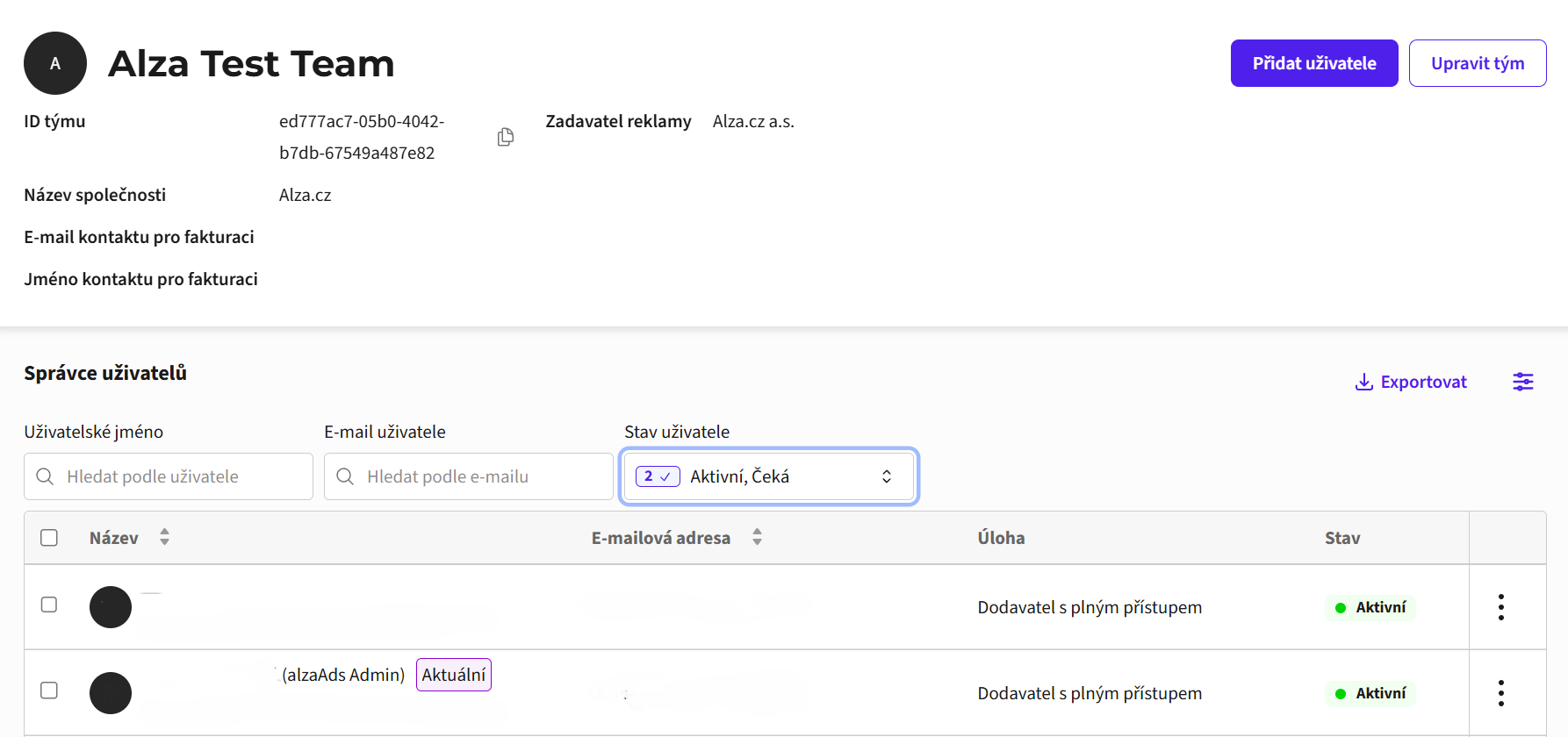
Na detail týmu se dostanete kliknutím na jeho název. Zde můžete zobrazit údaje o vašem týmu a jeho uživatelích.
Je důležité mít správně vyplněná především pole název společnosti a zadavatel reklamy (název subjektu, který financuje vaše reklamní kampaně pro účely transparentního informování uživatelů). Tyto údaje nelze samovolně editovat, pokud potřebujete cokoliv změnit, obraťte se na naše kolegy na [email protected] s požadavkem, co je třeba upravit.
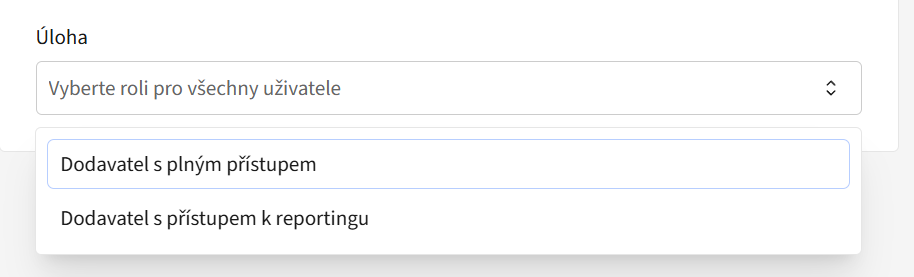
V této sekci rovněž vidíte seznam uživatelů vašeho týmu. U každého uživatele vidíte jméno, e-mail a úroveň oprávnění, kterou můžete upravit kliknutím na tři tečky u daného uživatele. Oprávnění jsou na dvou úrovních – plný přístup do účtu, nebo omezený přístup pro účely reportingu. Nového uživatele můžete pozvat do týmu přes modré tlačítko „Přidat uživatele“.
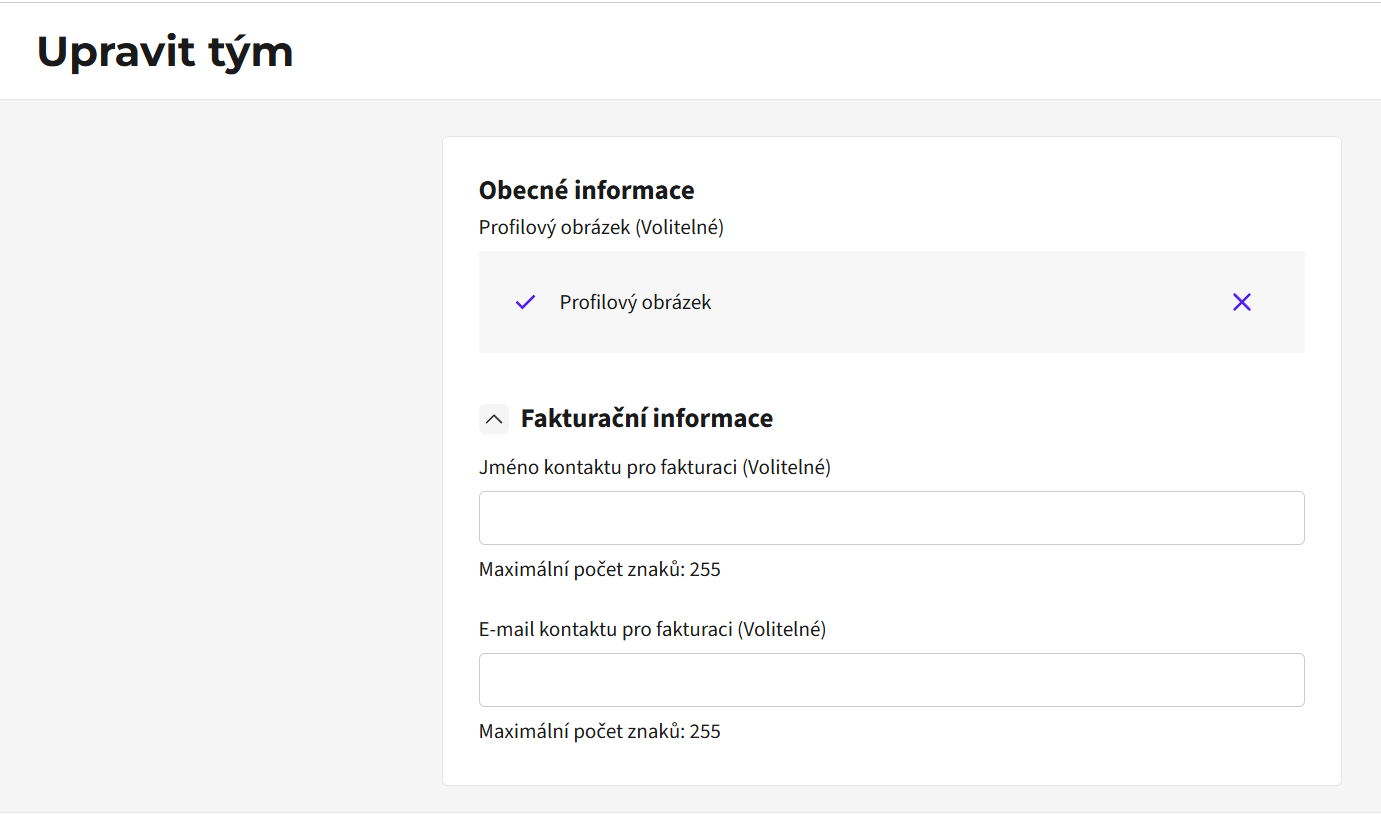
Upravit tým
V této sekci můžete změnit název týmu a nastavit hlavní kontakty pro fakturaci. Doporučujeme kontrolovat aktuálnost vašich kontaktních informací. Pokud budete potřebovat změnit kontaktní údaje pro fakturaci, kontaktujte prosím [email protected]. Novou kontaktní adresu je třeba změnit i ve fakturačním tagu peněženky, více viz Peněženky.
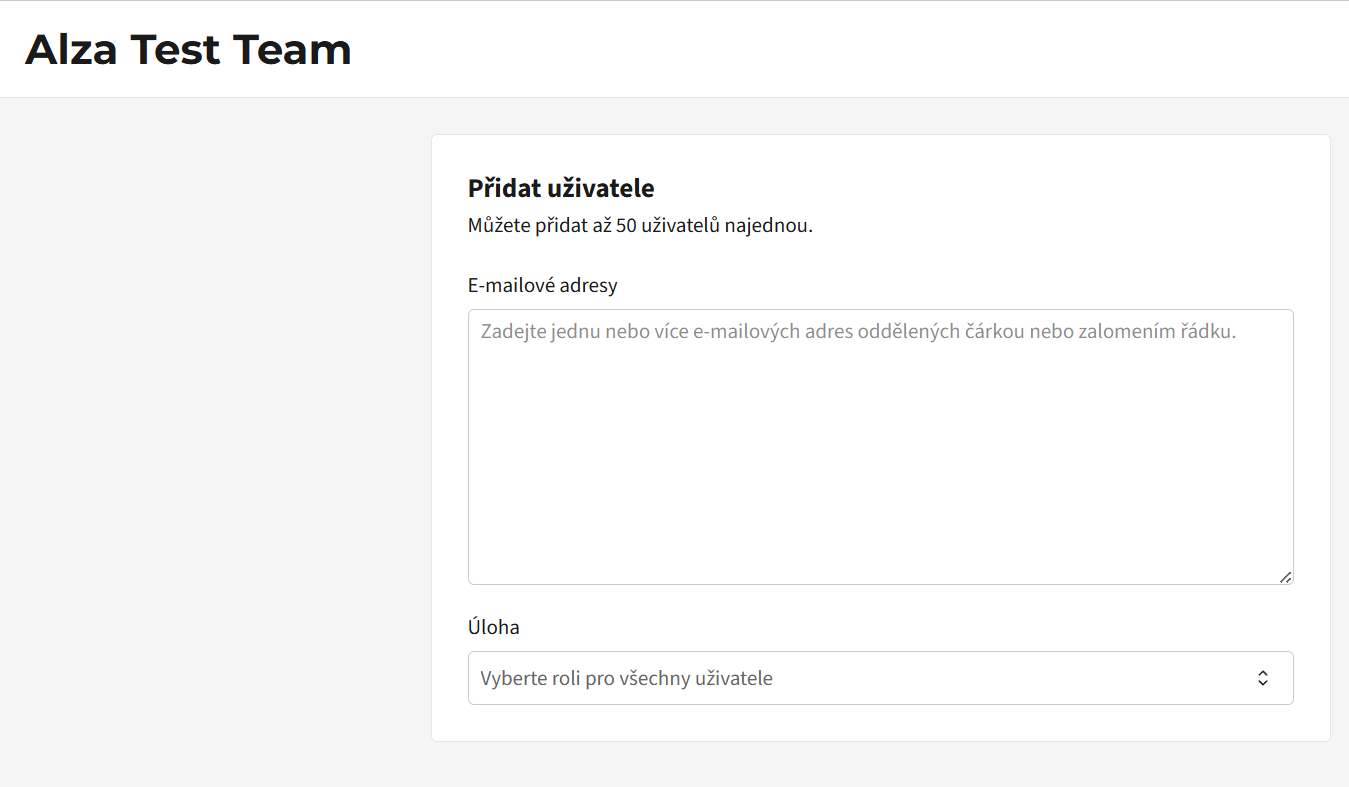
Přidat uživatele
Po kliknutí na pole „Přidat uživatele“ můžete poslat nové pozvánky do vašeho týmu. Při vytváření pozvánky musíte zadat e-mailovou adresu nového uživatele a zvolit úroveň oprávnění. Je možné souhrnně přidat až 10 adres. Pozvánku vytvoříte kliknutím na tlačítko „Přidat“ v pravém dolním rohu. V hlavním přehledu vašeho týmu pak uvidíte, zda je uživatel v týmu aktivní, anebo čeká.
Typy reklam
AlzaAds v tuto chvíli nabízí kampaně na sponzorované produkty. Lze je spustit na webu Alzy a v našich mobilních aplikacích. A to v Česku, na Slovensku a v Maďarsku.
Sponzorované produkty
Sponzorované produkty vám umožní nabídnout vámi dodávaný produkt potenciálním zákazníkům v momentě, kdy jsou připraveni ve vaší kategorii nakupovat. Zobrazují se běžně na prvních třech pozicích ve výpisu doporučených a nejprodávanějších produktů v jednotlivých kategoriích. Během akcí (Alza Dny, MEGA slevy apod.) jsou ve vybraných kategoriích sponzorované produkty dokonce na prvních čtyřech pozicích. Vámi dodávaný produkt tak dostane mimořádnou pozornost a šanci zařadit se do nákupního rozhodování.

Zobrazují se na prvním místě ve výpisu kategorie v záložkách „Doporučujeme“ a „Nejprodávanější“, na webu i v mobilní aplikaci.
Sponzorované produkty jsou označeny jako „Sponzorováno“, jinak se neliší od zobrazení ostatních produktů.
Inzerent standardně platí za proklik (CPC neboli cost-per-click) v aukci, alternativně lze pozici i exkluzivně garantovat na domluvený čas. Víc v sekci „Nákupní model“.
Produkt, který vyhraje aukci, se zobrazuje dalších až 5 minut pro všechny uživatele. Pak proběhne aukce znovu.
Každá kategorie na Alze má určenou minimální cenu za proklik, kterou lze vidět při nastavování kampaně v rozhraní AlzaAds.
Sponzorované produkty ve výsledcích vyhledávání
Velká většina vyhledávacích dotazů je dnes směrována přímo do kategorií, kde už běží vaše kampaně. Pokud ale k přesměrování nedojde a zobrazíme uživateli výpis relevantních kategorií a produktů, může se na jedné sponzorované pozici v tomto výpisu objevit i vámi dodávaný produkt.
Není potřeba nic nastavovat – vaše kampaně se automaticky začnou zobrazovat i ve výsledcích vyhledávání. Podmínkou je, aby kampaně běžely v kategorii, kterou systém vyhodnotí jako relevantní k hledanému dotazu. Díky této nové možnosti zobrazení vašich produktů na webu i v aplikacích Alzy můžete očekávat mírné zvýšení impresí a prokliků u běžících kampaní.
Nákupní model
Nákup reklamy probíhá dvěma způsoby – standardně pomocí aukce, kdy se platí za proklik, nebo lze vybrané reklamní plochy obsadit exkluzivně na domluvený čas (tzv. booking).
Aukce
Standardně se reklama v AlzaAds prodává na bázi aukce, přičemž se platí za jednotlivé prokliky (klik na produkt nebo vložení do košíku). To znamená, že inzerent může pomocí výše bidu ovlivnit úspěšnost svých kampaní. Aukce probíhá každých pět minut a běží na bázi tzv. second-price, což je model výhodný pro inzerenty. Vítězná cena za proklik bude mezi maximálním bidem nastaveným v kampani a bidem druhého konkurenta v pořadí. Pokud je například váš maximální bid 50 Kč a bid nejbližšího konkurenta 30 Kč, v případě vítězství v aukci zaplatíte částku mezi 30 a 50 Kč.
Second-price aukce usnadňuje inzerentům správu kampaní. Maximální bid můžete klidně nastavit výš a systém sám zabezpečí, že budete platit jenom tolik, kolik je nutné pro vítězství v aukci. Odpadá tak nutnost každodenní kontroly a úprav maximálního bidu, vaše kampaň se automaticky přizpůsobuje bidům v kampaních konkurence.
Maximální výše bidu není jediným faktorem v aukci, zohledňuje se také míra prokliku vašich reklam a relevance reklamy samotné. Výběr produktu k inzerci a nabídka pro zákazníka je zásadní pro efektivitu vašich kampaní. Pro maximální úspěšnost vašich kampaní volte atraktivní, dobře prodejné produkty, o které budou mít zákazníci opravdu zájem.
K odhadnutí výše bidu, který nastavit do aukce, pomáhá náš report Rádce pro výši bidu, který zobrazuje historická data v jednotlivých kategoriích z předchozího dne. Najdete jej zde: alzaAds Recommended bid per Category. Více informací naleznete v záložce Rádce pro výši bidu v nápovědě.
Booking
Po domluvě lze obsadit vybrané reklamní plochy exkluzivně na domluvený čas. Například máte launch nového produktu a chcete jej na několik dní zobrazit na první pozici ve vybrané kategorii. Produkty v Bookingu se neúčastní aukce, ale mají pozici exkluzivně garantovanou. Pokud již máte účet v AlzaAds, v případě zájmu o booking se ozvěte na [email protected].
Atribuce
Atribuční model je důležitý pro správnou interpretaci výsledků vašich kampaní. Určuje, kolik konverzí je přiřazeno k jednotlivým kampaním. Atribuční okno pro sponzorované produkty je 30 dní po prokliku. Když tedy uživatel klikne na vámi sponzorovaný produkt a do 30 dní produkt koupí, přičte se kampani jak klik, tak i prodej (konverze). Ve standardním reportingu se počítá jenom nákup přesně toho produktu, na který uživatel klikne.
Peněženky a fakturace
Peněženky
Peněženky obsahují kredit, který můžete použít pro své kampaně. Každá kampaň musí mít přiřazenou peněženku, ze které čerpá. Kampaně běží do vyčerpání kreditu v peněžence, pokud nemají nastaveny jiné limity. Peněženky tak můžou sloužit k omezení celkové útraty skupiny kampaní, které čerpají ze stejné peněženky. Fakturace probíhá na základě realizované útraty za fakturované období, výše případného zůstatku v peněžence nehraje roli. Pro doplnění kreditu v peněženkách prosím kontaktujte naši podporu [email protected].
V AlzaAds můžete mít peněženku ve třech měnách – Kč (CZK), EUR a HUF. Podle použité peněženky při nastavování kampaně se automaticky vybere země, kde bude vaše kampaň běžet – Česká republika, Slovensko nebo Maďarsko.
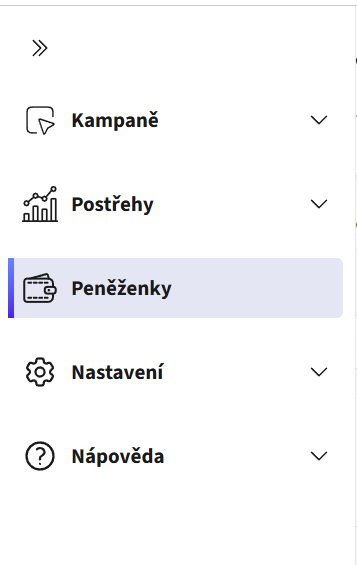
Při založení účtu vám budou automaticky vytvořeny peněženky v měnách, které potřebujete, s počátečním kreditem 100 000 Kč (a ekvivalentem této částky v ostatních měnách), aby vás ve spuštění kampaně nic neomezovalo. Své peněženky si můžete zobrazit v sekci „Peněženky“.
Správce peněženek
Správce peněženek vám ukáže stav vašich peněženek a jejich dostupný zůstatek. Peněženky lze filtrovat podle jejich názvu a stavu (Aktivní, Dochází, Vyčerpaný kredit, Archivováno). V případě vyčerpaného kreditu peněženky není možné spouštět na ni kampaně. Pro dobití kreditu prosím kontaktujte naši podporu na [email protected].
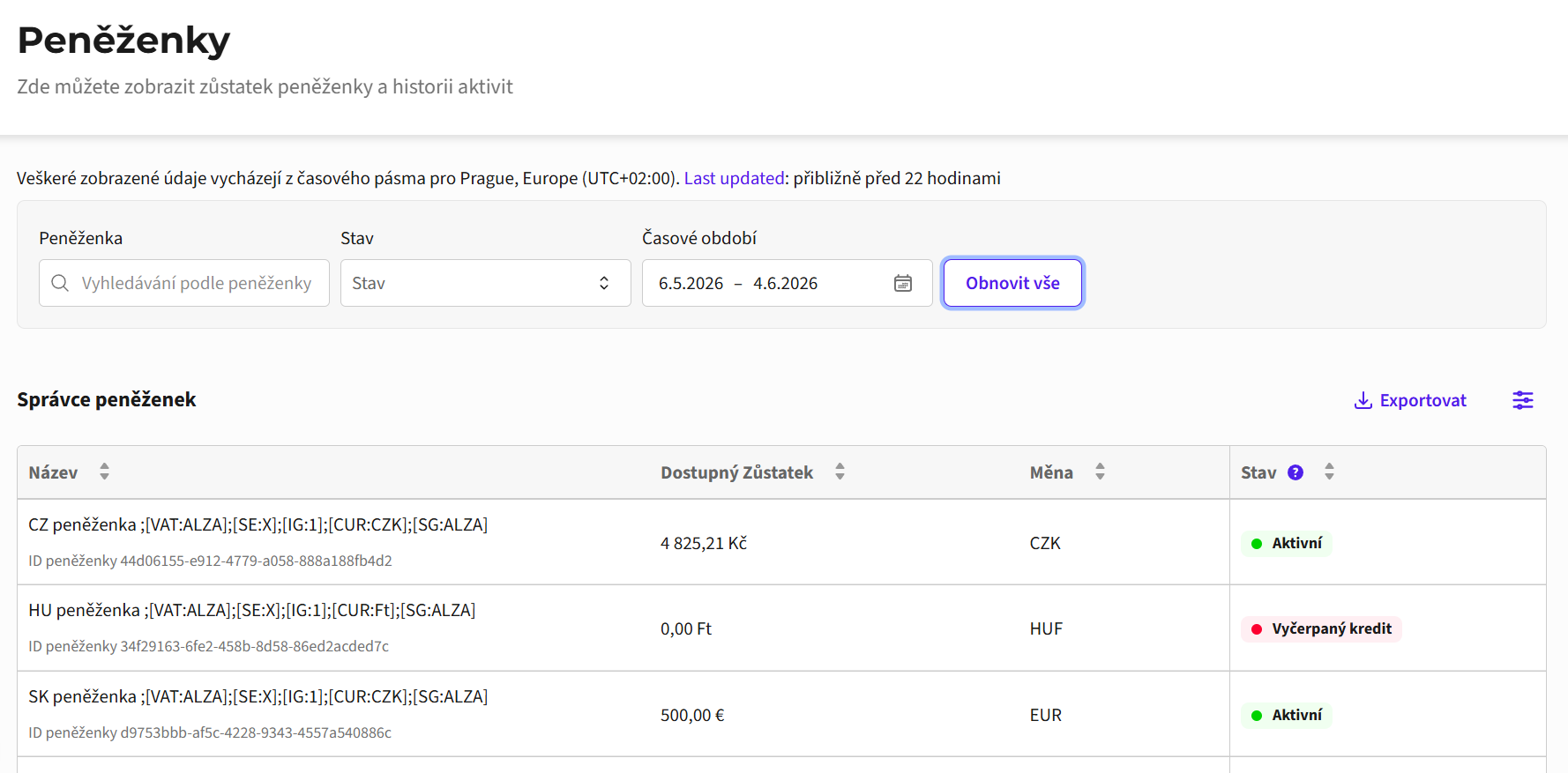
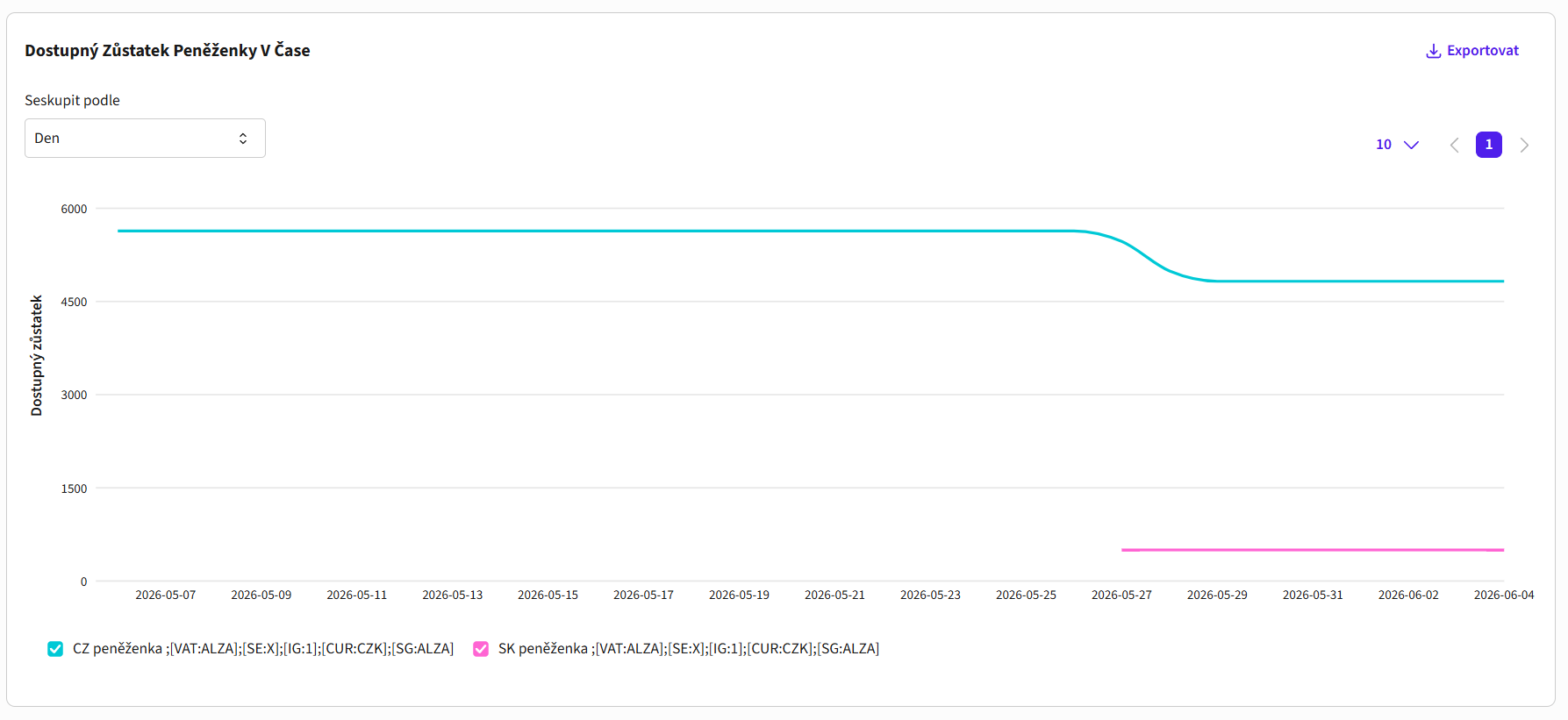
Pod základním přehledem najdete graf disponibilního zůstatku peněženky v čase. Období, které chcete zobrazit, si můžete nastavit v poli „Časové období“ na vrchu stránky.
Tabulka „Historie činností“ vám ukazuje veškeré změny kreditu ve vaší peněžence za vybrané období, tzn. dobití kreditu anebo snížení této částky.

Vytvoření nové peněženky
Pokud potřebujete další peněženky, například kvůli dedikovaným rozpočtům pro různé aktivity (launch nového produktu, letní kampaň apod.), obraťte se na [email protected] a my vám je vytvoříme. Pro vytvoření peněženky potřebujeme znát název vašeho týmu v AlzaAds, název vytvářené peněženky, měnu, výši požadovaného kreditu a jestli jde o novou nebo stávající peněženku. Žádost o vytvoření peněženky musí přijít z e-mailové adresy uživatele, který má v týmu aktivní účet s plným oprávněním.
Do názvu peněženky přidáme tzv. fakturační tagy, které určují zejména to, na jakou entitu se bude peněženka fakturovat, v jaké měně, nebo které peněženky se mají sloučit do jedné faktury. Názvy peněženek není možné editovat, abychom zachovali integritu fakturačních tagů. Pokud budete chtít něco v názvu změnit, napište na [email protected] a my to zařídíme.
Název peněženky se tak bude skládat z vašeho vlastního názvu (můžete si ho nadefinovat sami, může obsahovat například PO number apod.) a fakturačních tagů, např.:
CZ Peněženka;[SG:Segment];[VAT:CZ27384802];[SE:AlzaTest01];[IG:1];[CUR:CZK];[EML:[email protected]]
Co jednotlivé tagy znamenají?
[SG:] – segment, pro který je peněženka určena. Již není nutné oddělovat jednotlivé segmenty po peněženkách, tag slouží primárně pro vaši interní orientaci.
[VAT:] – DIČ fakturační entity. Díky tomu si můžete snadno ověřit, že fakturace probíhá na správnou entitu. Fakturační entita nemusí být shodná s vlastníkem účtu. Pokud chcete nastavit jinak, kontaktujte nás prosím na [email protected] a domluvíme se individuálně.
[SE:] – identifikátor fakturační entity v Alze.
[IG:] – fakturační skupina. Peněženky, které mají být na stejné faktuře, musí mít stejné číslo fakturační skupiny.
[CUR:] – fakturační měna. Může být CZK, EUR, HUF nebo USD.
[EML:] – kontakt, na který bude faktura zasílána.
Prosíme, kontrolujte si správnost svého fakturačního kontaktu pravidelně. Pokud je potřeba kontakt aktualizovat, kontaktujte podporu [email protected], aby kontakt změnila i ve fakturačním tagu vašich peněženek.
Fakturace
Fakturace AlzaAds probíhá na měsíční bázi podle kalendářních měsíců, přičemž fakturujeme skutečnou útratu na úrovni týmu za poslední měsíc. Podkladem pro fakturaci je celková částka za všechny kampaně v poli „Výdaje na reklamu“ v přehledu vašich kampaní za uplynulý měsíc.
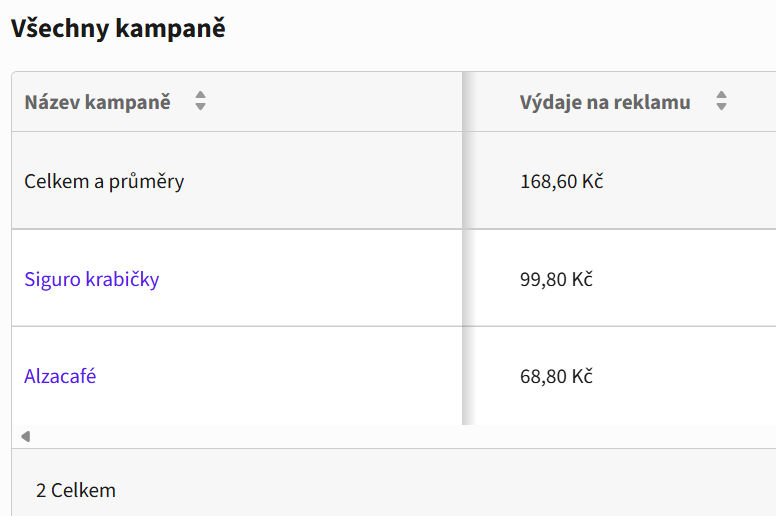
Faktura se posílá do dvou týdnů po skončení fakturovaného období na kontakt uvedený v rozhraní v sekci „Uživatelské nastavení/Fakturace“, platba je, pokud možno, realizovaná zápočtem.
Doporučujeme pravidelnou kontrolu aktuálnosti kontaktu pro fakturaci. Pokud budete potřebovat udělat změnu fakturační adresy, je třeba kontaktovat [email protected] a změnit ji i ve fakturačním tagu peněženky. V případě jakýchkoliv dotazů ohledně peněženek se prosím obracejte na [email protected].
Při vystavování faktur může docházet k menším rozdílům oproti statistikám v rozhraní. Je to dáno přepočty kurzu nebo rozdílnou časovou zónou pro reporting k fakturaci a reporting v rozhraní. V případě větších rozdílů kontaktujte [email protected].
Vytvoření kampaně
Vytvoření kampaně na sponzorované produkty je snadné a rychlé. Díky jednoduchému rozhraní to zvládne každý i bez předchozích zkušeností. Vše potřebné je popsáno v tomto návodu, v případě potřeby se obraťte na [email protected]. Postupujte krok za krokem, v případě potřeby se lze vrátit na předchozí záložku a nastavení upravit. Na konci si budete moct ještě jednou všechna nastavení zkontrolovat v přehledném shrnutí.
Začněte tím, že na hlavním panelu kliknete na modré tlačítko „Nová kampaň +“:
Nastavení kampaně
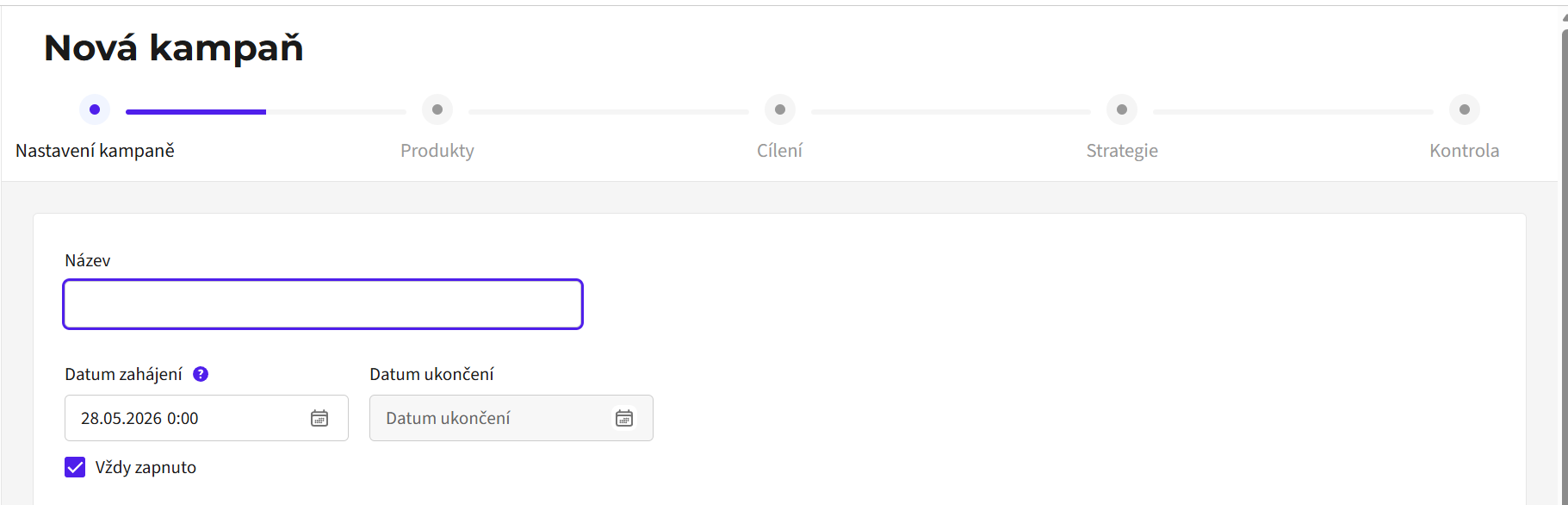
Prvním krokem je základní nastavení kampaně. Vyplňte název své kampaně. Doporučujeme vám nastavit si v týmu konzistentní pojmenovávání všech kampaní kvůli přehlednosti. Např. Značka – Typ kampaně (zkratka SP jako Sponzorované produkty) – Země – Typ produktu – Časové rozmezí.
Vyberte období, po které bude vaše kampaň aktivní. Doporučujeme vybrat možnost „Vždy zapnuto“. Kampaň tak bude běžet od momentu spuštění do vyčerpání kreditu v peněžence, při dodržení případných denních nebo celkových limitů útraty kampaně (lze nastavit v pozdějším kroku).
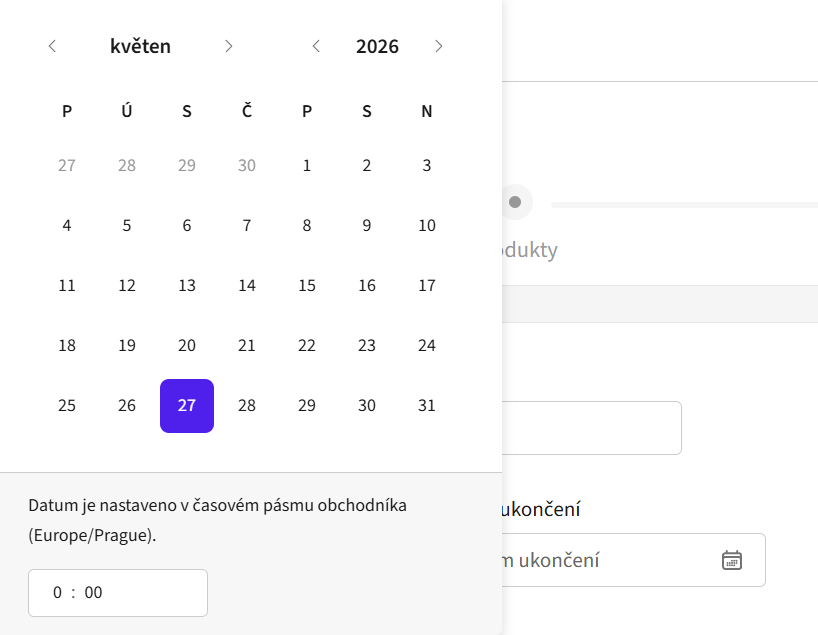
Pokud vyberete možnost „Vždy zapnuto“, můžete si zvolit plánované datum zahájení kampaně. Výchozí datum zahájení je zítra (kampaň se začne vydávat druhý den od spuštění). Alternativně si můžete v kalendáři zvolit aktivní období, kdy má kampaň přesně běžet. To je ideální pro kampaně, které mají jasné časové ohraničení, např. letní kampaň.
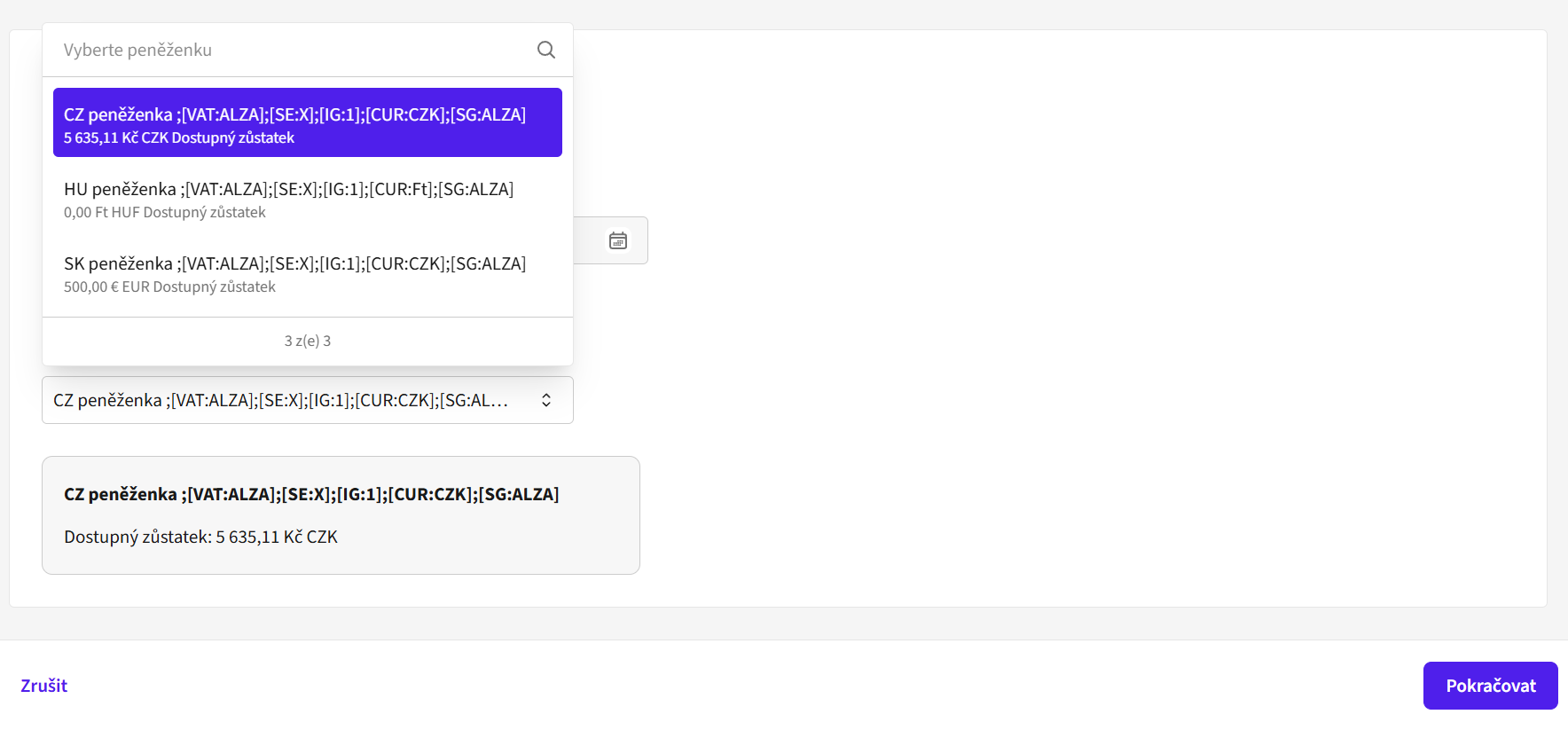
V dalším kroku si vyberte peněženku, ze které chcete v kampani čerpat kredit. Výběrem peněženky v určité měně zároveň vyberete zemi, ve které vaše kampaň poběží. Zvolíte-li například peněženku v měně Kč/CZK (česká koruna), budete si vybírat produkty z českého katalogu Alzy a vaše kampaň se bude zobrazovat na českém webu a v české aplikaci Alzy. Pokud chcete spustit kampaň i v další zemi, např. na Slovensku, je potřeba vytvořit samostatnou kampaň a vybrat slovenskou peněženku v měně EUR.
Po výběru peněženky klikněte na modré tlačítko „Pokračovat“.
Produkty
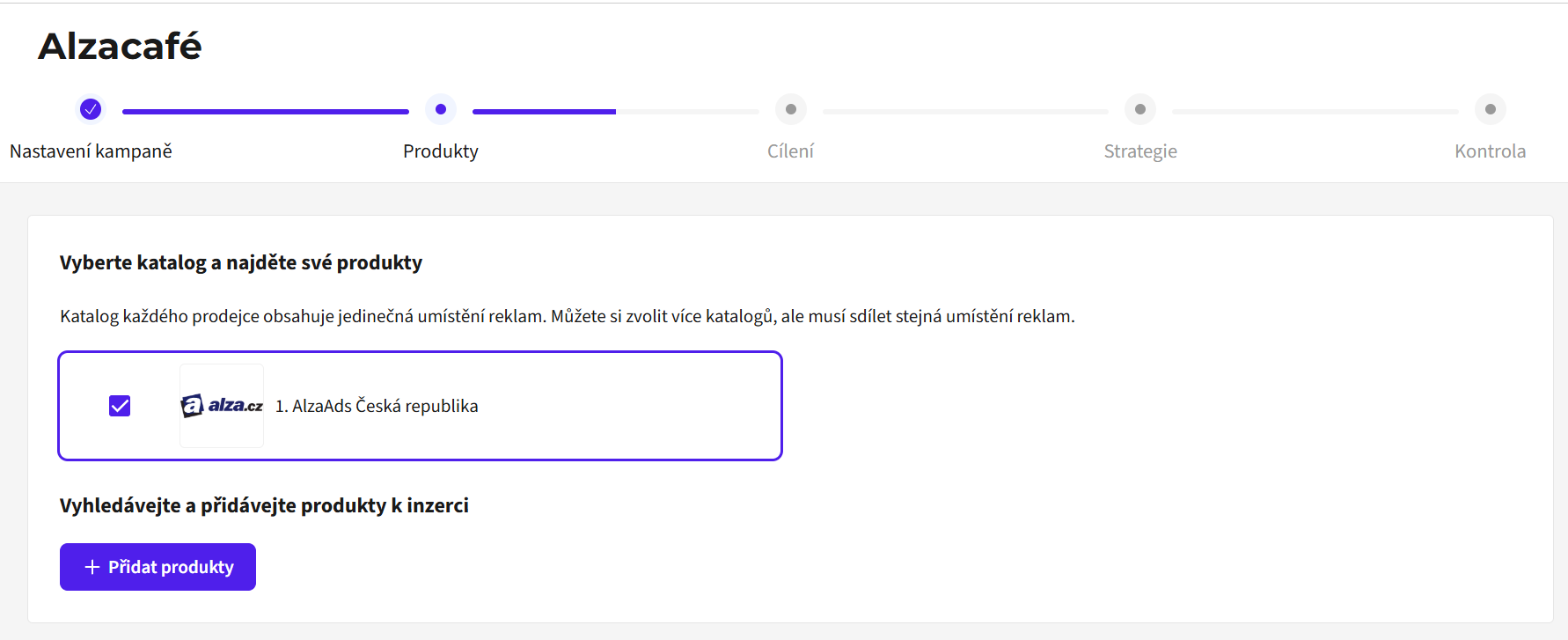
V prvním kroku „Vyberte katalog“ nedělejte nic. Pro každou zemi existuje právě jeden katalog, který je ve výchozím nastavení již zvolený podle peněženky, kterou jste zvolili v předchozím kroku (CZ peněženka = CZ katalog apod.).
Vyberte si produkty, které chcete inzerovat v této kampani. Pro přidání produktu do kampaně klikněte na modré tlačítko „+ Přidat produkty“.
Otevře se pop-up okno „Procházet všechny produkty“. Zde můžete vyhledat své produkty ve vyhledávači.
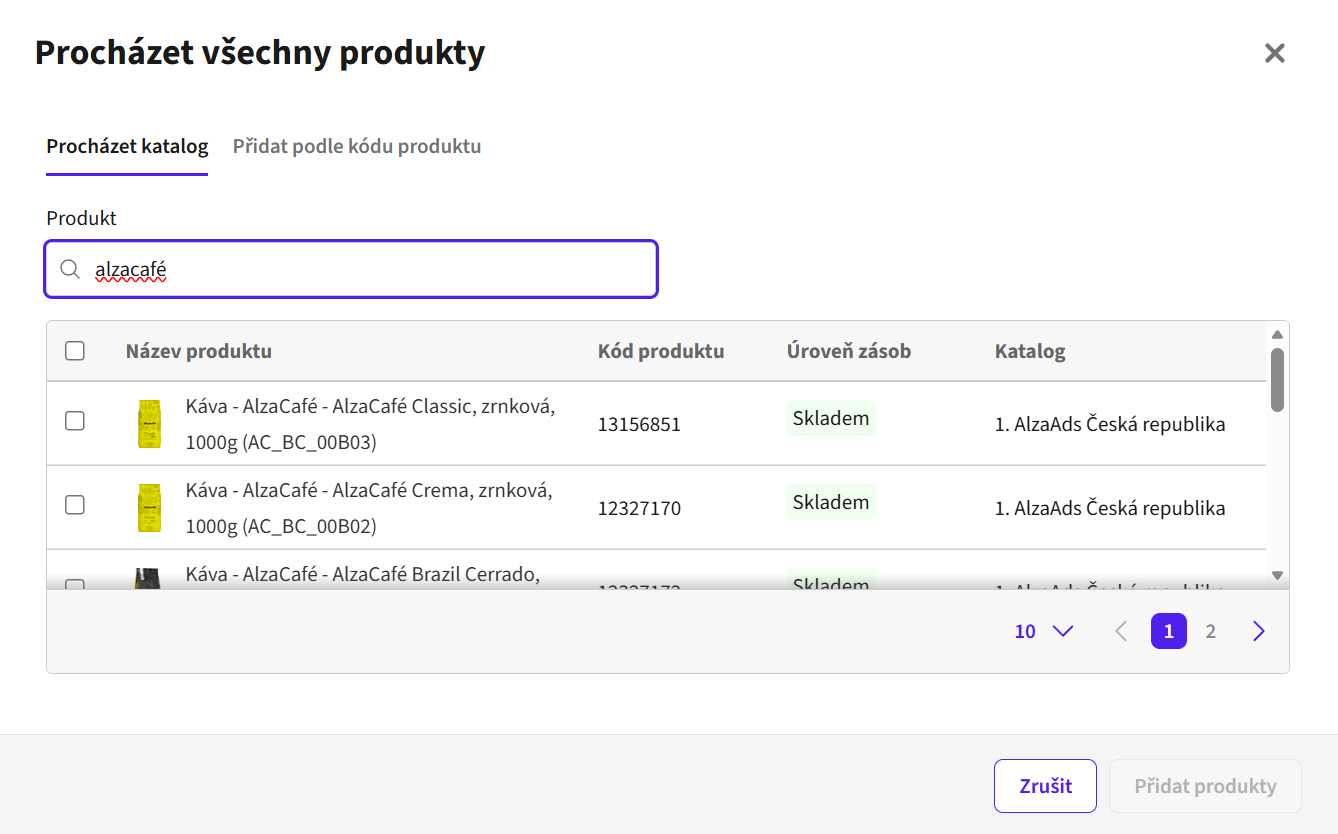
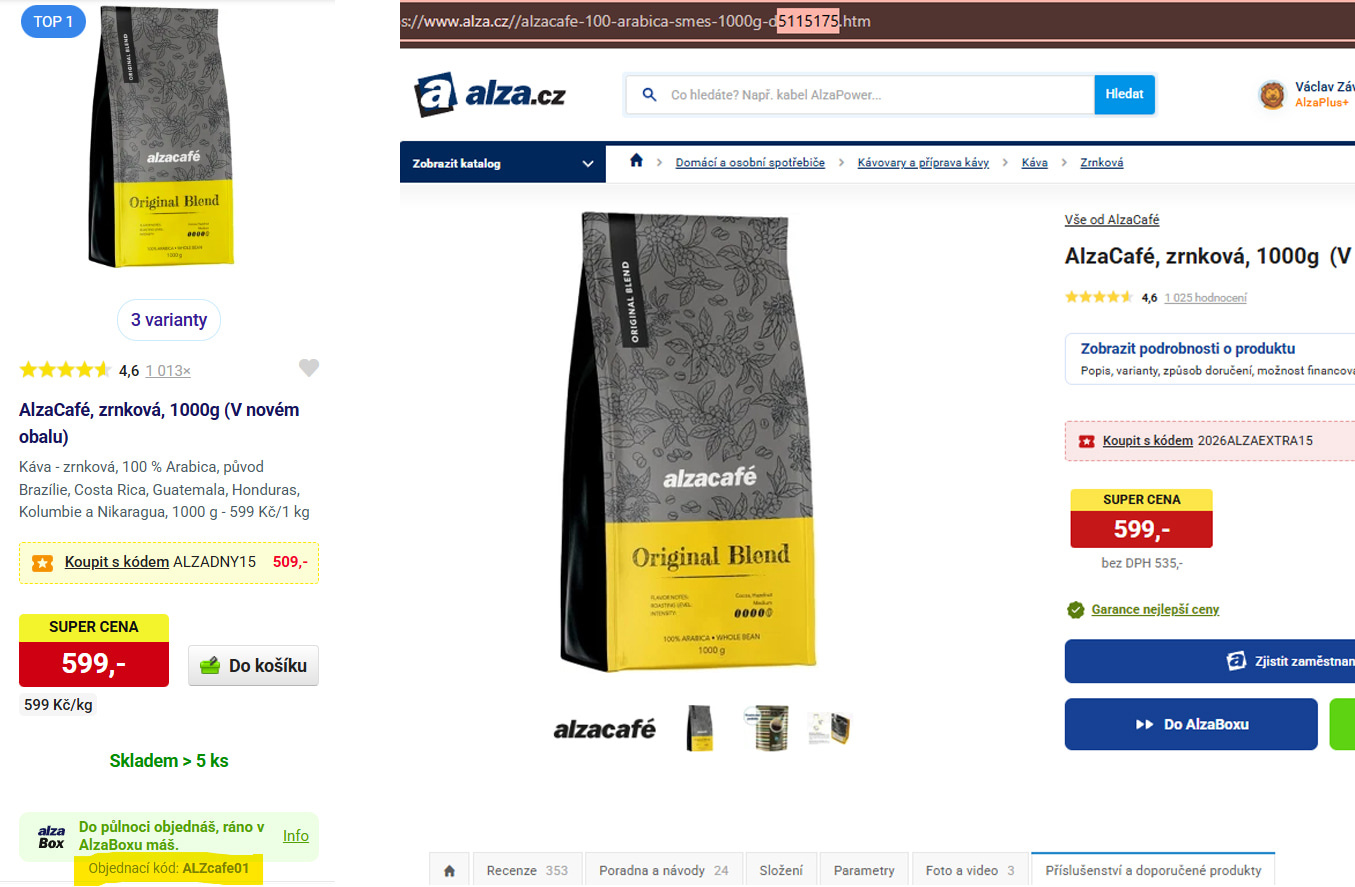
Produkt můžete filtrovat podle jeho názvu na Alze, podle značky, podle typu produktu (např. káva, mobilní telefon atp.) anebo podle objednacího kódu na Alze nebo podle kódu produktu v URL (kombinace čísel následující za písmenem d). Vyhledávání je citlivé na přesné názvy produktů, kategorií a značek. Pokud je nenapíšete přesně, nemusí se povést produkt najít. Doporučujeme proto vyhledávat podle kódu produktu, je to nejjistější.
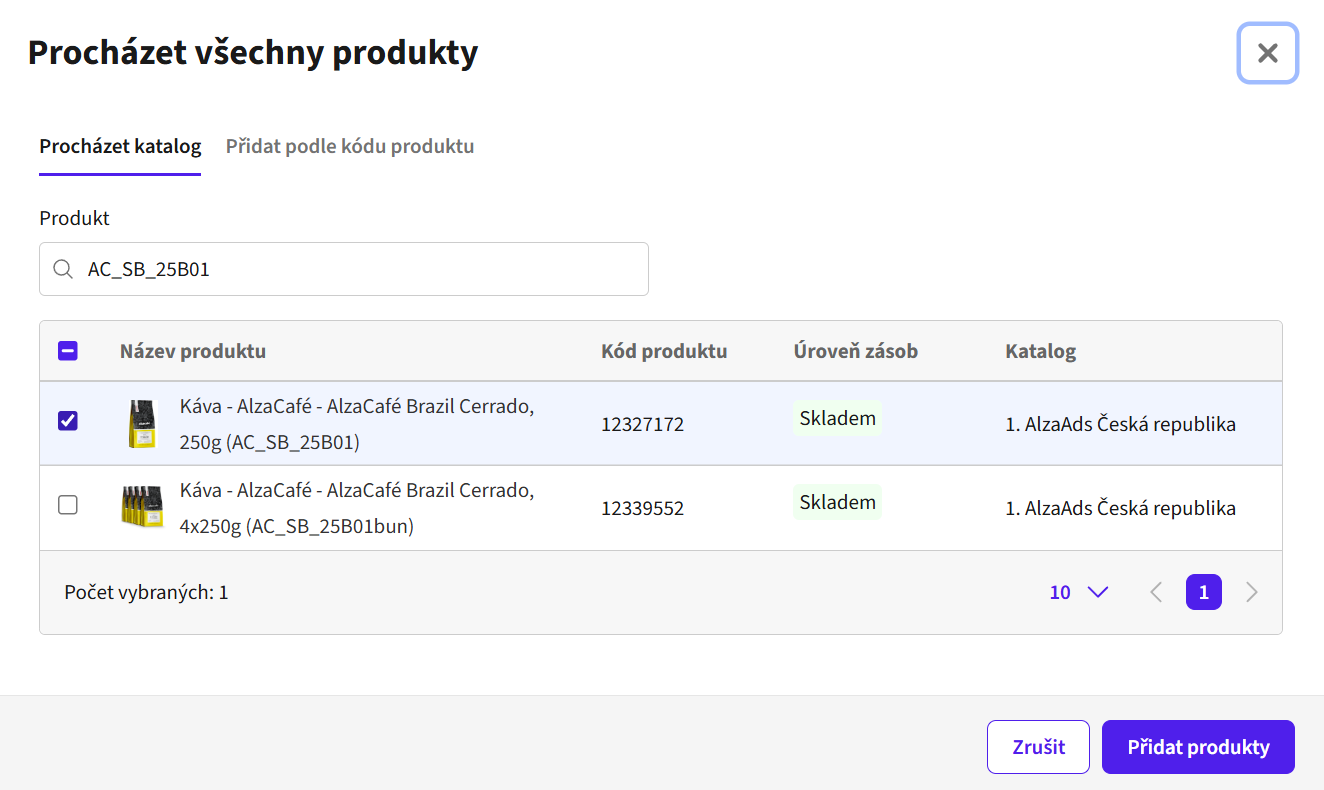
Pro jednu kampaň doporučujeme vybrat alespoň dva produkty, zajistíte tak, že bude optimálně probíhat. Systém AlzaAds si z vašich zvolených produktů v průběhu kampaně vybere ty úspěšnější a bude je v aukci lehce upřednostňovat. Vybráním alespoň dvou produktů také zamezíte případnému vypnutí kampaně v případě, že by váš produkt vypadl ze skladové zásoby.
Do kampaně lze vybrat pouze produkty, které jsou v dané chvíli na webu skladem. Produkty, co skladem nejsou, systém ve vyhledávání nenajde. Po znovunaskladnění se produkt automaticky propíše zpátky do AlzaAds, je zde však časová prodleva až 48 hodin oproti webu Alzy. Po výběru produktů klikněte na „Přidat produkty“.
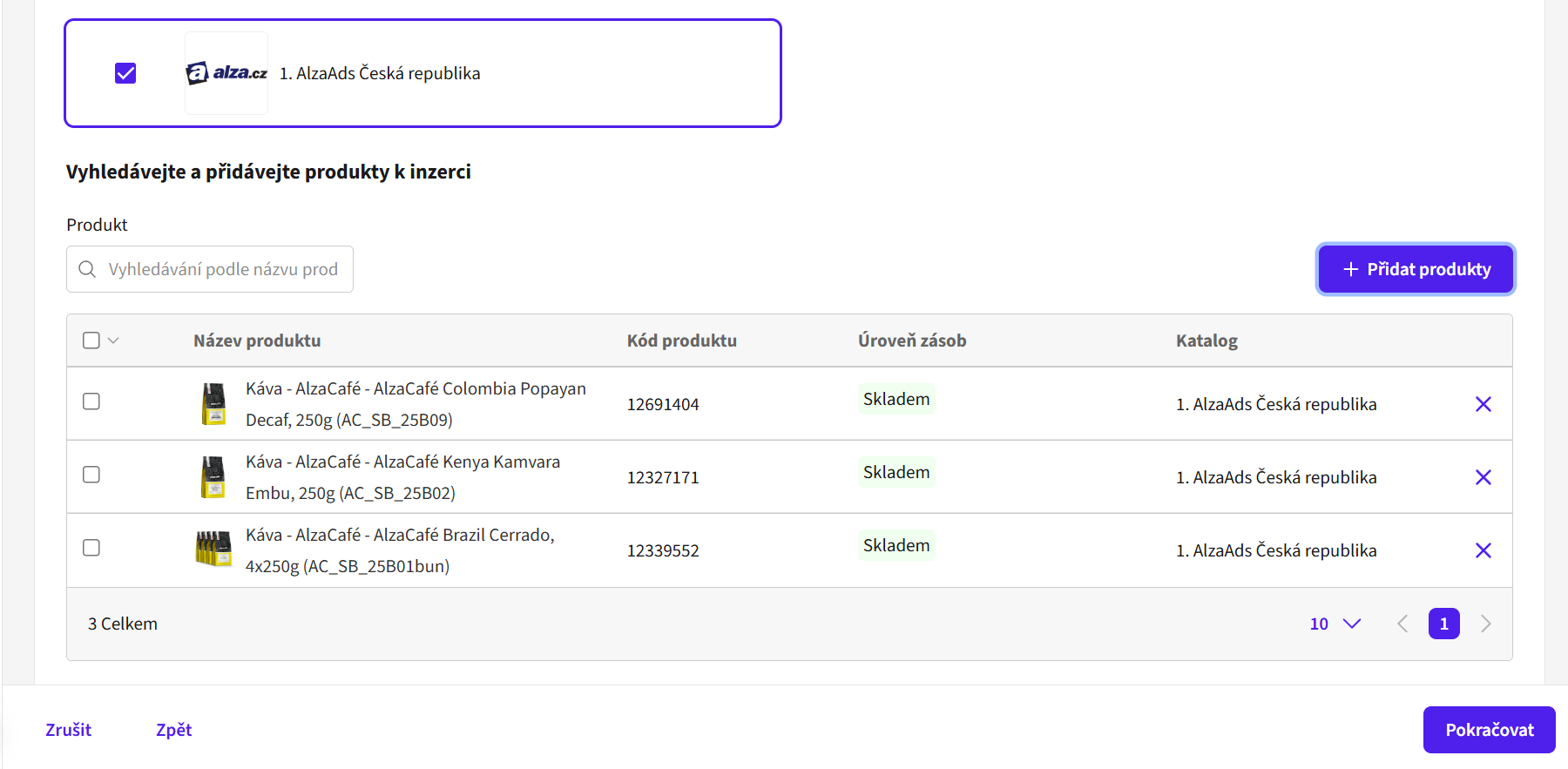
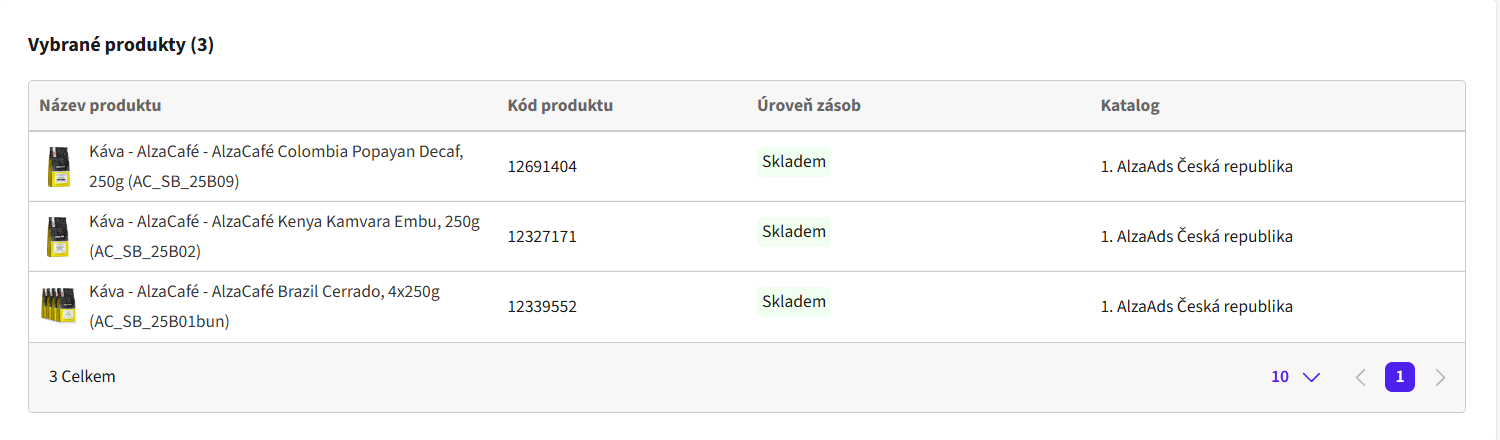
Po opuštění pop-up okna uvidíte seznam všech produktů, které máte vybrané do kampaně. Pokud jste spokojení s vaším výběrem, klikněte na modré tlačítko „Pokračovat“.
Cílení
V této části vybíráte umístění vaší kampaně na webu Alzy a kategorie, ve kterých se vaše kampaň bude zobrazovat.
Co se týče umístění, jediný možný formát je v tuto chvíli sponzorovaný produkt v rámci kategorie, tedy umístění „Category“. Zde tedy nic neměníte.
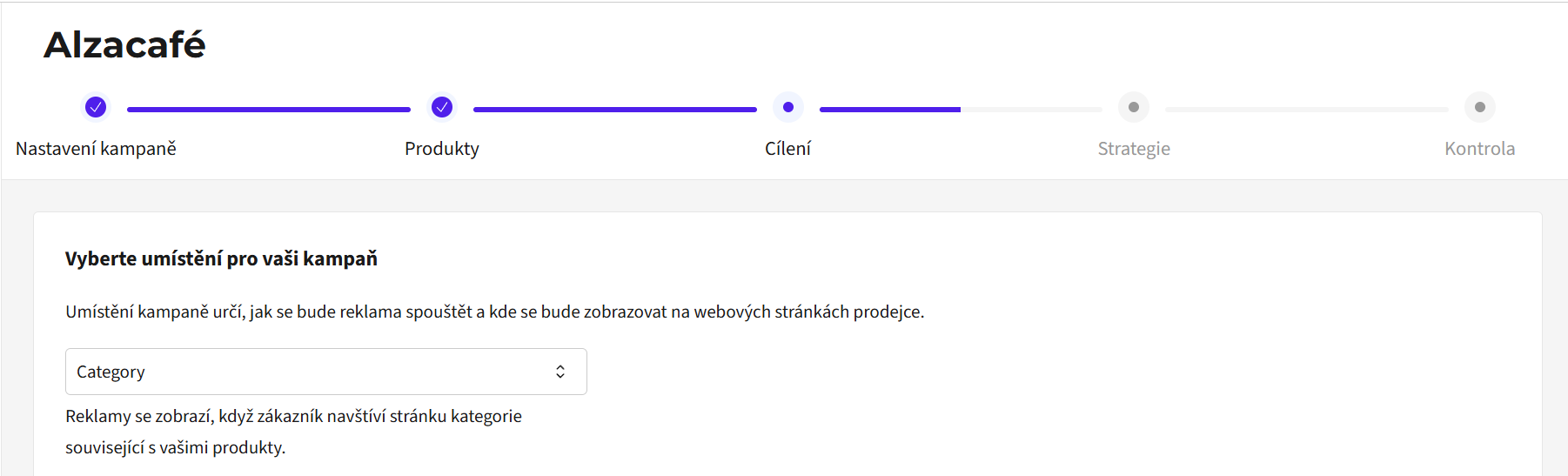
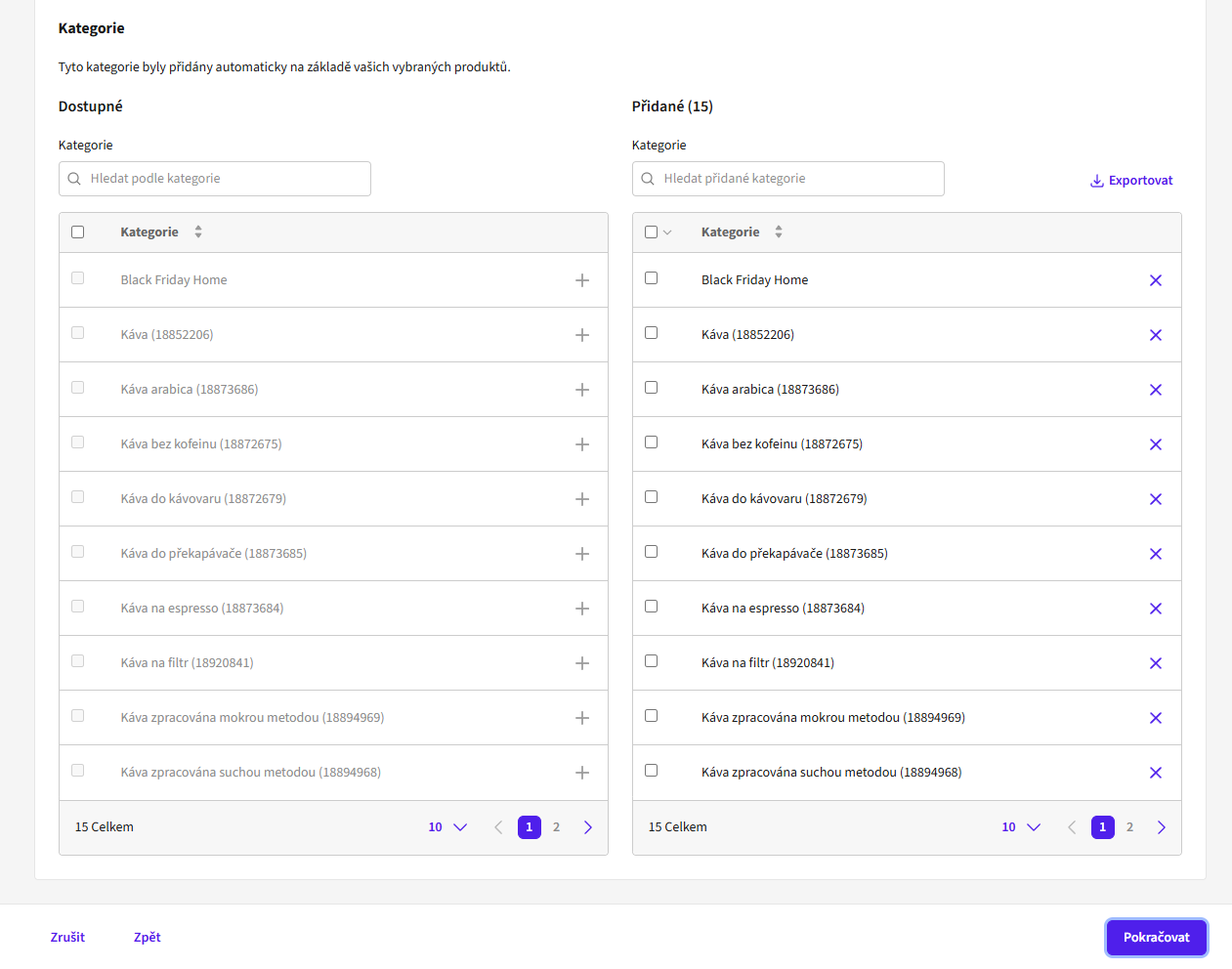
U výběru kategorií vám systém AlzaAds automaticky nabídne všechny kategorie, ve kterých jsou vámi vybrané produkty na Alze zalistované = vybrané produkty se zde samovolně zobrazují. Doporučujeme ve výběru ponechat všechny kategorie pro maximální viditelnost vašeho produktu. Menší, a tím pádem i konkrétnější kategorie sice budou mít nižší celkovou návštěvnost, avšak často do nich najdou cestu zákazníci, kteří jsou rozhodnuti produkt koupit. Menší kategorie tak zpravidla přináší vyšší ROAS. Menší kategorie zároveň mohou mít menší konkurenci dalších inzerentů a tím nižší potřebnou cenu za proklik.
Všechny dostupné kategorie se vám zobrazí v levém sloupci tabulky. Defaultně přidané kategorie se vám ukazují v pravém sloupci. Pokud chcete nějakou kategorii z kampaně odebrat, odeberete ji křížkem vpravo od názvu a tím se přesune do sloupce vlevo.
Po odebrání se vám kategorie zobrazí v levém sloupci tabulky mezi dostupnými kategoriemi. Můžete ji snadno do výběru vrátit pomocí modrého tlačítka „+“ za názvem kategorie.
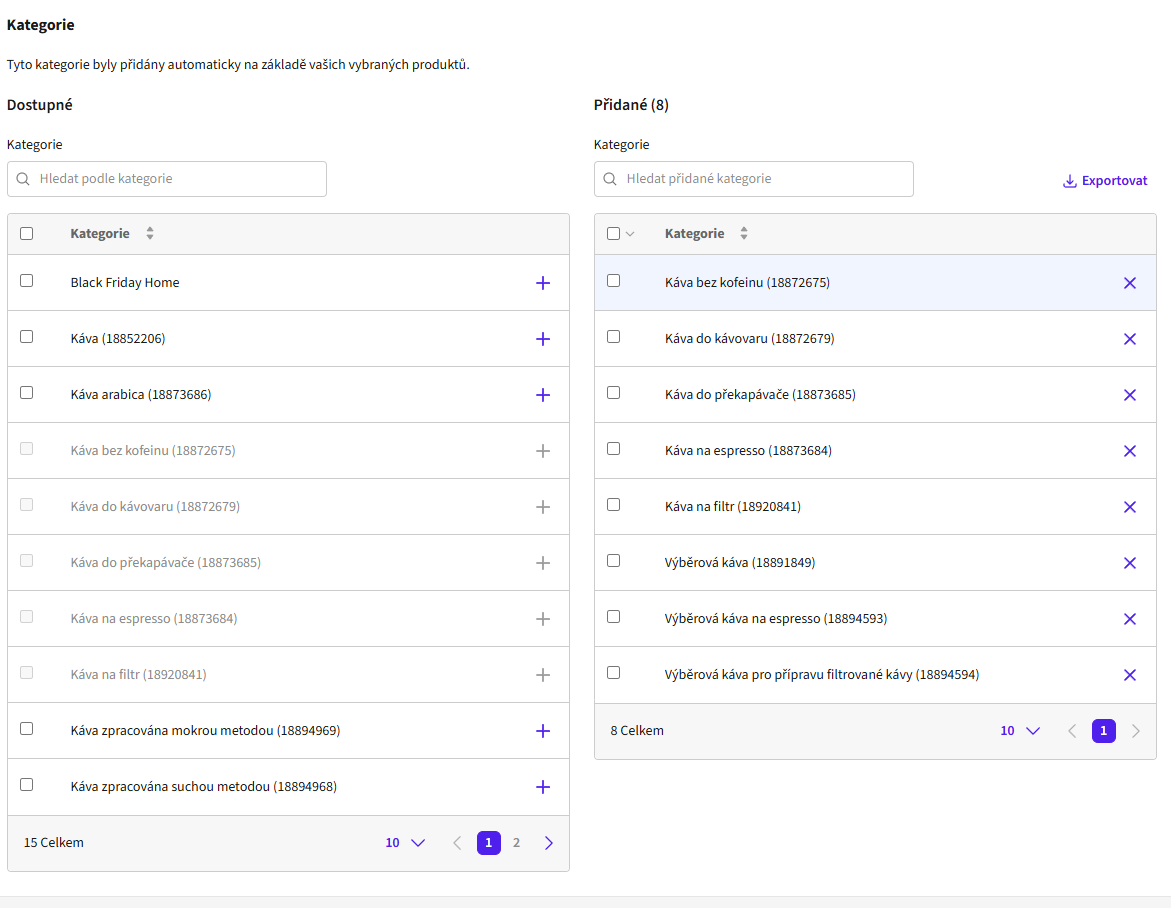
Každá kategorie má za názvem v závorce ID, podle kterého ji lze jednoznačně identifikovat na webu Alzy. Tohle ID se vždy zobrazuje v URL dané kategorie a lze podle něj kategorie na webu Alzy vyhledávat. Díky tomu přesně víte, kde se bude vaše reklama zobrazovat.
Když necháte v kampani všechny nabízené kategorie beze změny, systém sám pozná nově vytvořené kategorie, které jsou pro vás relevantní, a automaticky je zařadí do cílení vaší kampaně. Pokud ale aspoň jednu kategorii odškrtnete, nové kategorie se už v budoucnu nepřidají a je případně potřeba je manuálně přidat v nastavení kampaně.
Pokud jste spokojení s výběrem svých kategorií, pokračujte do další části nastavení kampaně přes modré tlačítko „Pokračovat“.
Strategie
V tomto kroku nastavujete vaši bidovací strategii. V horní části vidíte, z které peněženky budete čerpat kredit pro tuto kampaň a jaký má dostupný zůstatek.
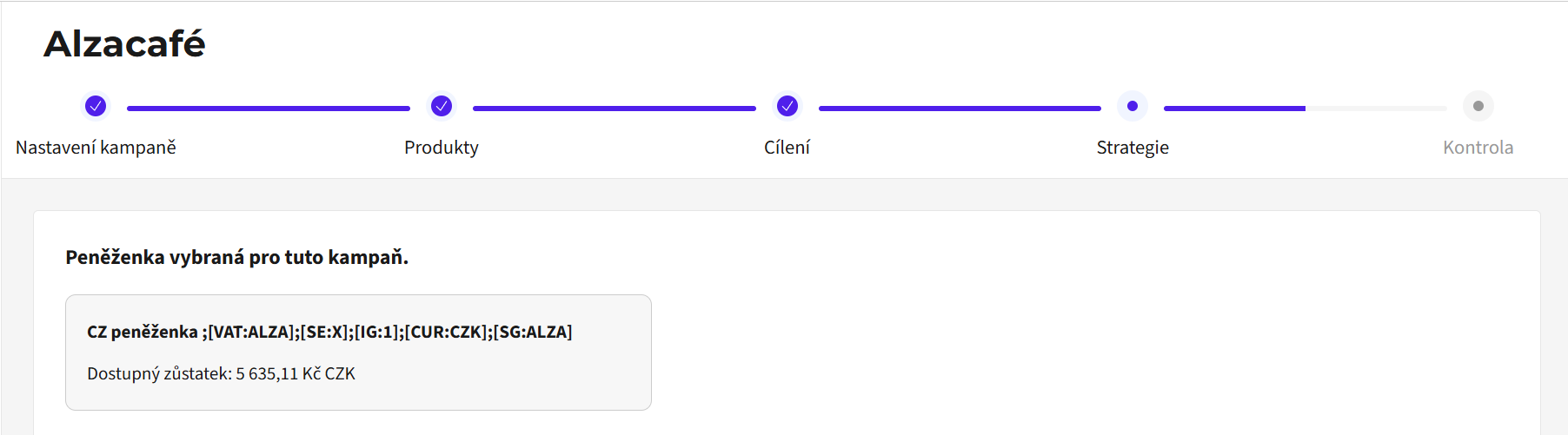
Dále si můžete nastavit limit výdajů na kampaň, a to buď na úrovni dne, nebo celé kampaně. Doporučujeme nastavit spíše celkový limit pro danou kampaň. Zajistíte tak, že vaše kampaň bude mít šanci vydávat se po celý den. Pokud budete mít nastavený denní limit, může se stát, že se naplní již dopoledne, vaše kampaň se pro daný den zastaví a vy přijdete o potenciální prodeje v odpoledních a večerních hodinách. Pokud nemáte nastavený žádný limit, kampaň se bude průběžně vydávat, dokud bude v peněžence přiřazené ke kampani dostupný kredit.
Z technických důvodů se může stávat, že váš denní nebo celkový limit bude mírně překročen. Je to z důvodu toho, že každá aukce probíhá 5 minut; v případě, že vaše kampaň dosáhne svého limitu v průběhu aukce, aukce doběhne, jak má, a případné prokliky za tento čas se do kampaně započítají. Pokud potřebujete striktně dodržet rozpočet, doporučujeme nastavit limit o trochu nižší, než je váš rozpočet.
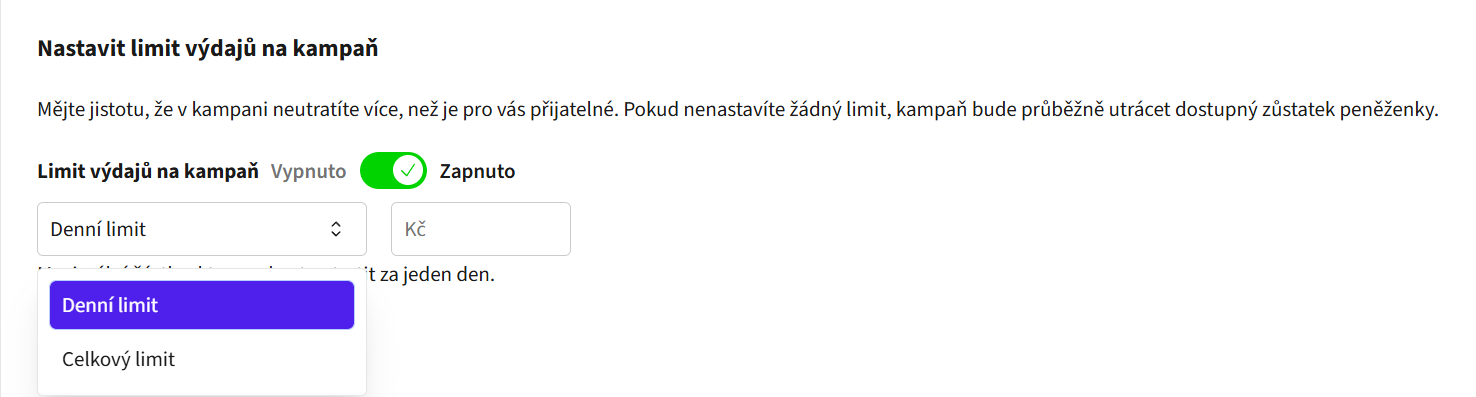
Pod částí nastavení výdajů najdete možnost automatizace úpravy nabídek. Automatizaci lze využít pouze při nastavení denního limitu na kampaň. Při nastavení automatizace si vyberete cíl vaší kampaně - zda chcete maximalizovat prodeje anebo prokliky. Systém bude výši vašeho bidu optimalizovat tak, aby se upřednostňovaly tržby anebo prokliky vaší kampaně podle vybraného cíle.
V poli „Cena za proklik (CPC)“ si nastavíte maximální cenu za proklik, kterou chcete vložit do aukce. Čím vyšší bude tato částka, tím vyšší bude pravděpodobnost, že se váš produkt zobrazí. Do kampaně nelze nastavit nižší hodnotu maximální ceny za proklik, než je minimální cena nejdražší kategorie ve výběru. Minimální ceny za proklik jednotlivých kategorií jsou k vidění u jednotlivých produktů. Zde také vidíte, ve kterých kategoriích se vám daný produkt bude zobrazovat.
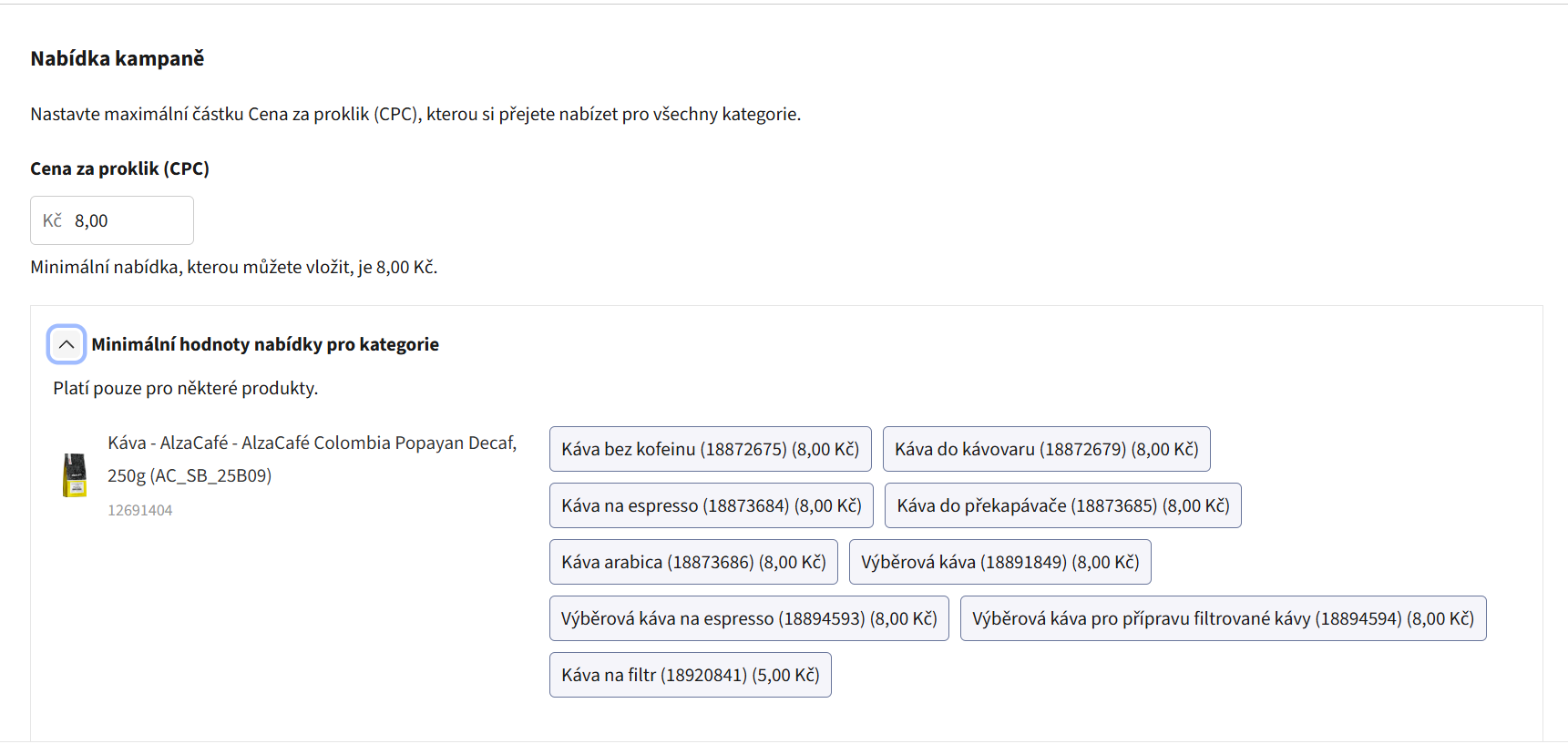
Reálná cena za proklik potřebná k zobrazení vaší reklamy závisí od konkurence v každé z kategorií. Může tak být i výrazně vyšší, než je minimální hodnota, kterou vidíte v rozhraní.
Doporučujeme pro dobrý rozjezd kampaně nastavit maximální cenu za proklik spíše vyšší a po několika dnech ji případně upravit podle výsledků. Jako vodítko se můžete podívat na minimální hodnoty ceny za proklik pro jednotlivé kategorie ve vašem výběru a na rádce pro výši bidu alzaAds Recommended bid per Category. Více informací o rádci najdete v záložce nápovědy Rádce pro výši bidu.
Po nastavení strategie pokračujte dále přes tlačítko „Pokračovat“.
Kontrola
V této záložce uvidíte shrnutí kampaně a můžete ji spustit anebo uložit na později jako koncept. Zkontrolujte si nastavení kampaně v jednotlivých oknech (Souhrn, Strategie, Vybrané produkty, Vybrané kategorie). Pokud chcete něco upravit, klikněte na pole „Zpět“ v levém dolním rohu, alternativně můžete přejít rovnou do kroku, který chcete upravit, pomocí záložek nahoře (Nastavení, Produkty, Cílení, Strategie, Kontrola).
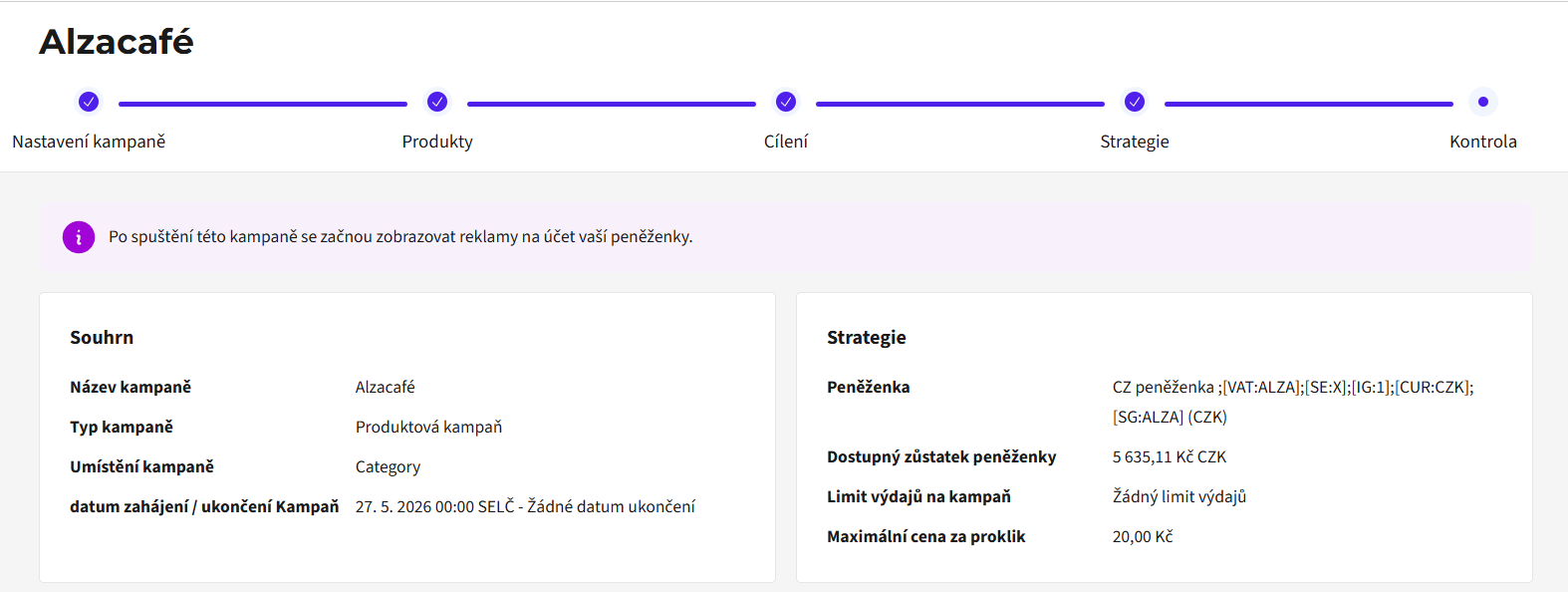
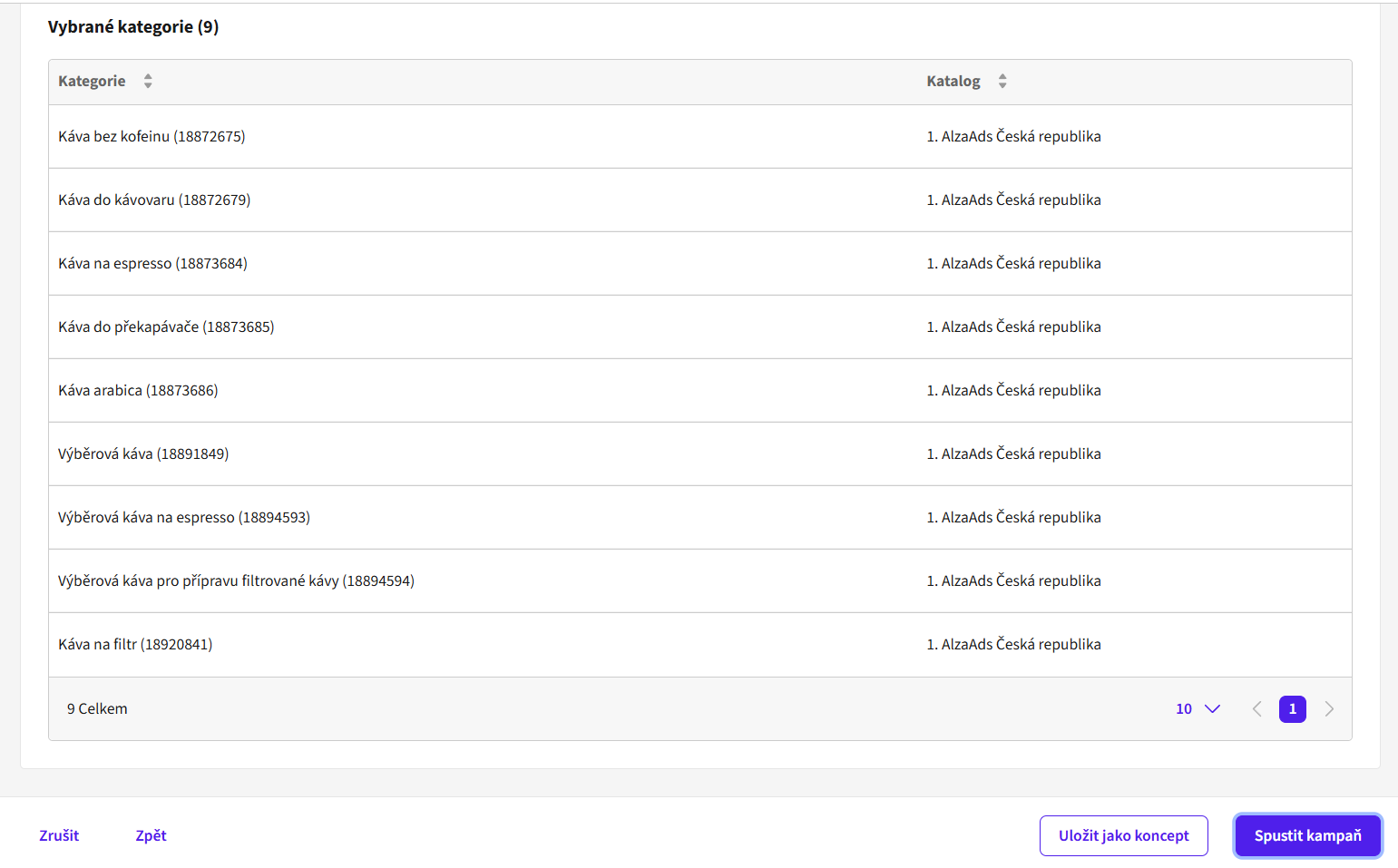
Pokud máte všechno nastaveno tak, jak chcete, můžete kampaň rovnou spustit kliknutím na modré tlačítko „Spustit kampaň“. Úspěšné spuštění kampaně vám potvrdí dialogové okno, které vás následně přesměruje na přehled kampaní v záložce Správce kampaní.
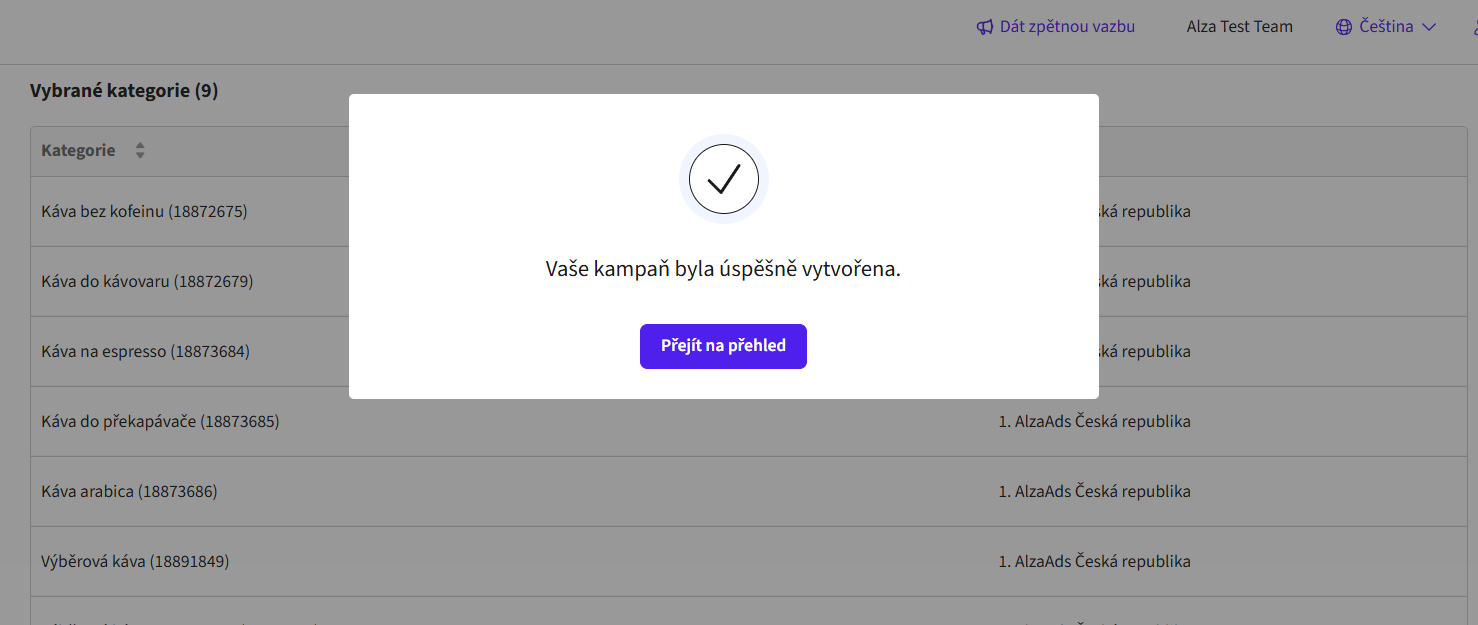
Kampaň začne běžet do hodiny od spuštění v kategoriích, ve kterých už někdo biduje, a do čtyř hodin od spuštění v kategoriích, kde zatím nikdo nebiduje. Reporting se vám začne zobrazovat nejpozději do druhého dne, více v záložce Reporting.
Jestli kampaň ještě spouštět nechcete, ale chcete ji mít třeba připravenou pro pozdější spuštění, uložte si ji pomocí tlačítka „Uložit jako koncept“. Najdete ji pak v části Kampaně/Správce kampaní. Pozor, tuto kampaň je následně třeba manuálně spustit, a to i ve chvíli, kdy by měla nastavené datum spuštění.
Správce kampaní
Správce kampaní vám nabízí přehled všech vašich kampaní, ať jsou aktivní, pozastavené, připravené jako koncept nebo archivované. Můžete zde vaše kampaně snadno upravovat a pracovat s nimi.
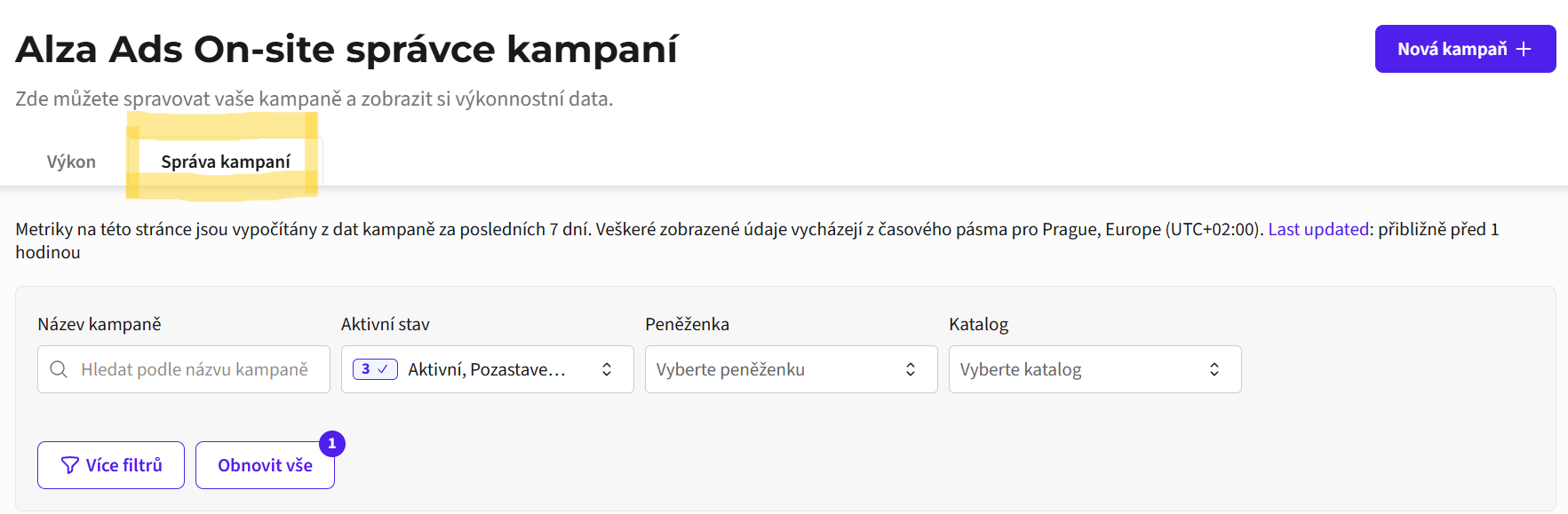
Najdete jej přes hlavní přehled AlzaAds on-site správce kampaní v záložce „Správa kampaní“. V horním panelu si své kampaně můžete filtrovat podle jejich názvu, aktivního stavu (Aktivní, Pozastaveno, Koncept, Archivováno) nebo peněženky.
Defaultně se vám ve správci zobrazí všechny vaše kampaně. Na první pohled zde vidíte jejich název, stav, produkty, které obsahují, a datum jejich zahájení a plánovaného ukončení, pokud je vaše kampaň časově omezená.
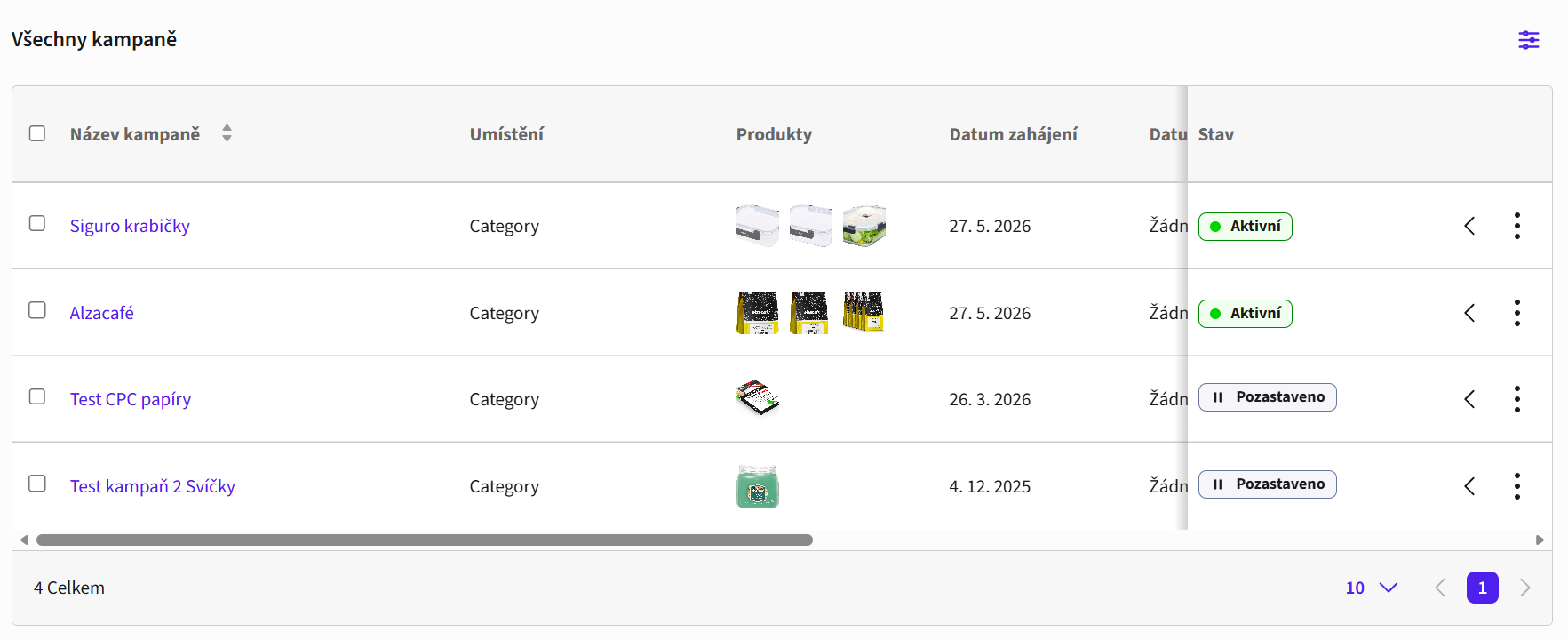
U každé kampaně také vidíte základní přehled metrik – zobrazení, prokliky, míra prokliku (CTR), návratnost do reklamy (ROAS) a cena za proklik (CPC). Zobrazují se však pouze za předchozích 7 dní, u vašich starších kampaní tak budou pole prázdná. Detail výkonu starších kampaní si zobrazíte přes kliknutí na její název, kde si následně nastavíte správné období, na které se chcete podívat.
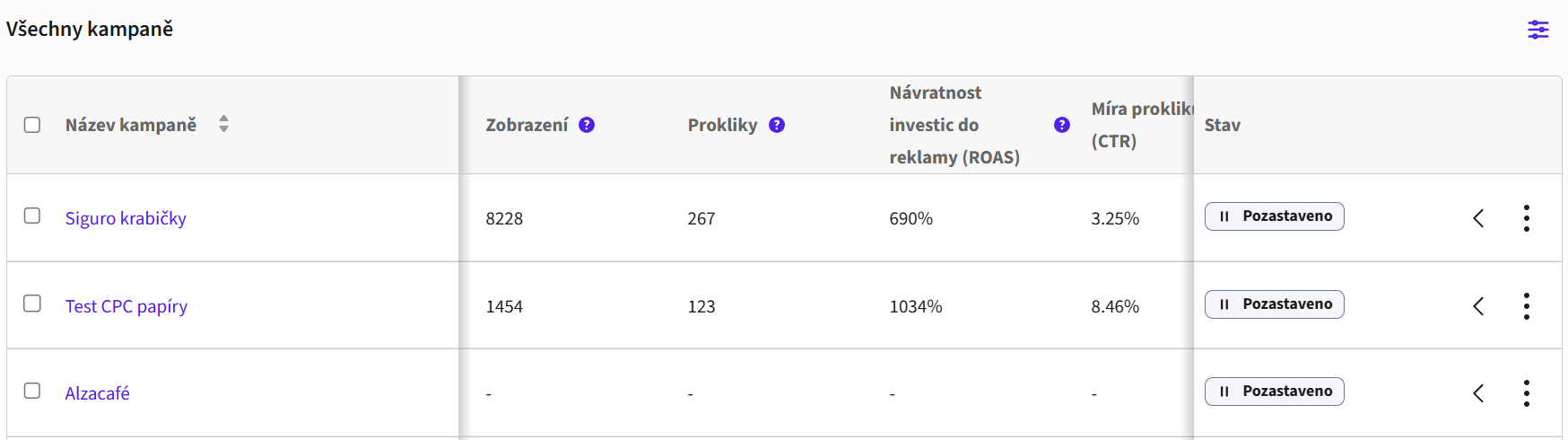
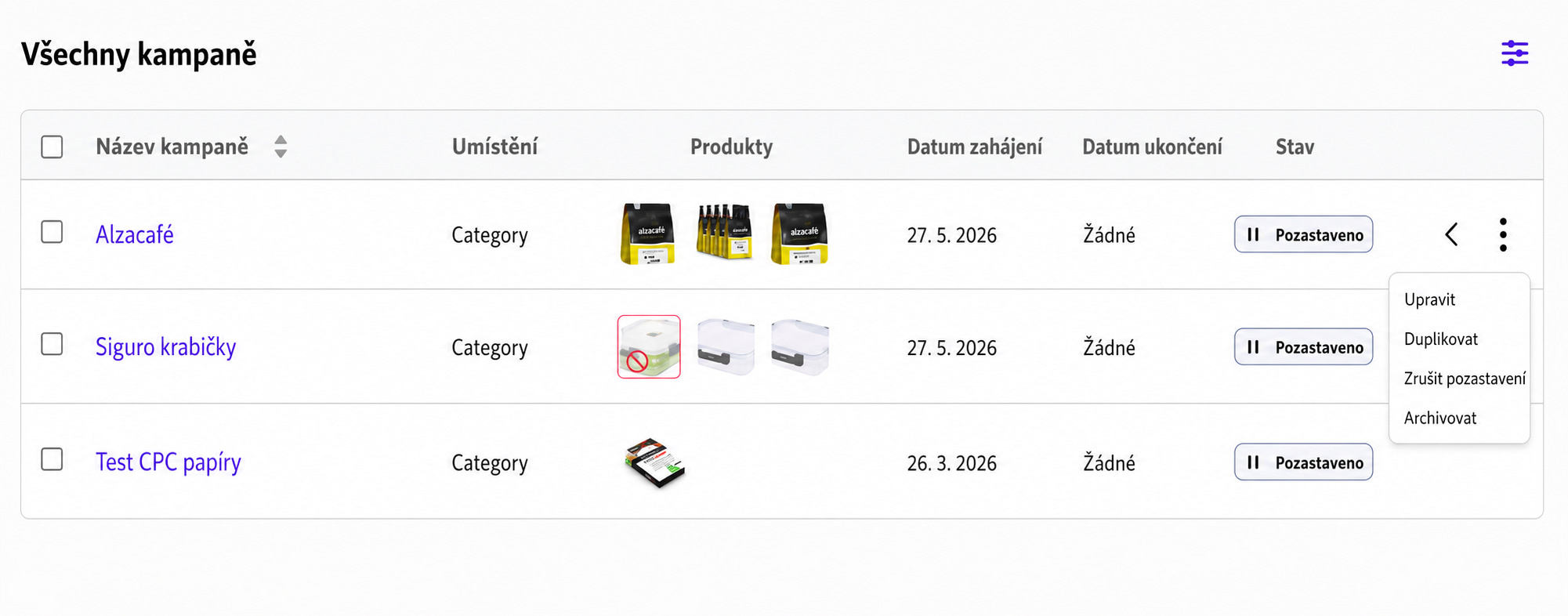
Po kliknutí na tři tečky na konci řádku kampaně můžete v rychlosti změnit její stav anebo se dostat zpět do nastavení kampaně a kampaň upravit.
Užitečné je zde také tlačítko „Duplikovat“, které vám umožní snadno vytvořit kopii kampaně (kterou pak můžete upravit):
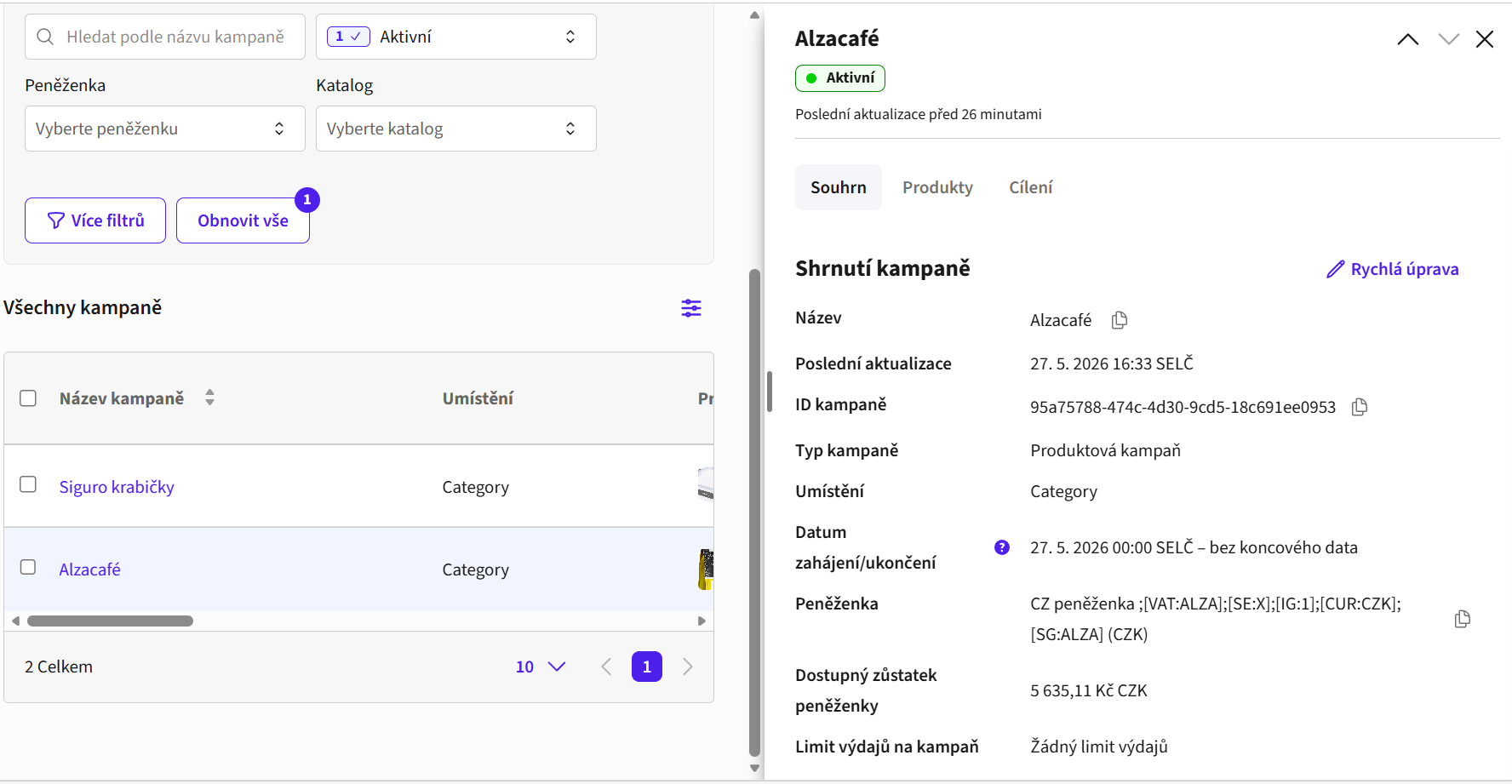
Po kliknutí přímo na řádek kampaně se vám na pravé straně zobrazí její rychlé shrnutí. Přes modrou tužku „Rychlá úprava“ můžete editovat název kampaně, datum zahájení/ukončení, celkový budget kampaně a maximální cenu za proklik.
Po kliknutí na název kampaně se dostanete do jejího širšího detailu. Jestli chcete v detailu upravit některé aspekty kampaně, klikněte na modré tlačítko „Upravit“ nahoře vpravo. Dostanete se tak do editoru kampaní, zde můžete editovat výběr produktů, jejich cílení anebo bidovací strategii. Kampaň je po úpravách nutné znovu spustit, stejně jako když zakládáte novou kampaň.
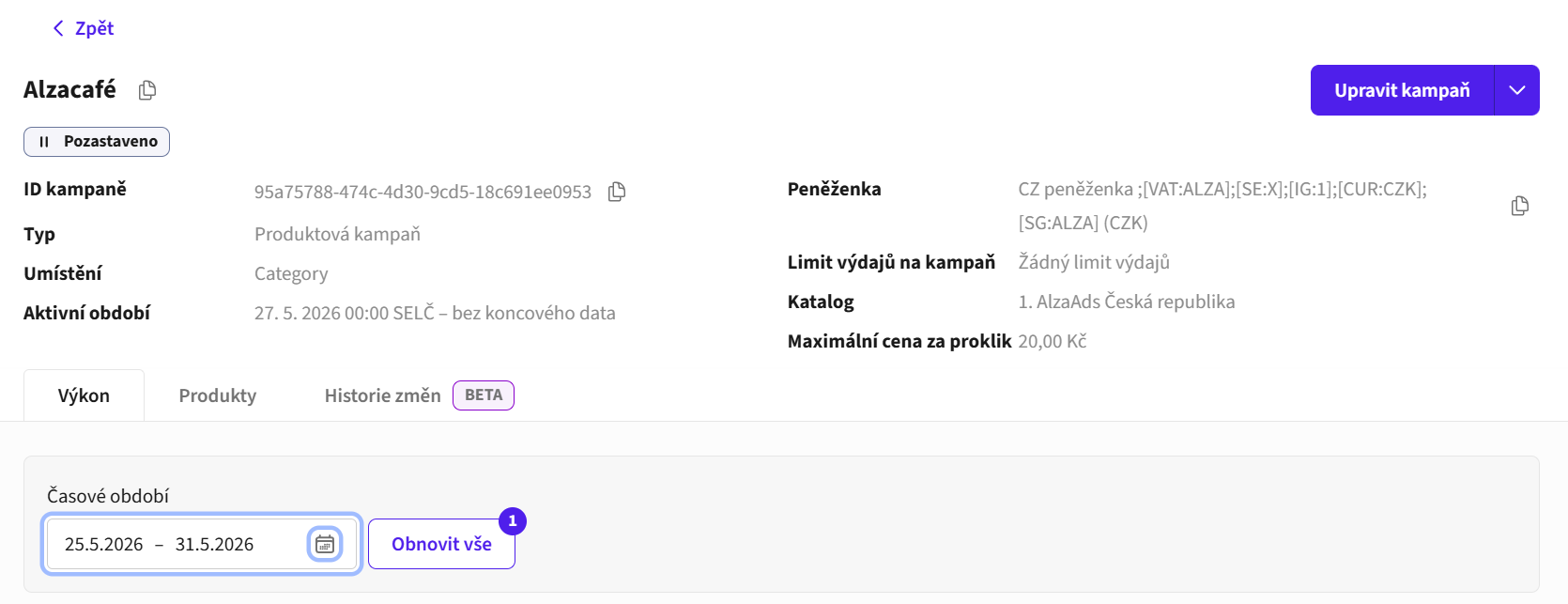
Pod hlavním přehledem jsou k dispozici základní výkonnostní metriky vaší kampaně a graf jejího vývoje v čase. Graf ukazuje zobrazení, prokliky, konverze a počet prodaných kusů. Pokud se chcete detailněji podívat na jednu z metrik, zaškrtněte si ji v legendě grafu samostatně.
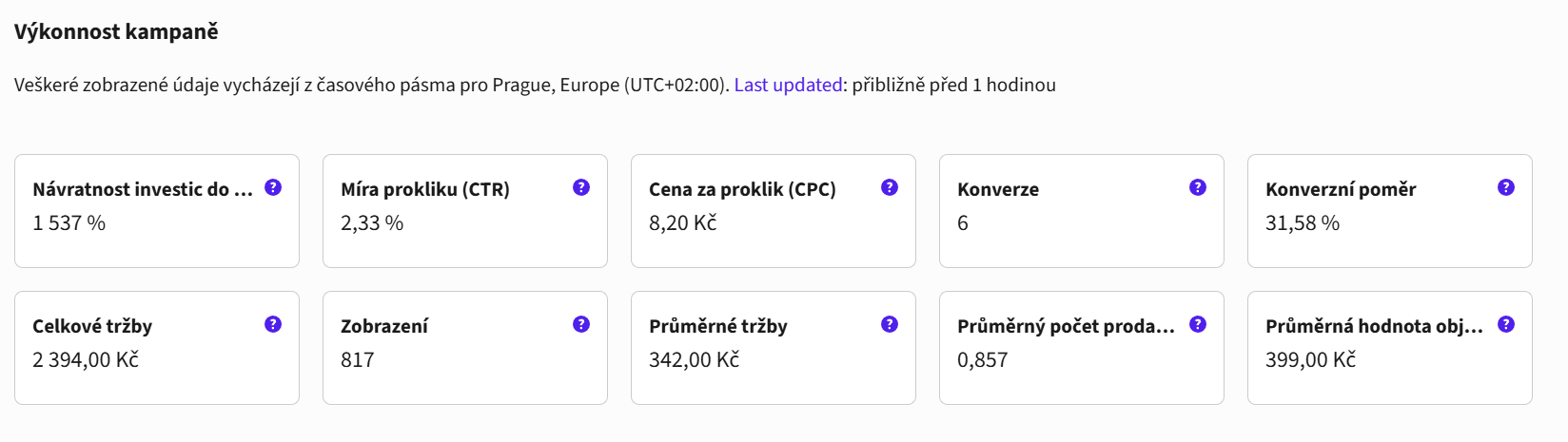
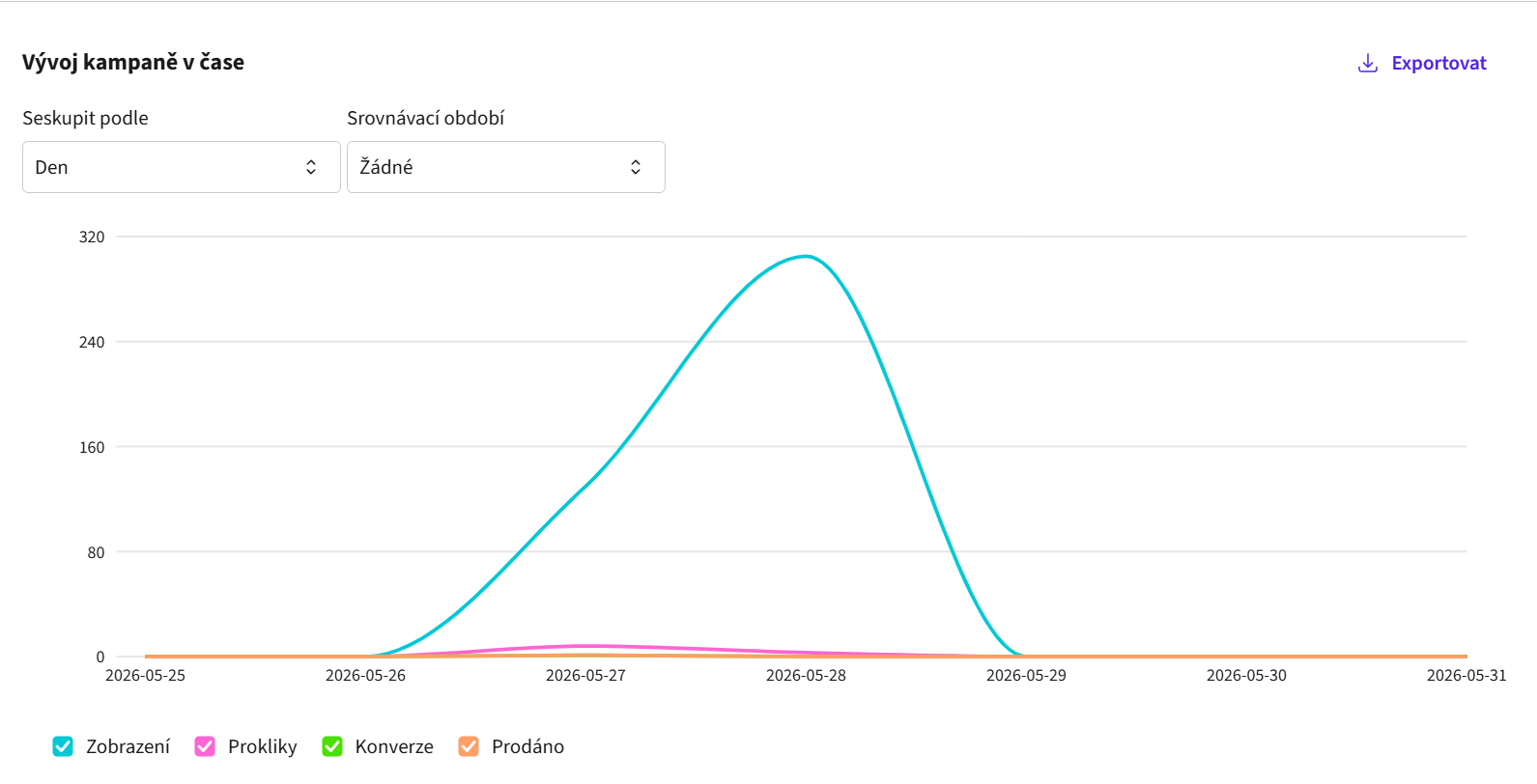
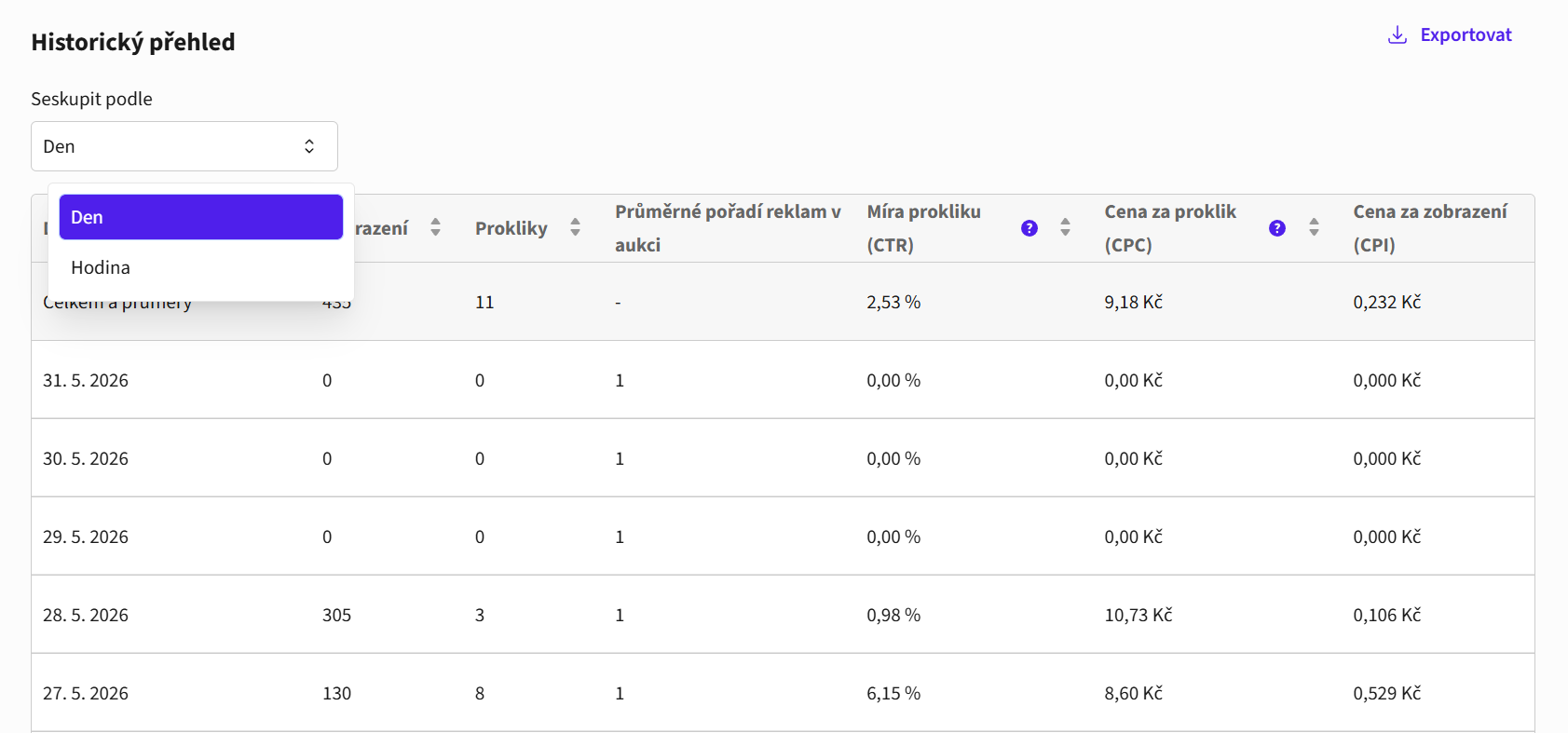
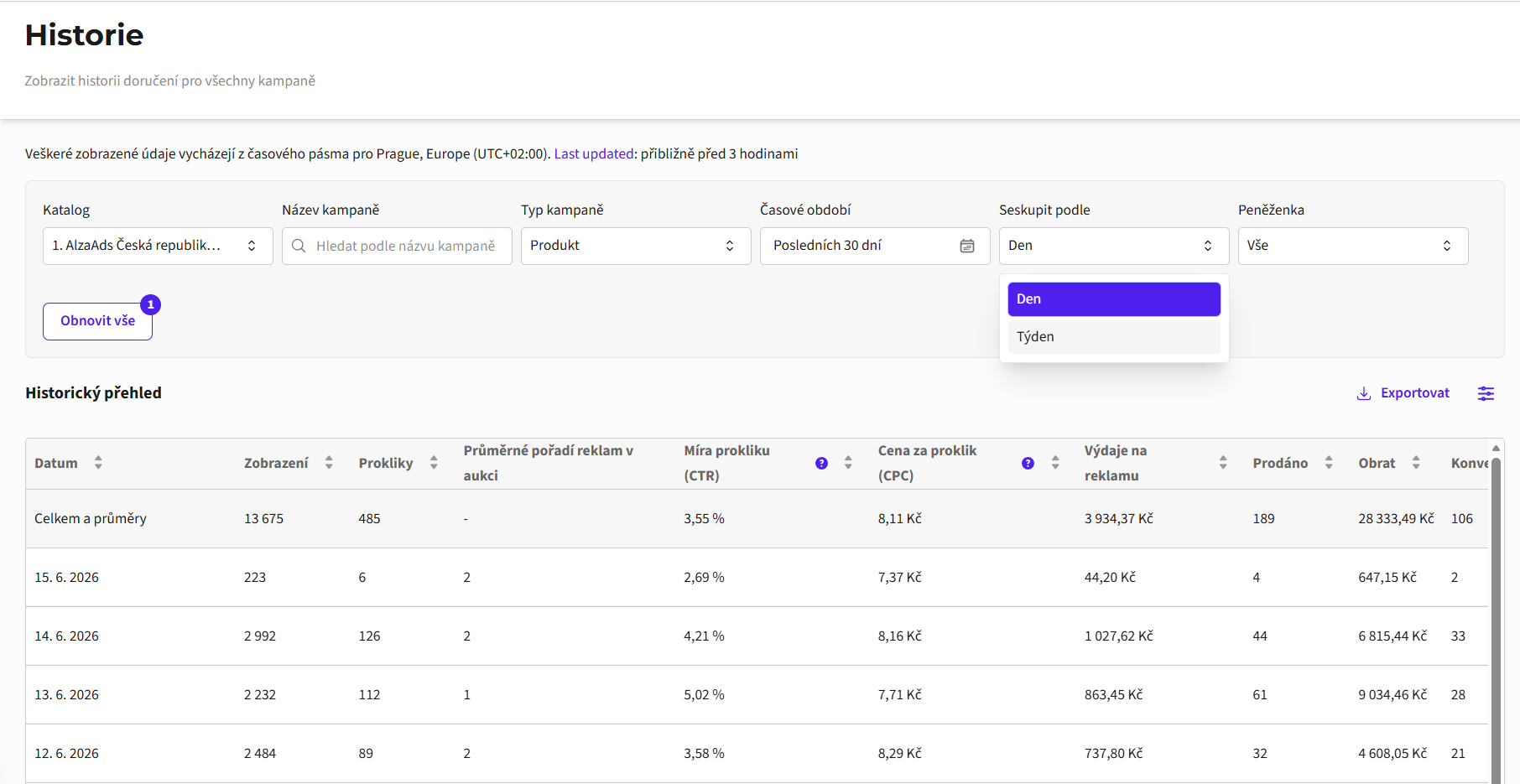
Pod grafem se ještě nachází historický přehled vaší kampaně, je možné nastavit si zobrazení na dny anebo hodiny. Tento nástroj je užitečný zejména pro optimalizaci vašich kampaní. Doporučujeme sledovat metriky zobrazení a průměrné pořadí v aukci, podle kterých nejlépe zjistíte, jestli vaše kampaň vyhrává aukci ve svých kategoriích a je na Alze vidět. Průměrné pořadí v aukci určuje pomyslné pořadí všech produktů, které se do aukce dostávají. Nejlepší hodnota této metriky je 1 nebo 2, jelikož ve většině kategorií existují právě dvě sponzorované pozice. Výjimku pak tvoří velké akční kategorie, které existují paralelně s běžnými kategoriemi v průběhu slevových akcí Alza Dny, Mega slevy, Black Friday apod.
Rádce pro výši bidu
Report Recommended bid per Category (Rádce pro výši bidu v aukci) vám přehledně ukazuje doporučenou maximální cenu za proklik pro jednotlivé kategorie.
Rádce pro výši bidu najdete zde: alzaAds Recommended bid per Category.
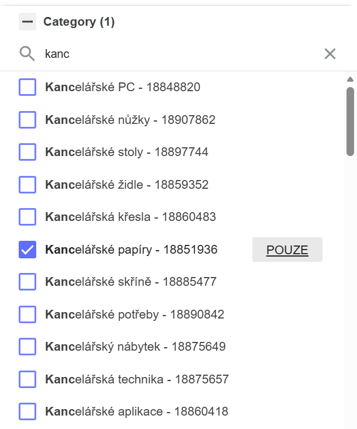
Orientace v reportu je velmi jednoduchá. V základním nastavení se zobrazují všechny kategorie dostupné na Alze, pomocí vyhledávače a filtrů si můžete nechat zobrazit pouze ty, které jsou pro vás v danou chvíli relevantní.
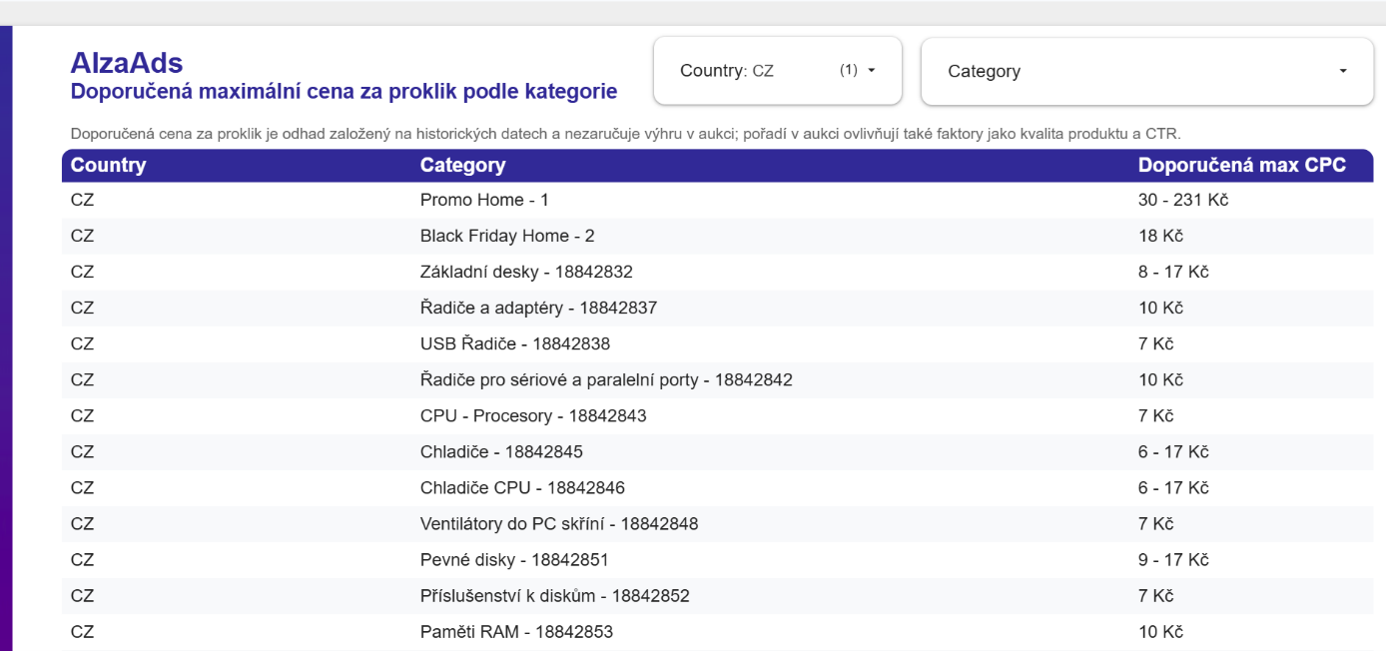
Pro zvolení konkrétní kategorie stačí kliknout na pole s označením POUZE.
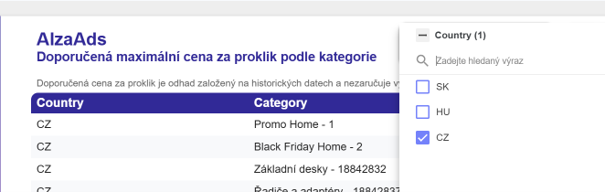
Report zároveň umožňuje přepínat mezi katalogy pro český, slovenský a maďarský trh.
Při plánování vaší strategie doporučujeme projít si výši doporučené CPC pro všechny kategorie zahrnuté ve vaší kampani a na základě těchto doporučení pak zvolit vhodný souhrnný bid. Velkou výhodou je v tomto ohledu systém second-price aukce, díky kterému se nemusíte obávat, že byste například v levnějších kategoriích platili zbytečně vysoké částky. Systém vám vždy strhne pouze částku nezbytnou pro vítězství v konkrétní aukci, nikoliv automaticky váš nastavený maximální strop.
Rádce pro výši bidu, stejně jako samotné rozhraní AlzaAds, nerozlišuje mezi běžnými a akčními kategoriemi, biduje se vždy na klasické kategorie a v případě, že jsou vaše produkty nominované do akce, nastavené hodnoty bidu se do paralelních akčních kategorií propisují automaticky. Výjimkou jsou pouze specifické akční titulky jako Promo Home nebo Black Friday Home.
Závěrem bychom vás chtěli upozornit, že zobrazená doporučená cena za proklik je odhadem založeným na datech z předchozího dne a nezaručuje výhru v aukci, pořadí v aukci ovlivňují také faktory jako kvalita produktu a CTR.
Reporting – záložka Výkon
První obrazovka, kterou uvidíte po přihlášení do rozhraní AlzaAds, je AlzaAds On-site správce kampaní, záložka Výkon. Na této stránce najdete přehled všech vašich kampaní a jejich výkonu, možnost vytvořit si novou kampaň a v neposlední řadě správce kampaní.
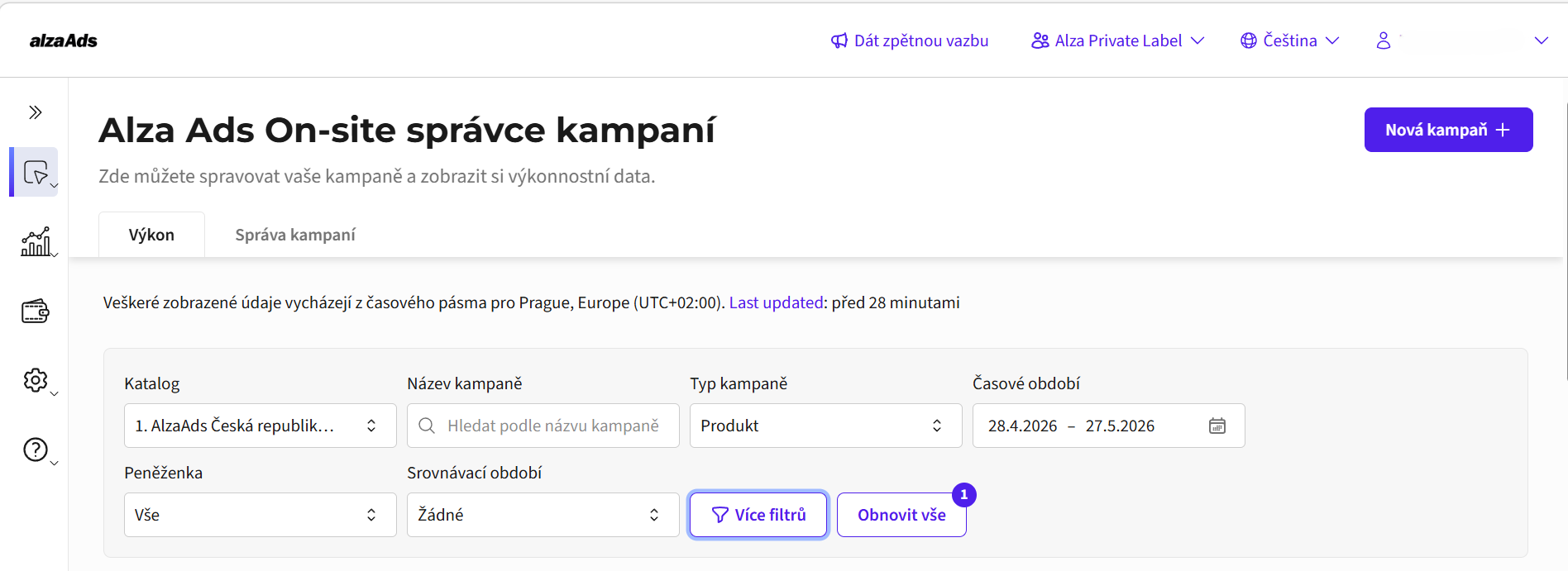
Máte tak okamžitě přehled, jak se vašim kampaním daří, včetně hlavních metrik, nejvýkonnějších kampaní a nejlíp fungujících produktů. Po prvním přihlášení bude přehled prázdný, protože zde ještě nejsou žádná kampaňová data, která by ukazoval. U běžících kampaní vypadá přehled takto:
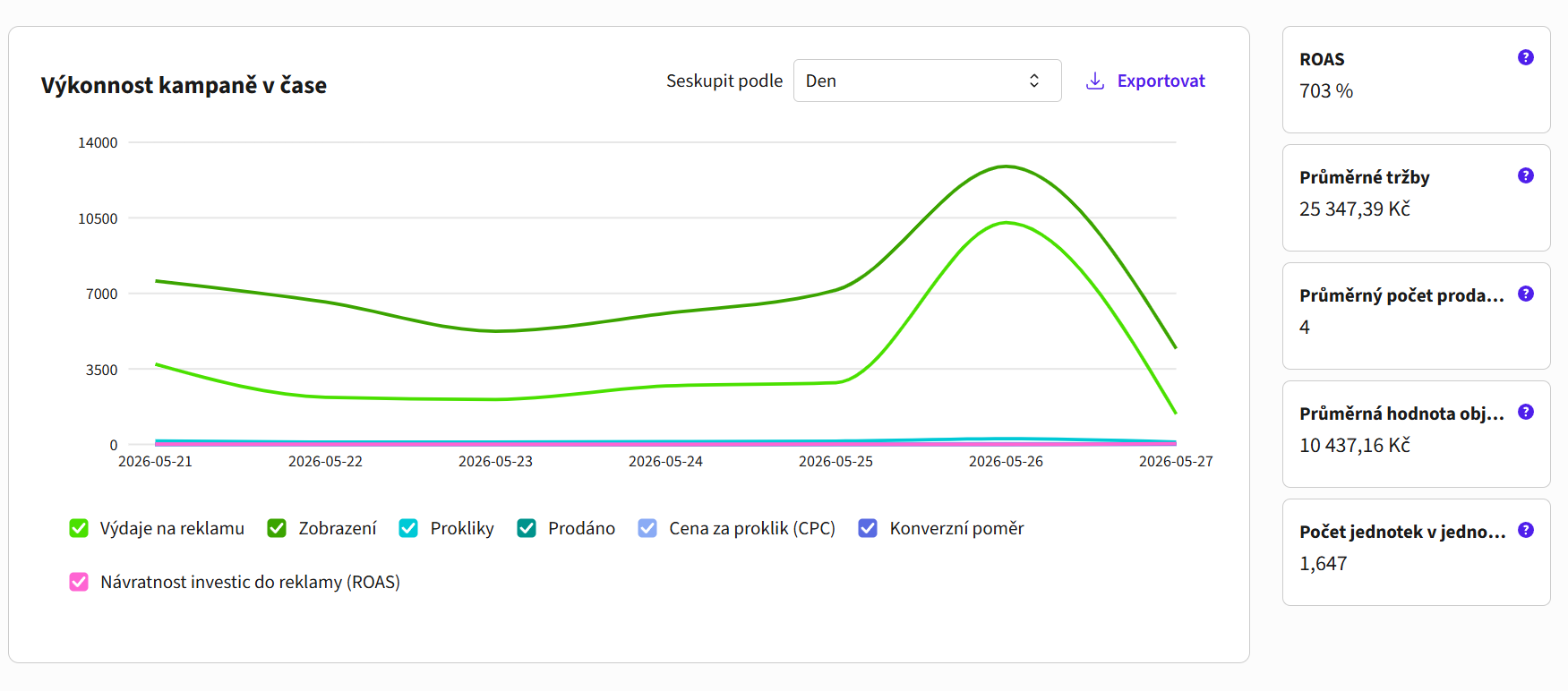
Graf „Výkonnost kampaně v čase“ vám zobrazí vybrané metriky všech vašich kampaní za období, které si zvolíte. Můžete vybírat z metrik Výdaje na reklamu, Zobrazení, Prokliky, Prodáno, Cena za proklik (CPC), Konverzní poměr a Návratnost investic do reklamy (ROAS). Období volíte z rolovacího menu nad grafem, stejně jako katalog / zemi, pro který se má report zobrazit (výběr ovlivňuje i výpis kampaní pod grafem).
Popis jednotlivých metrik v základním grafu:
Výdaje na reklamu – celkové náklady na kampaně.
Zobrazení – zobrazení reklamy (u sponzorovaných produktů zobrazení produktu).
Proklik – kliknutí na reklamu (u sponzorovaných produktů klik na produkt nebo vložení do košíku).
Prodáno – počet prodaných kusů.
Cena za proklik (CPC) – kolik platíte za jeden proklik na vámi sponzorovaný produkt (CPC v grafu je souhrnné za všechny kampaně vybraného období napříč všemi kategoriemi).
Návratnost investic do reklamy (ROAS) – vypočte se „obrat / reklamní investice * 100“ a udává se v procentech.
Konverzní poměr – vypočte se „prodeje / kliky * 100“ a udává se v procentech.
Na pravé straně grafu se navíc ukazují souhrnné metriky za všechny vaše kampaně probíhající ve vybraném období – ROAS, Průměrné tržby, Průměrný počet prodaných kusů, Průměrná hodnota objednávky a Počet jednotek v jednom nákupu.
Základní reporting
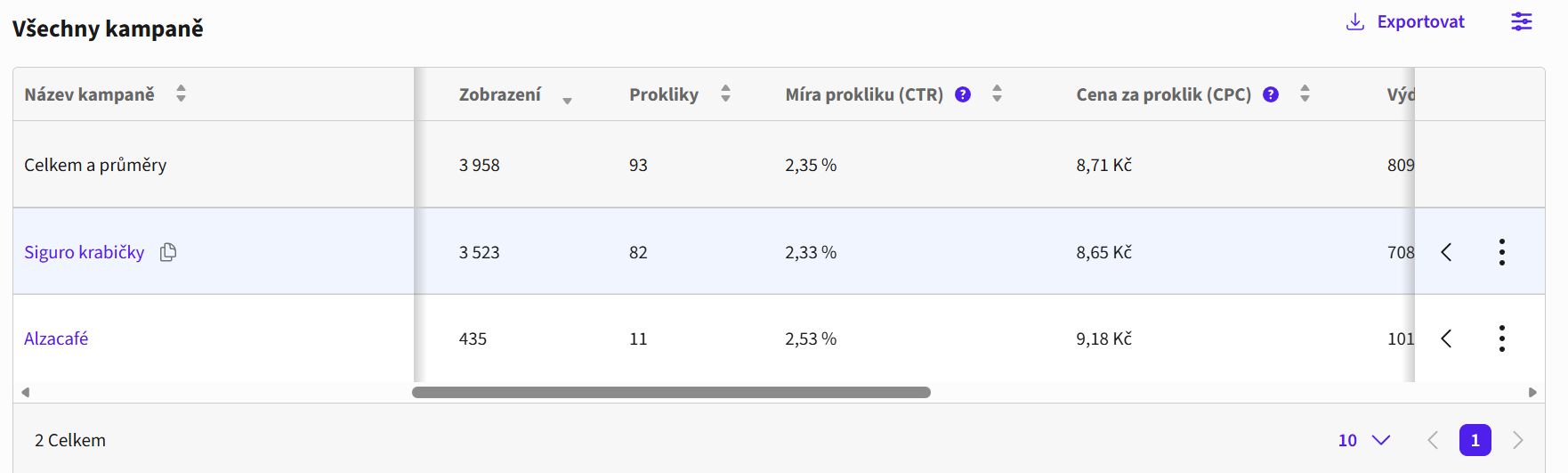
Pod grafem se nachází základní reporting klíčových metrik rozdělený po jednotlivých kampaních. V prvním řádku tabulky je pak součet za všechny kampaně ve výběru.
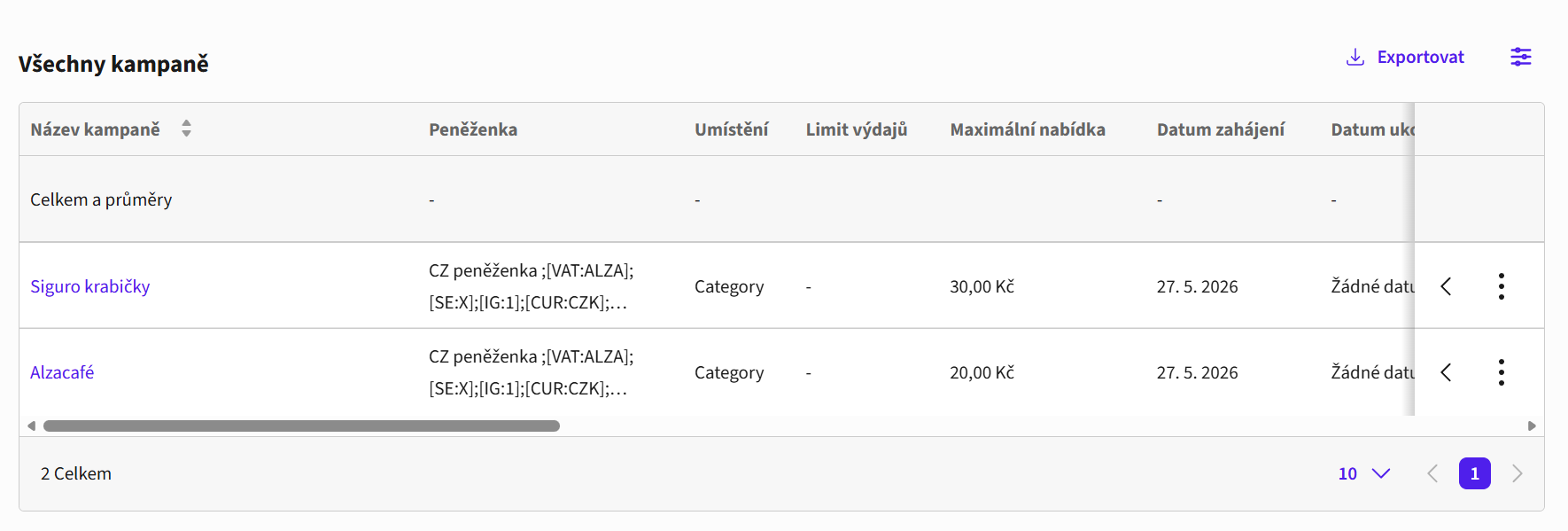
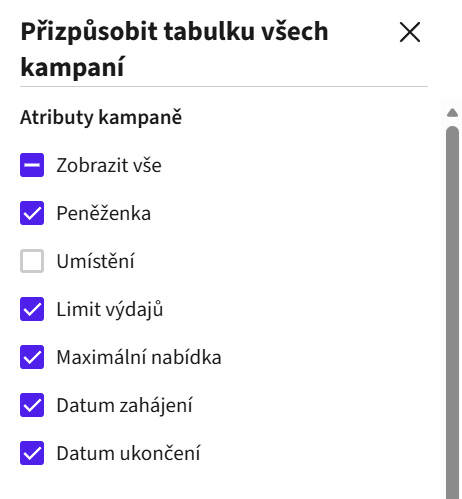
Kliknutím na modré pole možností v pravém rohu nad tabulkou si otevřete menu, ve kterém si můžete vybrat, které metriky pro svou kampaň chcete zobrazit.

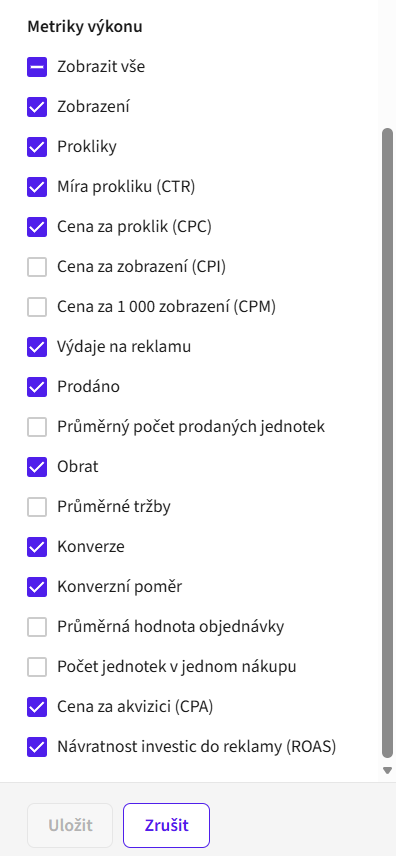
K výběru máte atributy kampaně a metriky výkonu. Pro komplexní, avšak jednoduše navigovatelný pohled na reporting doporučujeme zvolit si možnosti atributů kampaně a výběr metrik výkonu tak, jak vidíte na obrázku. Svůj výběr nezapomeňte uložit.
Atributy kampaně:
Peněženka – z jaké peněženky je čerpán kredit.
Umístění – v současné chvíli vždy „category“, je možno vyjmout z výběru.
Limit výdajů – celkový nastavený rozpočet kampaně.
Maximální nabídka – aktuálně nastavená maximální cena za proklik.
Datum zahájení – spuštění vaší kampaně.
Datum ukončení – koncové datum, je-li nastavené.
Metriky výkonu:
Zobrazení – celkový počet zobrazení reklamy (u sponzorovaných produktů zobrazení produktu).
Prokliky – celkový počet kliknutí na reklamu (u sponzorovaných produktů klik na produkt nebo vložení do košíku).
Míra prokliku (CTR) – vypočte se „kliky / imprese * 100“ a udává se v procentech.
Cena za proklik (CPC) – vypočte se „reklamní investice / kliky“.
Cena za zobrazení (CPI) – vypočte se „reklamní investice / imprese“.
Cena za 1000 zobrazení (CPM) – vypočte se „reklamní investice / imprese * 1000“.
Výdaje na reklamu – celkové náklady na reklamní kampaň.
Prodáno – celkový počet prodaných kusů.
Průměrný počet prodaných jednotek – průměrný počet prodaných jednotek za jeden den vybraného časového období.
Obrat – celkový obrat na prodejích.
Průměrné tržby – průměrný obrat generovaný reklamou za vybrané období.
Konverze – celkový počet prodejů/konverzí.
Konverzní poměr – vypočte se „prodeje / kliky * 100“ a udává se v procentech.
Průměrná hodnota objednávky – průměrná hodnota jedné objednávky za vybrané období.
Počet jednotek v jednom nákupu – počet prodaných kusů na jednu konverzi.
Cena za akvizici (CPA) – de facto cena za jednu konverzi, vypočte se „reklamní investice / konverze“.
Návratnost investic do reklamy (ROAS) – vypočte se „obrat / reklamní investice * 100“ a udává se v procentech. Nelze s jistotou určit, co je „dobrý“ ROAS, jelikož každá kampaň má svá specifika, ovšem z pohledu AlzaAds specialistů je ROAS nad 300 % dobrý ROAS.
Všechny vámi vybrané atributy a metriky výkonu se budou zobrazovat v rolovací tabulce. Veškerá data je možné exportovat do souboru CSV.
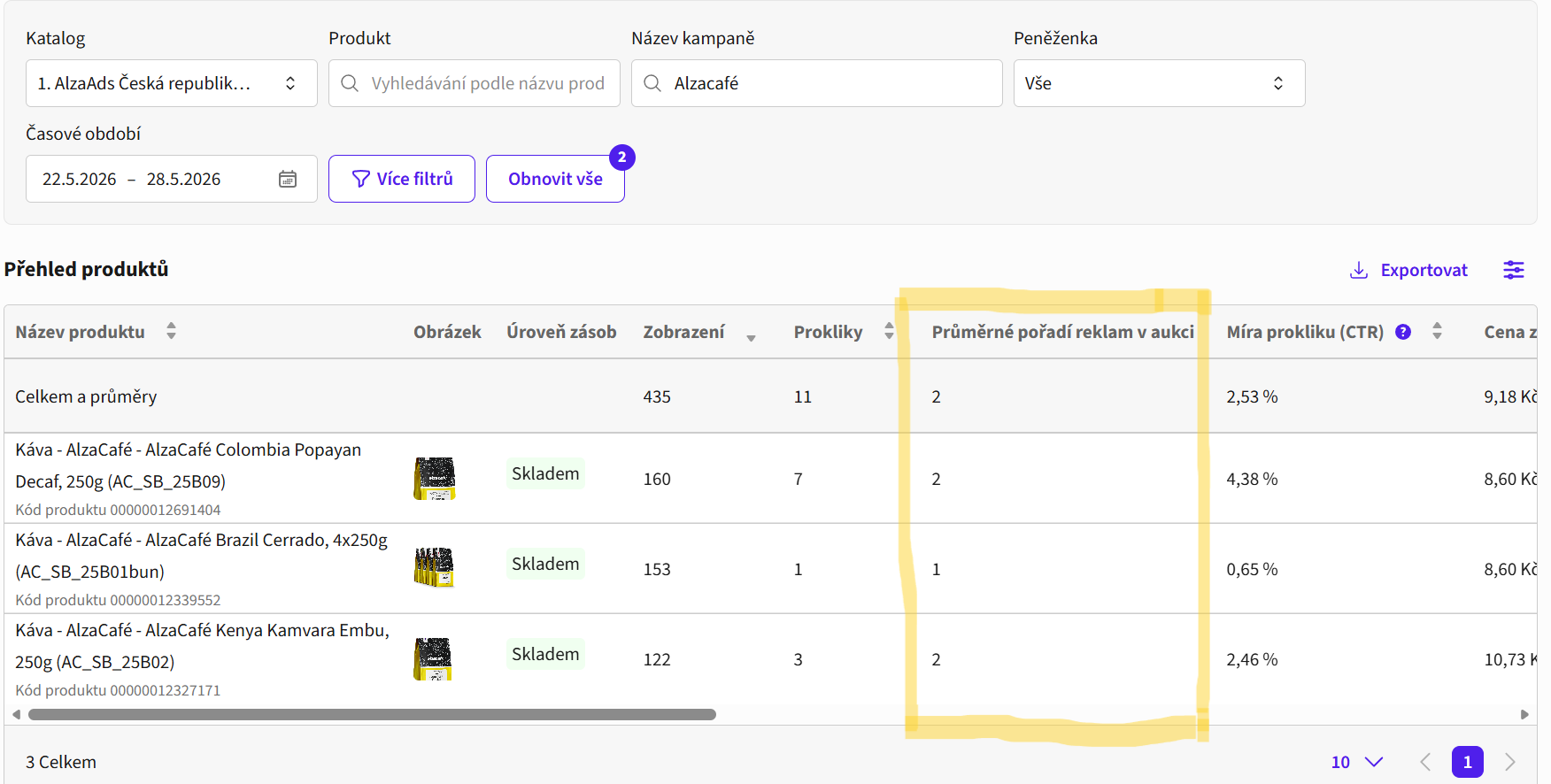
V pohledu na jednotlivé produkty (více záložka „Produkty“) je navíc metrika Průměrné pořadí v aukci, která určuje, jak se vámi inzerovaný produkt zobrazuje na sponzorovaných pozicích. Nejlepší skóre je 1 nebo 2, díky tomu, že zpravidla máme ve všech kategoriích dvě sponzorované pozice (mimo akční kategorie). Pokud je skóre u vámi sponzorovaného produktu vyšší než 2, hraje zde pravděpodobně vyšší roli konkurence a váš produkt se tolik nezobrazuje.
Rozšířený reporting
Rozšířený reporting se nachází hned pod tabulkou základního reportingu s názvem „všechny kampaně“. Poskytuje vám lepší přehled o výkonnosti vašich kampaní díky rozšířené atribuci, zejména prostřednictvím metriky Halo ROAS a Celková ROAS.
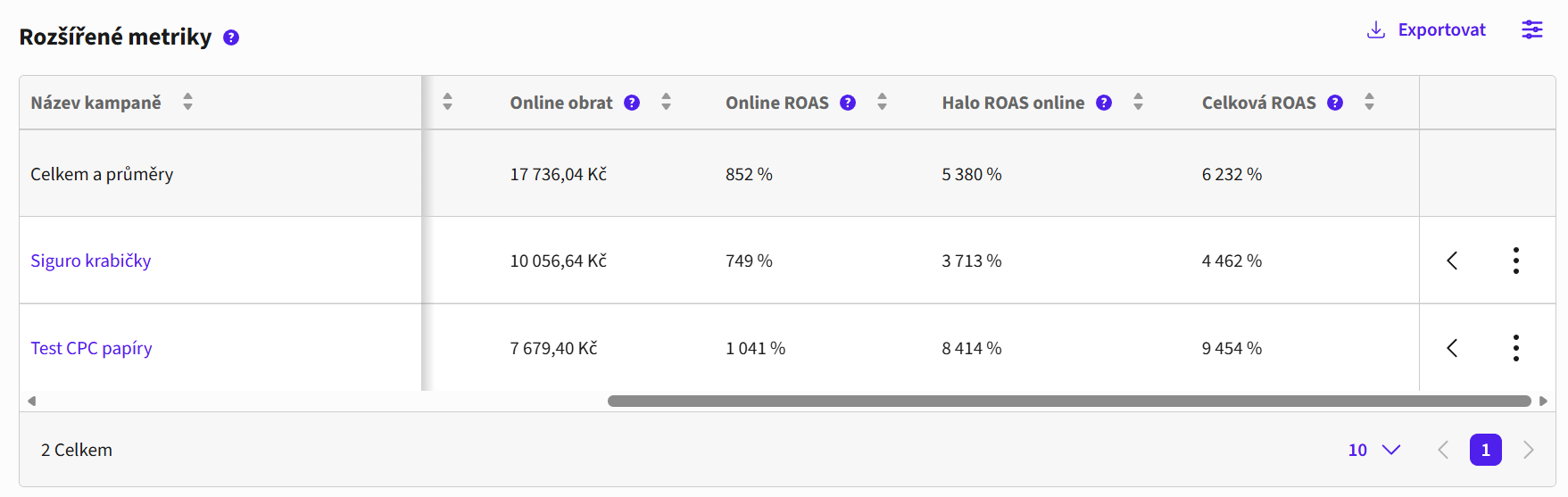
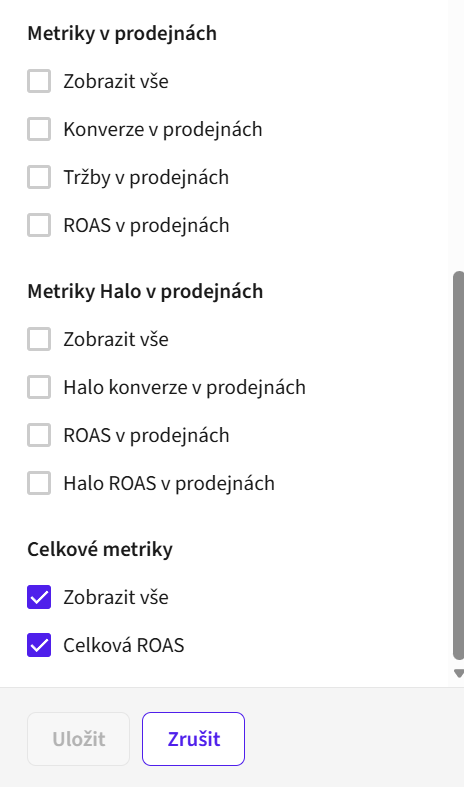
Tabulka obsahuje atributy kampaně shodné s tabulkou základního reportingu – peněženka, umístění, datum zahájení a datum ukončení kampaně. Navíc jsou zde rozšířené metriky, takzvané halo metriky v prodejnách a online. Pro AlzaAds jsou relevantní pouze online metriky, doporučujeme vám tedy metriky v prodejnách skrýt, viz obrázky. Do nastavení tabulky rozšířených metrik se dostanete přes modrou ikonku vpravo vedle pole „Exportovat“.
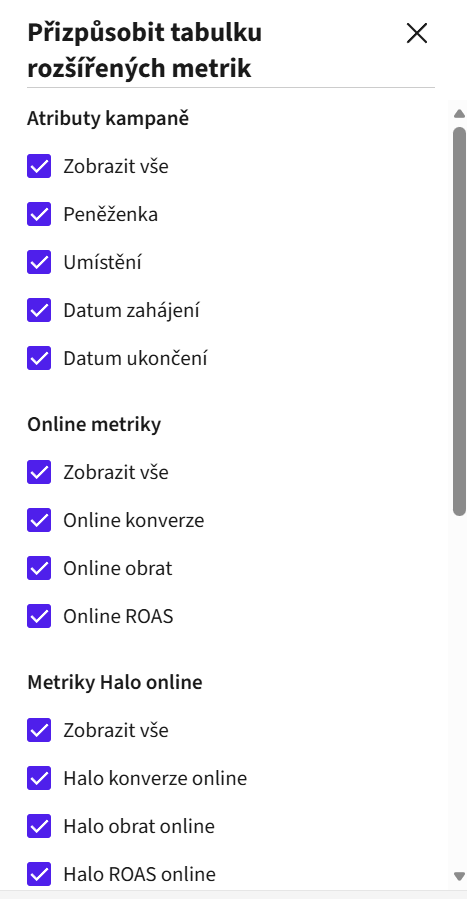
Online metriky
Online konverze – stejné jako konverze v základním reportingu, celkový počet konverzí.
Online obrat – stejné jako v základním reportingu, celkový obrat na prodejích.
Online ROAS – klasický ukazatel ROAS ze základního reportingu. Vypočítá se jako „obrat ÷ reklamní investice × 100“ a uvádí se v procentech. U základního ROAS se započítává pouze konverze u přesně stejného produktu, na který uživatel kliknul.
Online metriky
Halo konverze online – konverze z nepřímého prodeje, tzn. konverze všech produktů stejné značky, jako je ta, na jejíž produkt uživatel kliknul.
Halo obrat online – obrat produktů nepřímého prodeje.
Halo ROAS online – vypočítá se jako klasický ROAS. Rozdíl je v tom, že se započítávají konverze všech produktů stejné značky, jako je ta, na jejíž produkt uživatel kliknul.
! 2. 7. 2026 byla upravena definice Halo ROAS pro zvýšení relevance, je tedy možné pozorovat pokles hodnot Halo metrik, který je zapříčiněn touto změnou.
Metriky v prodejnách
Irelevantní pro AlzaAds, budou se zobrazovat s nulovou hodnotou.
Metriky Halo v prodejnách
Irelevantní pro AlzaAds, budou se zobrazovat s nulovou hodnotou.
Celkové metriky
Celková ROAS – součet online ROAS a halo ROAS online.
Postřehy
V rolovacím menu nalevo si můžete zobrazit detailnější přehledy vašich kampaní po jednotlivých produktech a jejich historii.
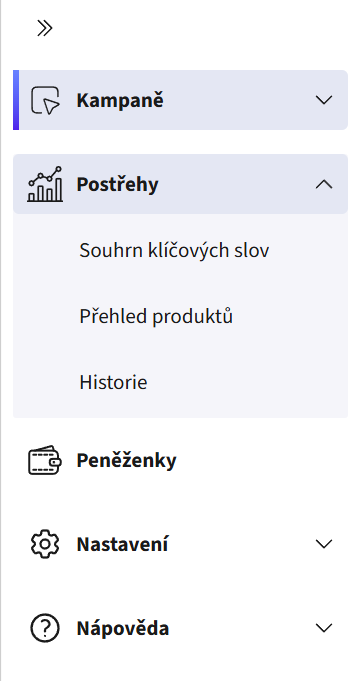
Souhrn klíčových slov
Záložka Souhrn klíčových slov se v tuto chvíli nepoužívá a bude se zobrazovat prázdná.
Přehled produktů
Záložka „Přehled produktů“ vám umožní podívat se na detail výkonu vašich kampaní po jednotlivých produktech. Doporučujeme filtrovat si data podle názvu kampaně, je pak možné porovnat si, které produkty v kampani mají lepší výkon. AlzaAds v průběhu kampaně začne lehce upřednostňovat produkty, které mají vyšší CTR, proto je dobré sledovat i výkon jednotlivých produktů v kampani a případně kampaň optimalizovat vyjmutím produktů, které v kampani neperformují.
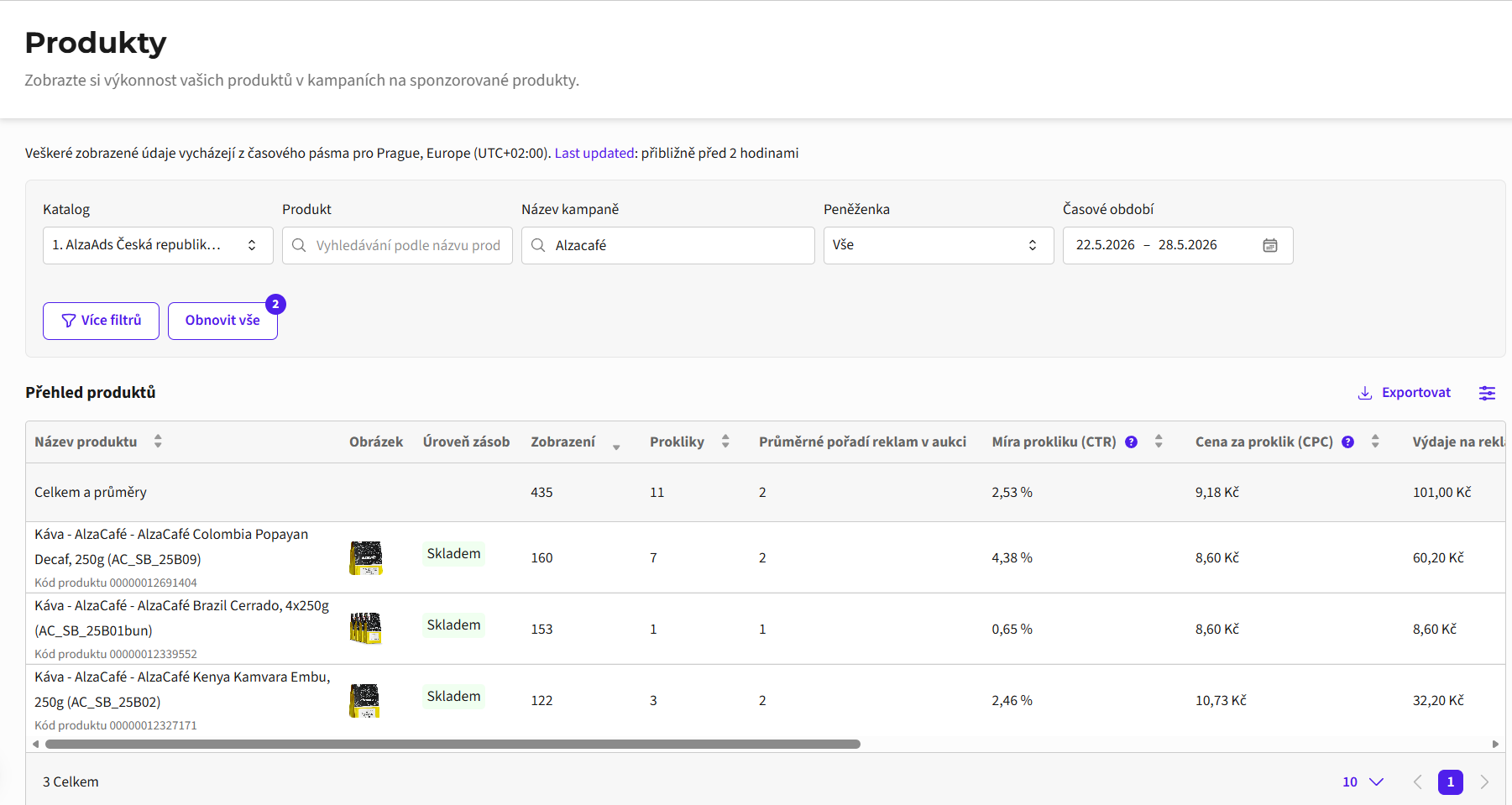
V tabulce produktů najdete stejné metriky jako v tabulce základního reportingu, pouze rozdělené po jednotlivých produktech. V horní liště se vám vždy ukazují souhrnná čísla za celou kampaň.
V pohledu na jednotlivé produkty je navíc metrika Průměrné pořadí v aukci, která určuje, jak se vámi inzerovaný produkt zobrazuje na sponzorovaných pozicích. Nejlepší skóre je 1 nebo 2, díky tomu, že zpravidla máme ve všech kategoriích dvě sponzorované pozice (mimo akční kategorie). Pokud je skóre u vámi sponzorovaného produktu vyšší než 2, hraje zde pravděpodobně vyšší roli konkurence a váš produkt se tolik nezobrazuje.
Historie
V záložce „Historie“ si můžete zobrazit historii vašich kampaní po jednotlivých dnech nebo týdnech. Defaultně se budou zobrazovat data za všechny kampaně vašeho týmu dohromady za vybrané období, data však lze filtrovat podle názvu kampaně, abyste si zobrazili konkrétně to, co chcete vidět. V tabulce uvidíte veškeré základní reportingové metriky, je možné zvolit si, které chcete zobrazit. I historii je možné exportovat jako CSV, více v záložce „Exporty“.
Vyhodnocení kampaně
Nejprve je dobré určit si, jaký je cíl vaší kampaně.
Cíl kampaně: Prodeje
Pokud jsou cílem vaší kampaně prodeje, je dobré sledovat metriky prodeje (počet prodaných kusů), konverzní poměr, ROAS a halo ROAS, především v případě, že máte mnoho podobných variant produktů stejné značky.
Doporučená strategie:
Doporučujeme promovat zákaznicky úspěšné produkty, systém AlzaAds si pamatuje CTR produktu v průběhu kampaně a více klikané produkty považuje za kvalitnější, mají pak větší šanci se zobrazit.
Nastavte si kampaň na více produktů, ideální je cca 2–8. V průběhu kampaně bude AlzaAds automaticky preferovat úspěšnější z produktů, máte díky tomu šanci zjistit, co funguje, a průběžně optimalizovat kampaň; zároveň máte jistotu, že se vám kampaň nezastaví, pokud jeden produkt vypadne ze skladové zásoby.
Vyhodnocení úspěšnosti kampaně:
Sledujte konverzní poměr – nakolik zákazníci produkt kupují po prokliku na něj? Má produkt dobré nacenění oproti konkurenci? Má dobré popisky?
Cílem je vysoký ROAS spolu s počtem prodaných kusů (přímé prodeje).
V případě značky s mnoha produkty sledovat i halo ROAS (nepřímé prodeje).
Cíl kampaně: Brand awareness
Pokud je cílem vaší kampaně brand awareness, bude vás zajímat především počet zobrazení jednotlivých produktů v kampani, metrika průměrné pořadí reklam v aukci a halo ROAS.
Doporučená strategie:
Pro nejlepší brand awareness kampaň doporučujeme promovat produkty ve velkých kategoriích, hlavní segmentové kategorie jsou sice dražší, ale mají největší traffic.
Využijte slevové akce a hlavní akční kategorii Promo Home, ve větších slevových kategoriích jsou až 4 sponzorované pozice, takže je zde šance pro velkou viditelnost a slevové akce přitahují zákazníky.
Nastavte si do aukce vyšší bid – ujistěte se, že vámi promované produkty vyhrávají aukce ve svých kategoriích a jsou vidět nepřetržitě.
Vyhodnocení úspěšnosti kampaně:
Sledujte, zda vaše produkty vyhrávají aukci a zobrazují se – nejlepším ukazatelem je sledování metriky „zobrazení“ spolu s metrikou „průměrné pořadí v aukci“.
Kupují zákazníci jiné produkty vaší značky? Na tuto otázku vám odpoví metrika „halo ROAS“, která počítá ROAS nepřímých prodejů produktů vaší značky.
Pokud jsou dostatečně vysoké imprese, tak nižší ROAS není problémem, jelikož kampaň plní cíl viditelnosti vaší značky.
Exporty dat
Report v jakékoliv tabulce či grafu kdekoliv v rozhraní lze snadno exportovat do CSV kliknutím na modré tlačítko „Exportovat“ v pravém horním rohu nad tabulkou.

Soubor CSV si po stažení otevřete klasicky v MS Excel. Následně vyberte záložku „Data“ a zde pole „Načíst data“, následně „Ze souboru“ a nakonec „Z textu/CSV“.
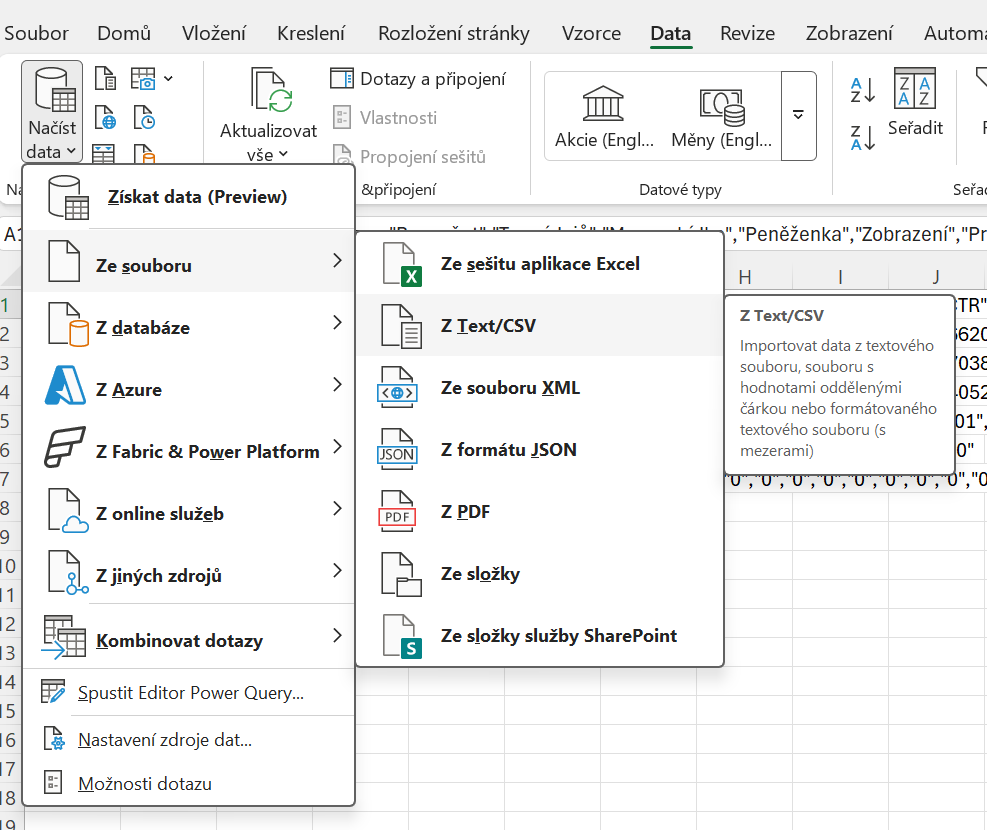
Ve výběru dat vyberte ten samý soubor, co už máte otevřený, a vyberte „Importovat“; po otevření náhledového okna klikněte na „Načíst“. Data se vám načtou v přehledné tabulce.

Následně je pouze třeba změnit si formát polí na % anebo měnu (CZK).