


Help
The AlzaAds Interface
Welcome to the help guide for the AlzaAds advertising system interface. You are getting a unique tool that allows you to display the products you supply to the right users at exactly the moment they are making a purchase decision. Advertising with the number one in online shopping has enormous potential to help you and your brands grow and reach your set goals.
AlzaAds allows you to create and manage effective advertising campaigns on Alza websites and apps based on data updated in real time. The interface runs on the global CitrusAd technology from Epsilon Retail Media.
Creating an AlzaAds Account
Team Registration
If you are currently an Alza supplier and are interested in registering a new team and account in AlzaAds, follow all the steps. If you have been invited to an existing team, start from step 3 to create your account.
If you already have a created and registered account, none of your other colleagues need to register a new account. You only need to send them an invitation in the team members overview, see step 12.
1. Visit alza.cz/ads and click the green “Register” button.
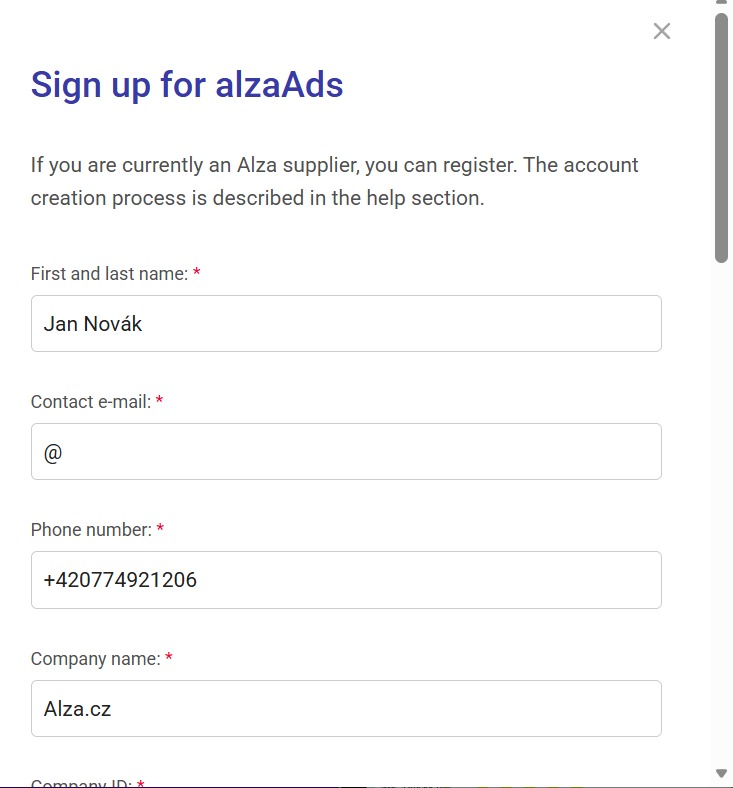
2. Fill in the registration form and click the “Confirm registration” button. To use the AlzaAds service, you must agree to the terms of service.
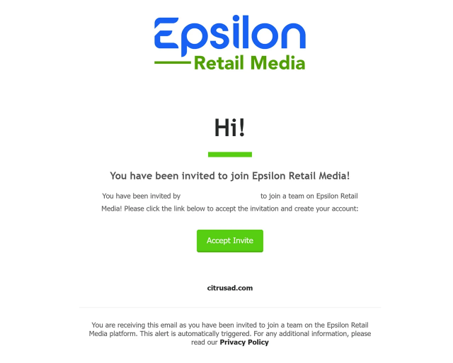
3. We will verify your registration, and if everything is in order, we will create an account for you in AlzaAds. You will receive an invitation (in English) at your contact email within two business days. Note that the invitation may end up outside the main inbox folder, for example in the “Promotions” folder or spam.
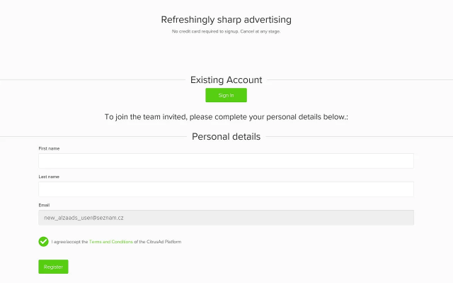
In the form, fill in your First name and Last name, and confirm your consent to the CitrusAd Terms and Conditions. Click the green “Register” button.
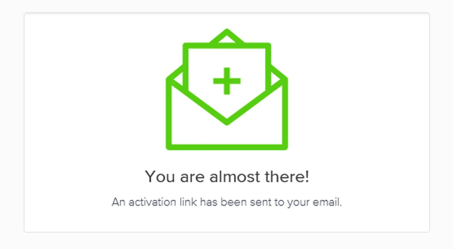
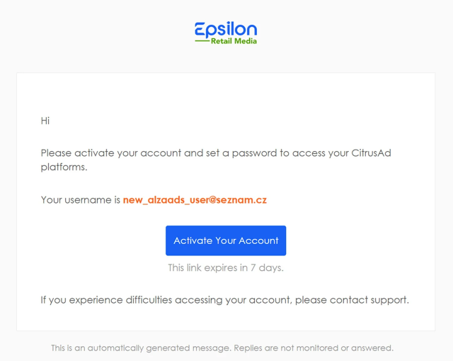
4. In your email inbox you will find a request to activate your account. You have 7 days to activate it. Activate the account by clicking the blue “Activate Your Account” button.
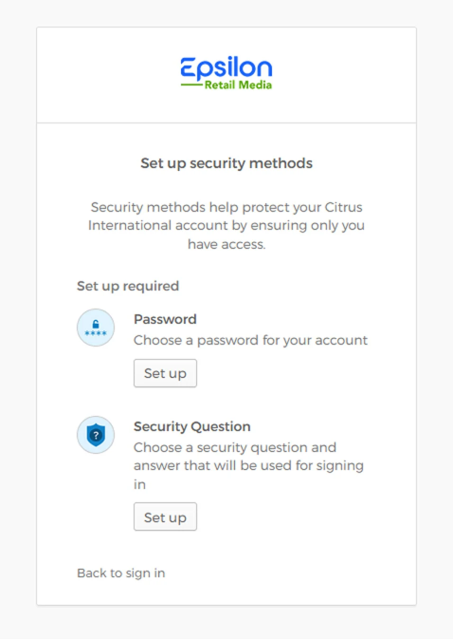
5. Set up a password. To set the password, click the “Set up” button in the Password section.
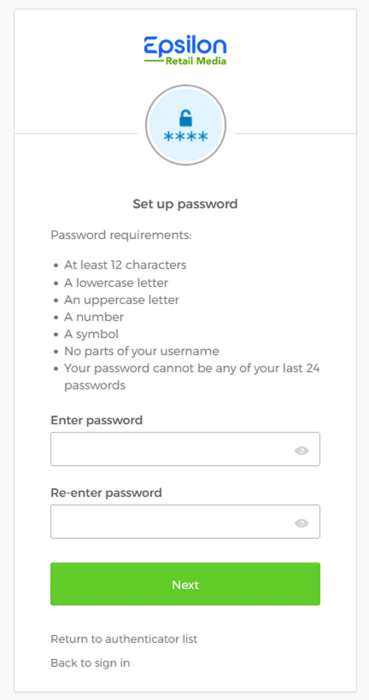
6. Choose a password. It must meet all requirements in the list – at least 12 characters, a lowercase letter, an uppercase letter, a digit, and a symbol (special character, e.g., #); the password must not contain part of the username and must not match any of the last 24 passwords. Enter the password in the “Enter password” field. Enter the password again (the “Re-enter password” field) and continue by clicking the green “Next” button.
7. Set up a security question. Click the “Set up” button in the Security Question section.
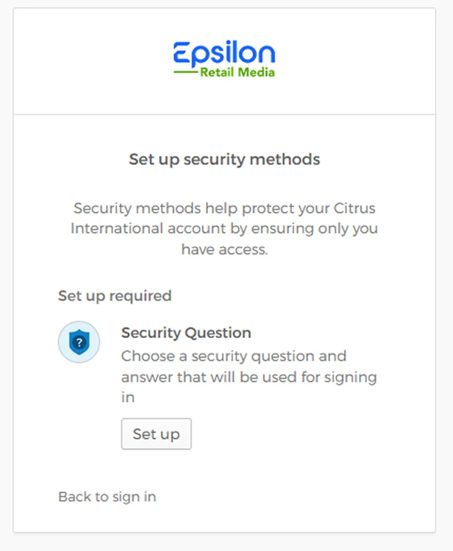
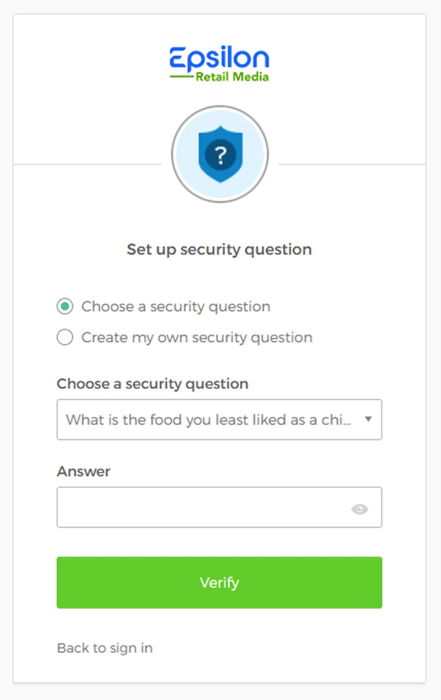
Choose from the preset questions (Choose a security question), or create your own (Create my own security question). Enter the answer in the “Answer” field. Click the green “Verify” button.
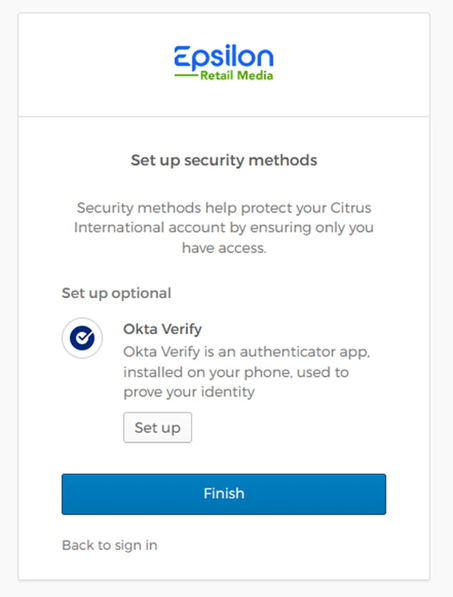
8. If you wish, in the next step you can also add additional security via the Okta Verify authenticator app. However, this is not required. Continue by clicking the blue “Finish” button.
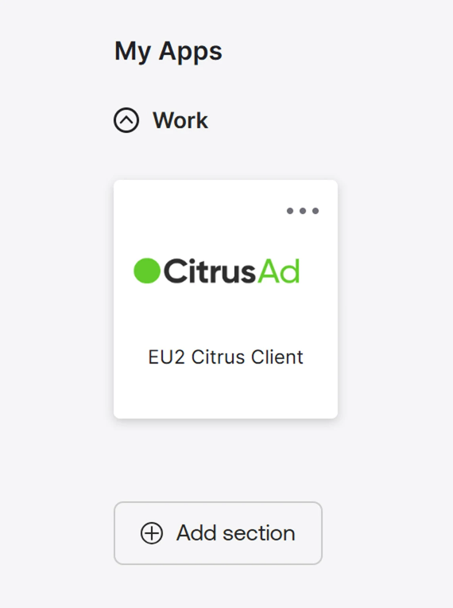
9. Click the square labeled CitrusAd.
10. You can now log in to the interface at alzaads.citrusad.com. You can also find the link to the interface on alza.cz/ads (white “Sign in to alzaAds” button).
New User Invitation
After creating an account, no further registration is needed. You can easily invite your colleagues and collaborators into the registered team via the “Users” tab and the “Send new invitation” button. Just enter the email address and set the permissions to either full access or read-only for reporting. After sending, the user will receive an invitation linking them directly to the AlzaAds interface, where they confirm this invitation. See more in the Settings tab, “Add Users” section.
If you have problems with registration or signing in to the team, please contact our support at [email protected].
AlzaAds Interface User Settings
Language Selection
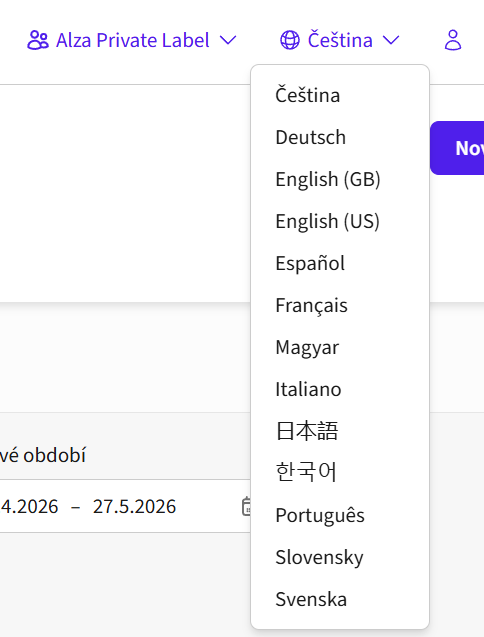
You can switch the interface language by clicking the globe icon in the upper right corner of the interface.
My Profile
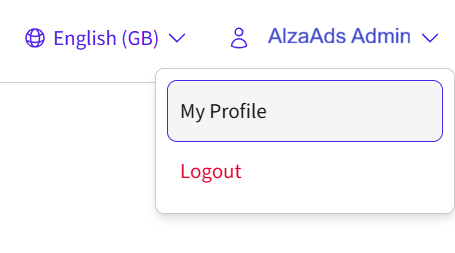
After clicking on your name in the upper right corner of the interface, an option to edit your user profile will appear.
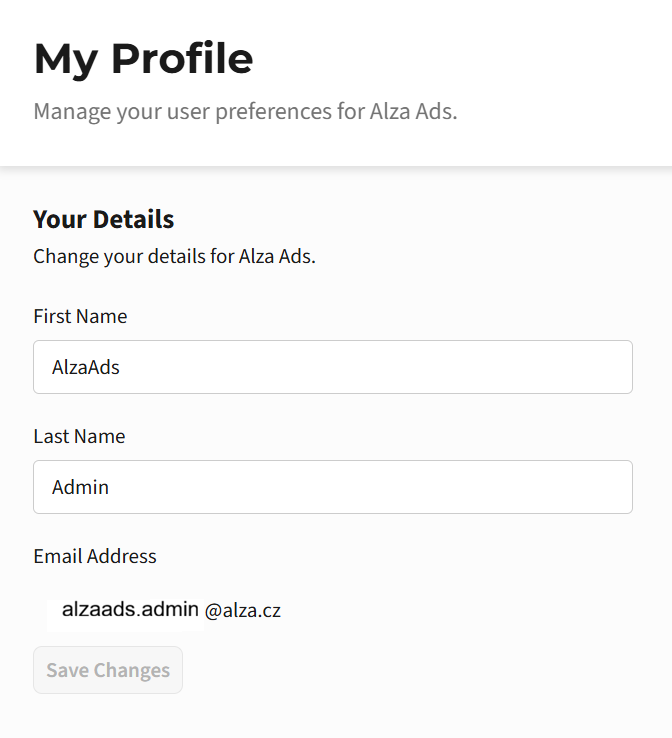
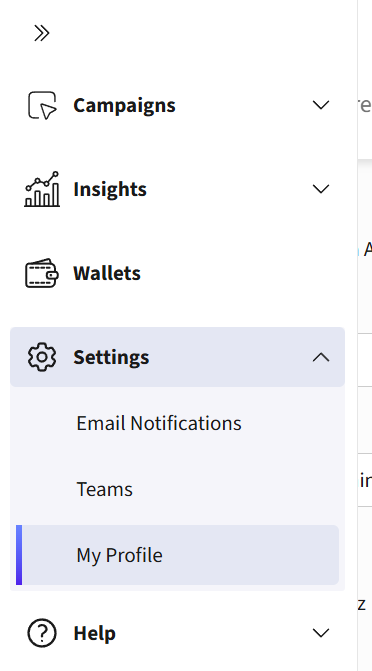
After clicking this field, you will be taken to the settings of your user profile, “My profile”. You can also reach your profile tab through the drop-down menu on the left side under the “Settings” section.
Settings Tab
In the “Settings” tab you can configure email notifications, your team / teams settings, and your profile settings.
Email Notifications
In this section you can manage email notifications for your team. Notifications can be set for campaign approval or rejection and low wallet balance.
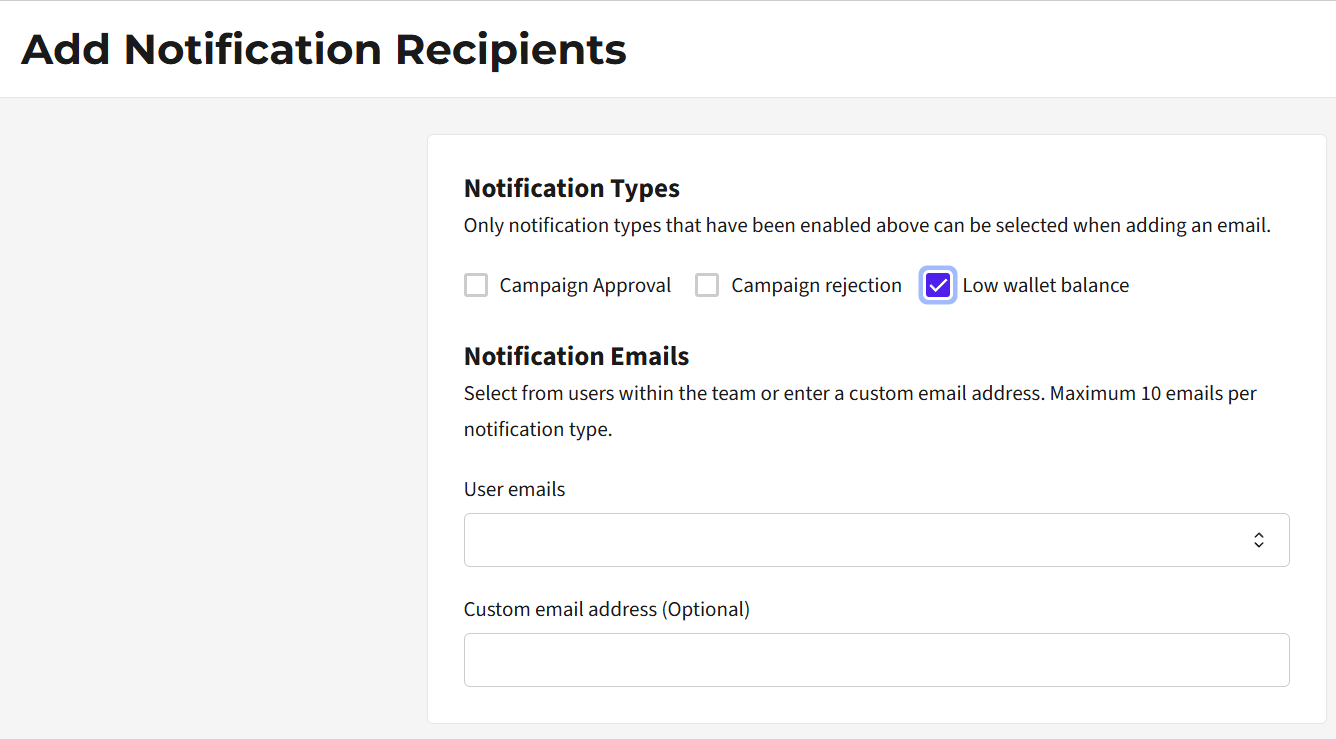
We recommend enabling low-balance wallet notifications. After turning this notification on, you can set specific email addresses to receive the notifications.
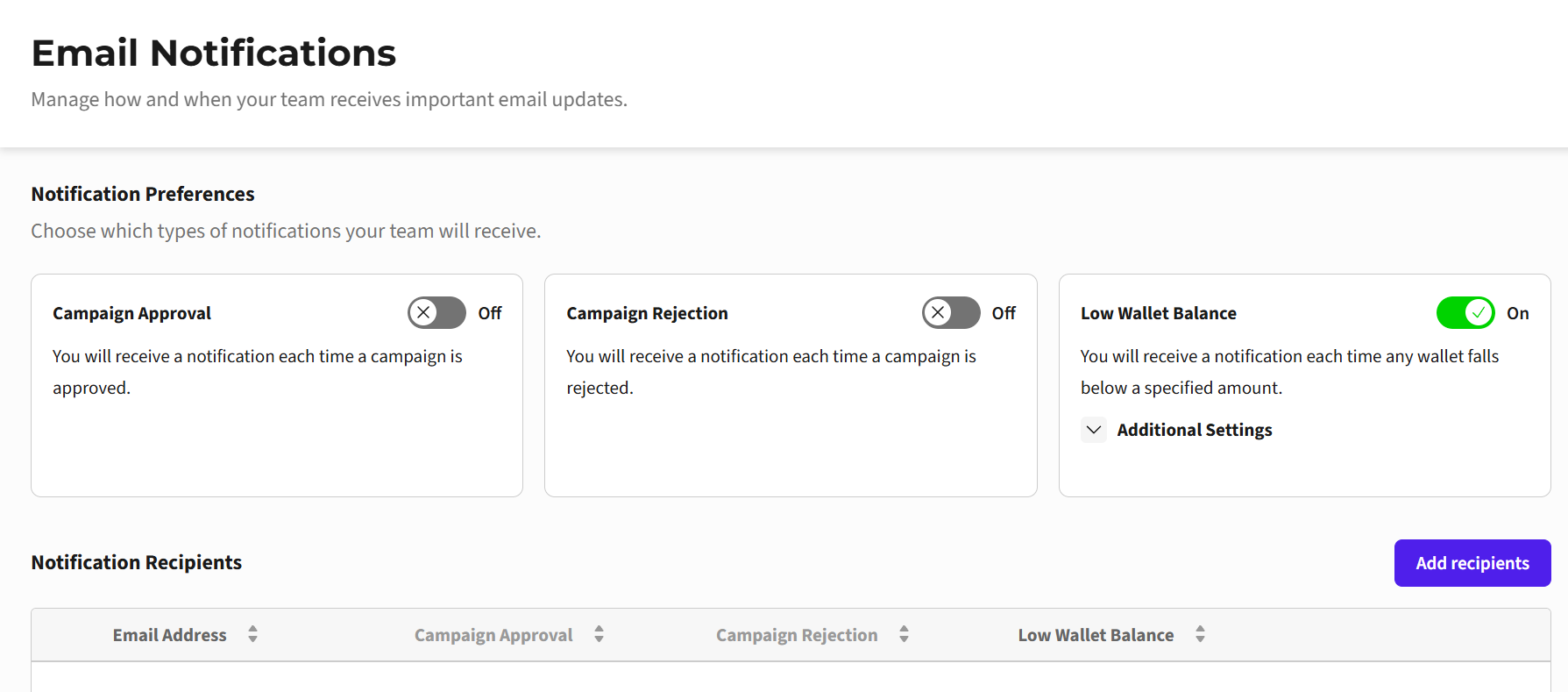
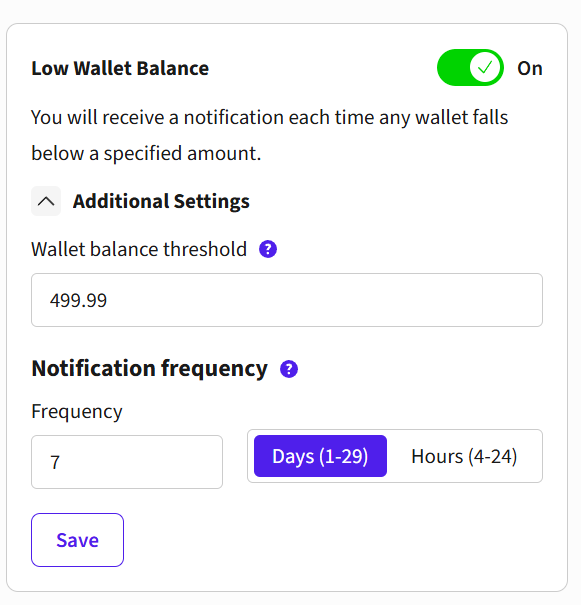
When the low wallet balance notification is enabled, click the “Additional settings” field to set the wallet balance limit for notifications and their frequency.
Team Settings
Through the “Teams” tab you can access the overview of your team or teams, if you manage more than one in AlzaAds. Here you can edit information about the team and its users.
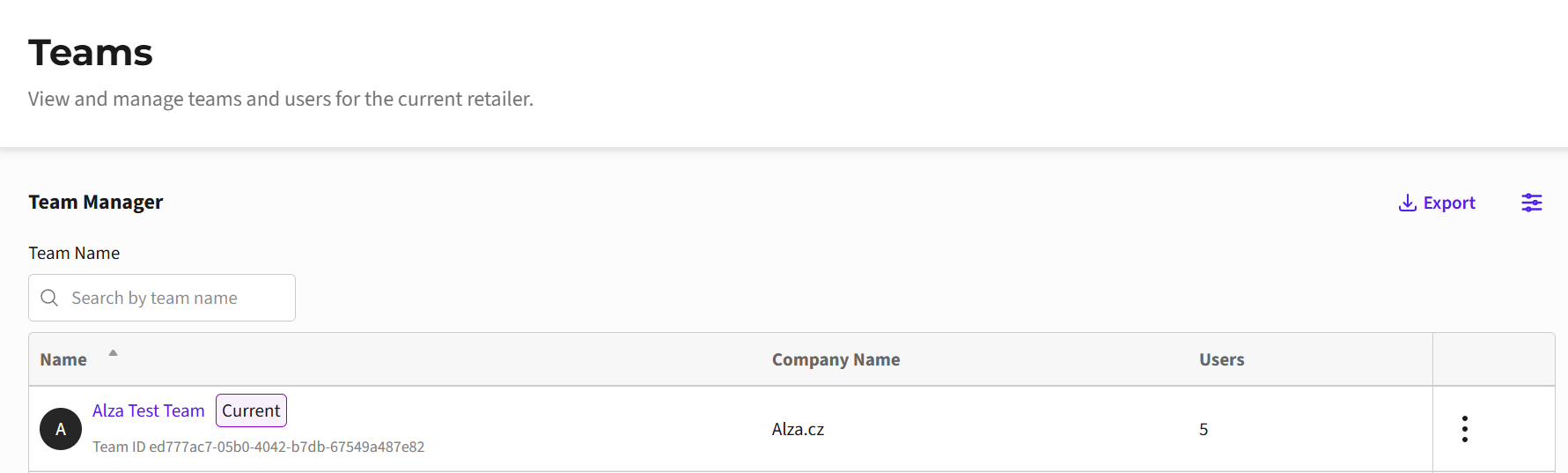
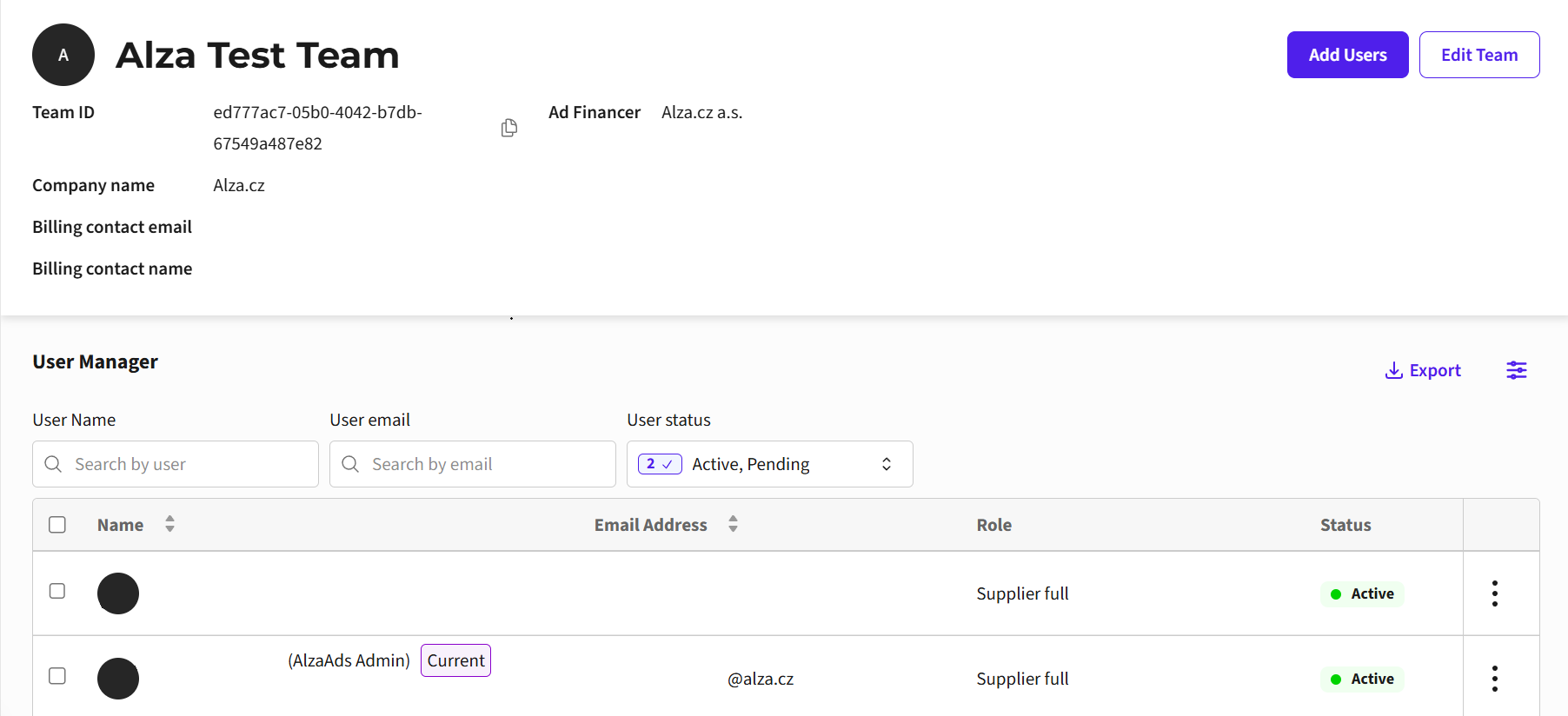
You can access team details by clicking on its name. Here you can view information about your team and its users.
It is important to have the Company name and the Ad Financer fields (name of the entity that finances your advertising campaigns, for the purpose of transparently informing users) properly filled in. These fields cannot be edited freely; if you need to change anything, please contact our colleagues at [email protected] with the requested change.
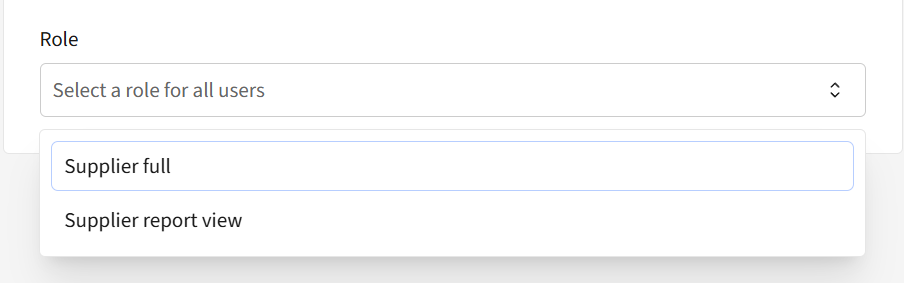
This section also shows the list of your team’s users. For each user you see the name, email, and role level, which you can edit by clicking the three dots next to the user. Roles come at two levels – full account access (Supplier full) or limited access for reporting (Supplier report view). You can invite a new user to the team via the blue “Add Users” button.
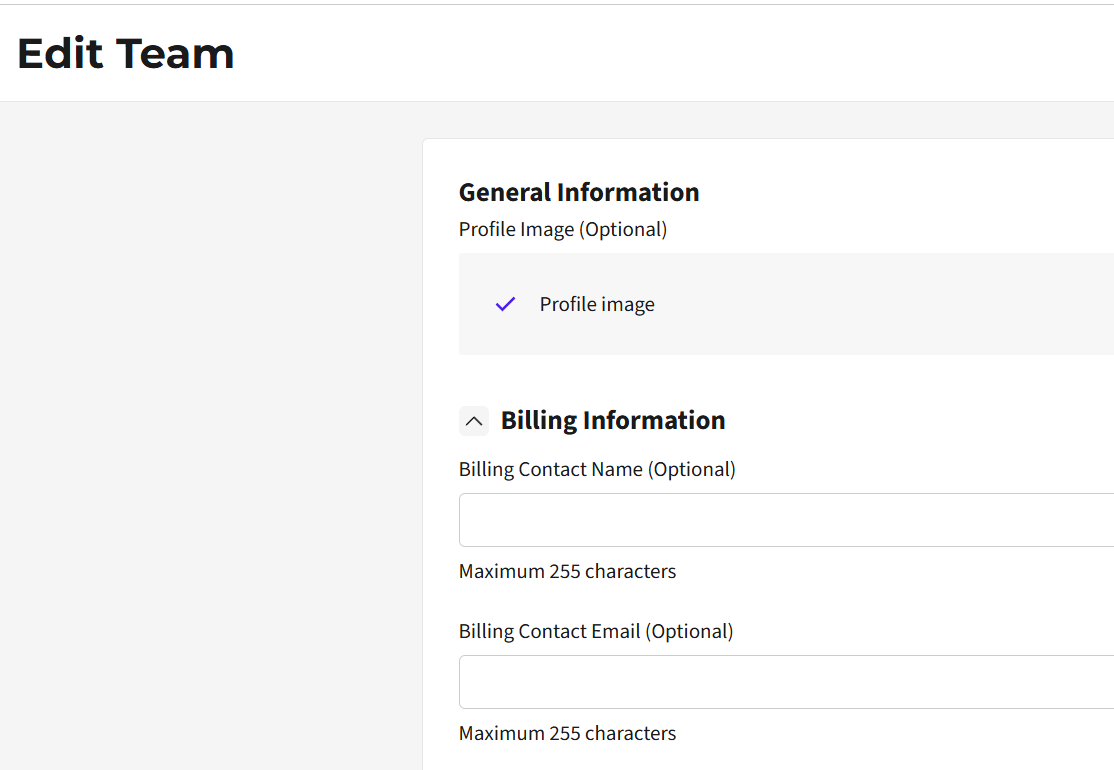
Edit Team
In this section you can change the team name and set the main billing contacts. We recommend regularly checking that your contact information is up to date. If you need to change billing contact information, please contact [email protected]. The new contact address must also be updated in the wallet billing tag; see “Wallets”.
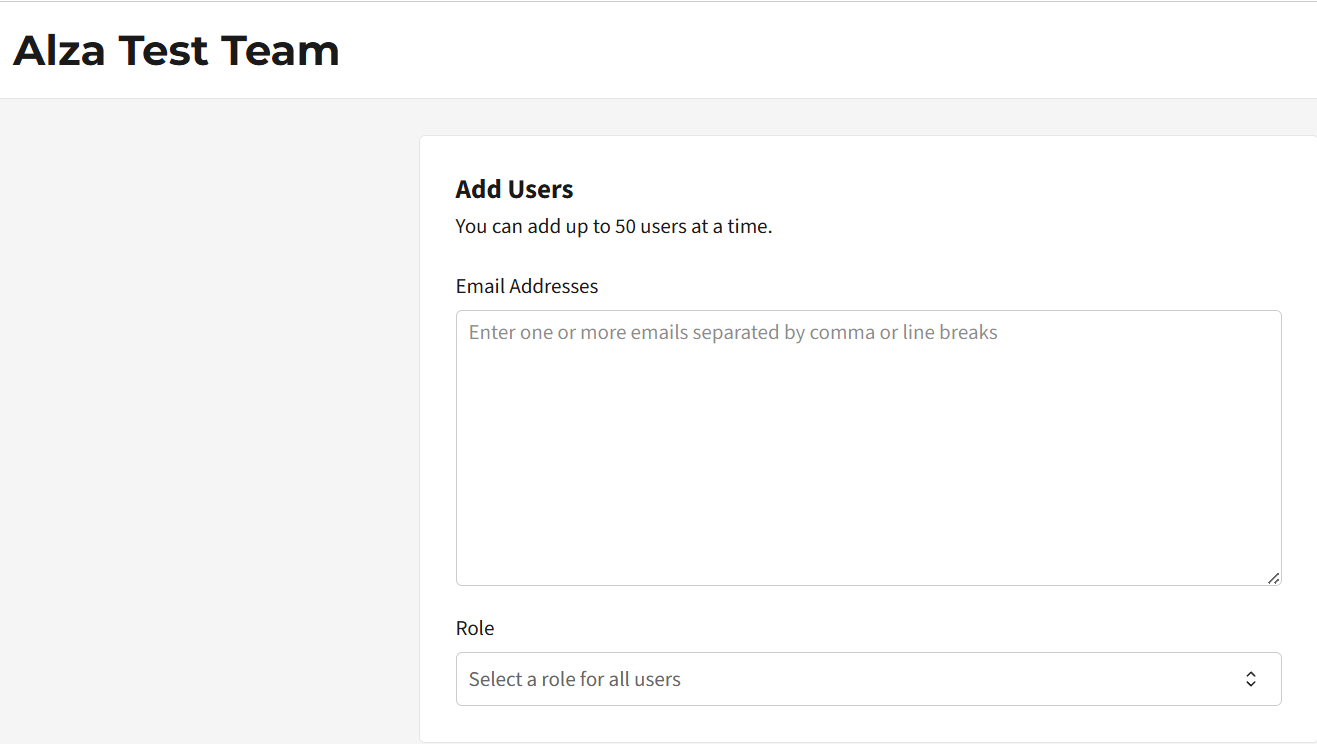
Add Users
After clicking the “Add Users” field, you can send new invitations to your team. When creating an invitation, you must enter the new user’s email address and choose the permission level. You can add up to 10 addresses at once. Create the invitation by clicking the “Add” button in the lower right corner. In the main overview of your team you will then see whether the user is active or pending.
Ad Types
AlzaAds currently offers Sponsored Products campaigns. They can run on the Alza website and in our mobile apps – in the Czech Republic, Slovakia, and Hungary.
Sponsored Products
Sponsored Products allow you to offer the product you supply to potential customers at the moment they are ready to shop in your category. They are typically displayed in the first three positions in the list of recommended and best-selling products in individual categories. During promotional events (Alza Days, MEGA Sales, etc.), in selected categories Sponsored Products are even shown in the top four positions. Your supplied product thus receives extraordinary attention and a chance to be part of the purchase decision.

They are displayed in first place in the category listing in the “Recommended” and “Best-selling” tabs, both on the web and in the mobile app.
Sponsored Products are labeled as “Sponsored”; otherwise they do not differ from the display of other products.
The advertiser standardly pays per click (CPC, or cost-per-click) in the auction; alternatively, the position can also be exclusively guaranteed for an agreed time. See more in the “Purchase Model” section.
The product that wins the auction is shown for up to a further 5 minutes to all users. The auction is then run again.
Each category on Alza has a defined minimum cost per click, which can be seen when setting up the campaign in the AlzaAds interface.
Sponsored Products in Search Results
The vast majority of search queries today are routed directly into categories where your campaigns are already running. If, however, no such redirection occurs and the user is shown a list of relevant categories and products, the product you supply may also appear in one sponsored position in this list.
There is nothing you need to set up – your campaigns will automatically also start appearing in search results. The condition is that your campaigns are running in a category that the system evaluates as relevant to the searched query. Thanks to this new display option for your products on the Alza website and apps, you can expect a slight increase in impressions and clicks for running campaigns.
Purchase Model
Advertising is purchased in two ways – the standard auction model, where you pay per click, or selected ad placements can be reserved exclusively for an agreed time (so-called booking).
Auction
Standardly, ads in AlzaAds are sold on an auction basis, with payment for each click (a click on a product or adding to cart). This means the advertiser can influence the success of their campaigns by setting the bid amount. The auction runs every 5 minutes and is based on a so-called second-price auction model, which is favorable to advertisers. The winning cost per click will be between the maximum bid set in the campaign and the bid of the next competitor in the ranking. For example, if your maximum bid is CZK 50 and your nearest competitor’s bid is CZK 30, then in case of winning the auction you will pay an amount between CZK 30 and CZK 50.
A second-price auction makes campaign management easier for advertisers. You can comfortably set the maximum bid higher and the system itself will ensure that you only pay as much as is necessary to win the auction. This removes the need for daily checks and adjustments of the maximum bid; your campaign automatically adapts to the bids in competitor campaigns.
The maximum bid is not the only factor in the auction; the click-through rate of your ads and the relevance of the ad itself are also taken into account. The choice of the product to advertise and the offer to the customer is essential for the effectiveness of your campaigns. For maximum campaign success, choose attractive, well-selling products that customers will really be interested in.
To help estimate the bid amount to enter into the auction, our Bid Advisor report shows historical data per individual category from the previous day. You can find it here: alzaAds Recommended bid per Category. More information can be found in the Bid Advisor tab in the help.
Booking
By prior arrangement, selected ad placements can be reserved exclusively for an agreed time. For example, you have the launch of a new product and want to display it for several days in the first position in a chosen category. Products in Booking do not participate in the auction but have their position exclusively guaranteed. If you already have an AlzaAds account and are interested in booking, please contact [email protected].
Attribution
The attribution model is important for the correct interpretation of your campaign results. It determines how many conversions are assigned to individual campaigns. The attribution window for Sponsored Products is 30 days after the click. So when a user clicks on a product you are sponsoring and buys the product within 30 days, both the click and the sale (conversion) are credited to the campaign. In standard reporting, only the purchase of the exact product the user clicked on is counted.
Wallets and Billing
Wallets
Wallets contain the credit you can use for your campaigns. Each campaign must be assigned a wallet from which it draws. Campaigns run until the credit in the wallet is exhausted, unless they have other limits set. Wallets can thus serve to limit the total spend of a group of campaigns that draw from the same wallet. Billing is based on the realized spend for the billed period; the amount of any remaining wallet balance plays no role. To top up your credit please contact our support [email protected].
In AlzaAds you can have a wallet in three currencies – CZK, EUR, and HUF. Based on the wallet used when setting up a campaign, the country in which your campaign will run is automatically selected – Czech Republic, Slovakia, or Hungary.
When the account is created, wallets in the currencies you need will be created for you automatically with an initial credit of CZK 100,000 (and the equivalent of this amount in the other currencies), so that nothing limits you in launching campaigns. You can view your wallets in the “Wallets” section.
Wallet Manager
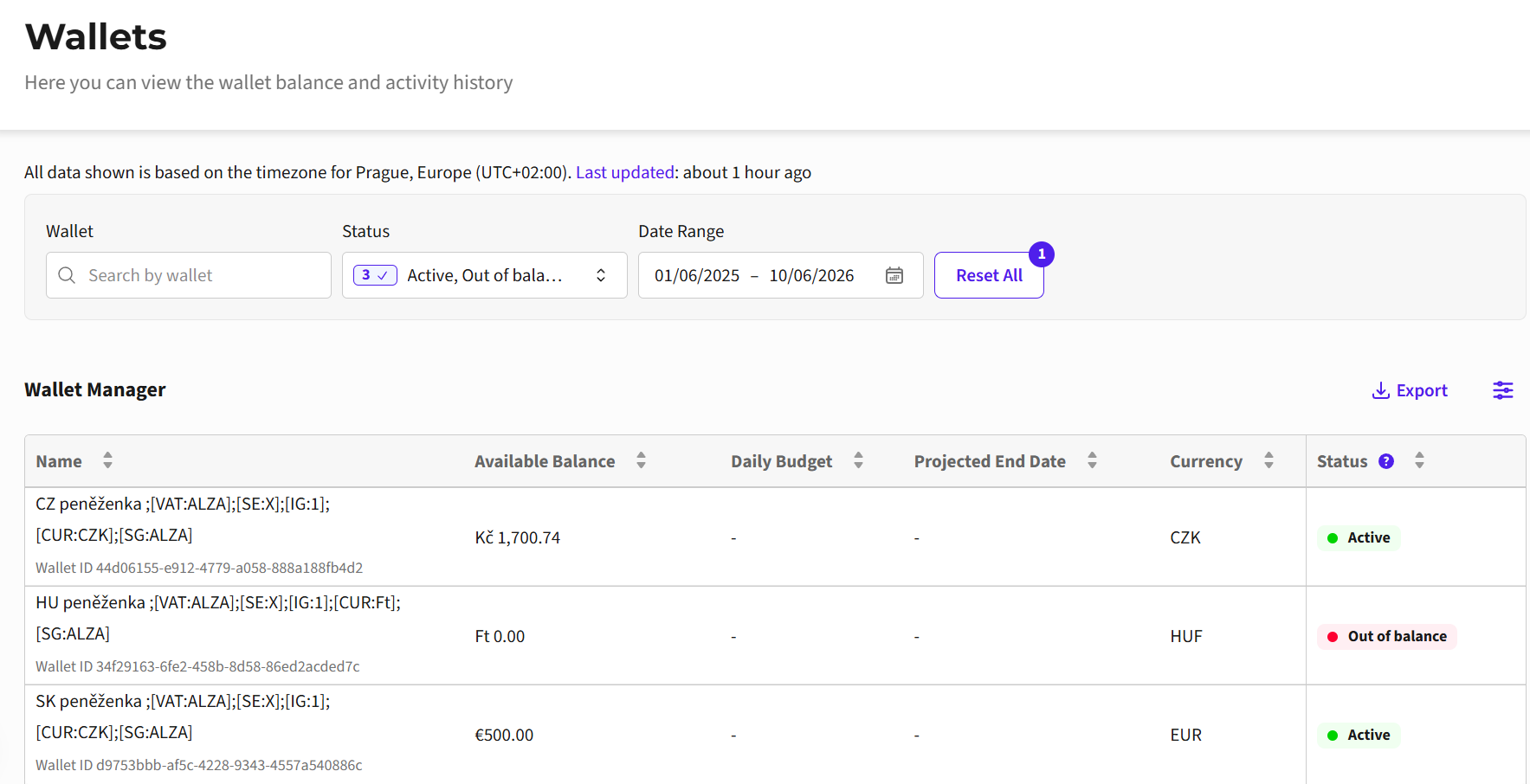
The Wallet Manager shows you the status of your wallets and their available balance. Wallets can be filtered by their name and status (Active, Low Balance, Out of Credit, Archived). If a wallet has run out of credit, you cannot run campaigns on it. To top up the credit, please contact our support at [email protected].
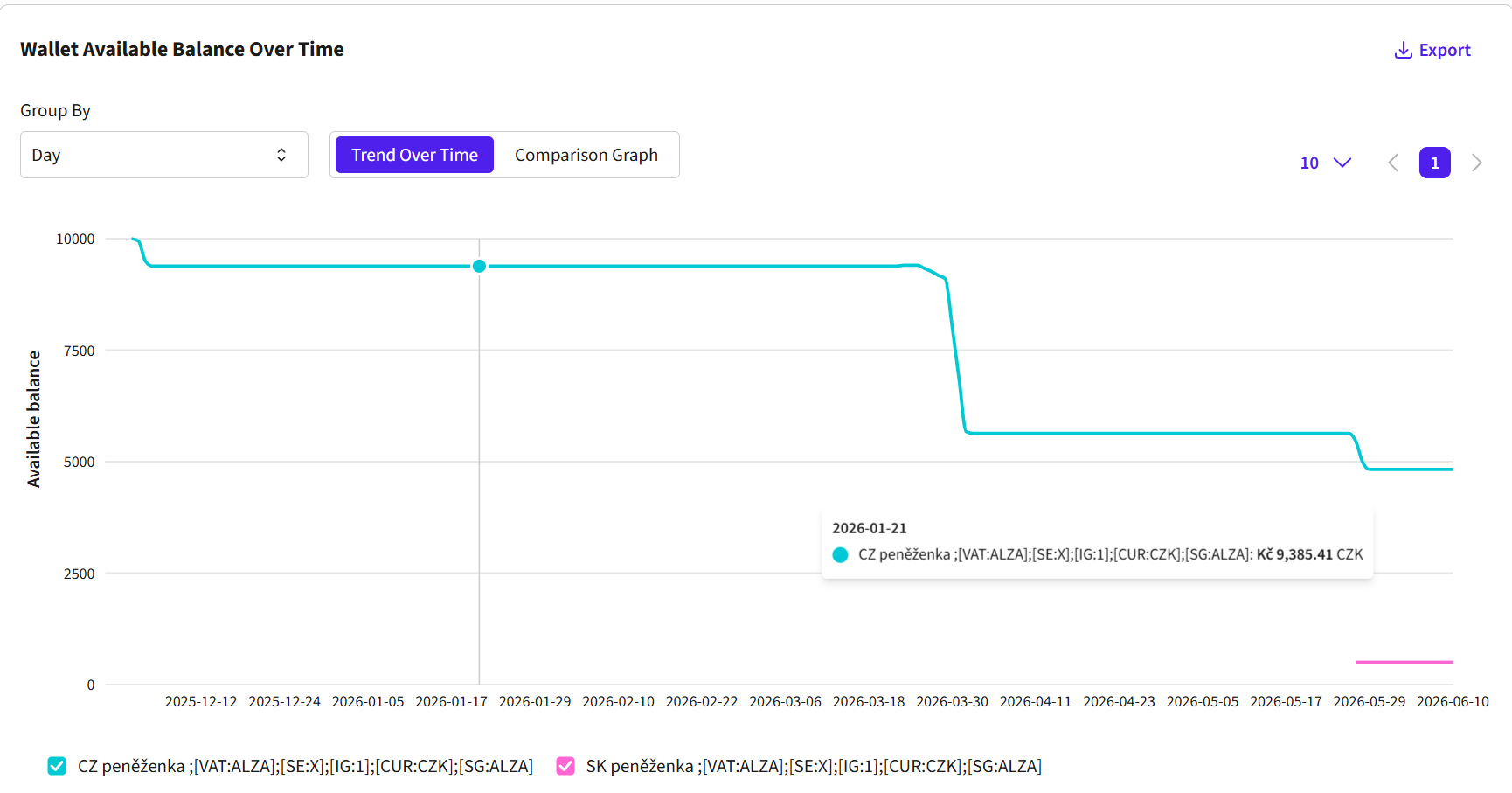
Below the basic overview, you will find a chart of the available wallet balance over time. You can set the period you want to display in the “Date range” field at the top of the page.
The “Activity history” table shows all changes to the credit in your wallet for the selected period, i.e., credit top-ups or reductions of this amount.

Creating a New Wallet
If you need additional wallets, for example because of dedicated budgets for different activities (launch of a new product, summer campaign, etc.), contact [email protected] and we will create them for you. To create a wallet we need to know the name of your team in AlzaAds, the name of the wallet to be created, the currency, the amount of credit required, and whether it is a new or existing wallet. The wallet creation request must come from the email address of a user who has an active account with full permissions (the “Supplier full” role) in the team.
We add so-called billing tags to the wallet name, which determine in particular which entity the wallet will be billed to, in which currency, and which wallets should be merged into a single invoice. Wallet names cannot be edited, in order to preserve the integrity of the billing tags. If you want to change something in the name, write to [email protected] and we will arrange it.
The wallet name will thus consist of your own name (which you can define yourself, e.g., it can contain a PO number, etc.) and the billing tags, for example:
CZ Wallet;[SG:Segment];[VAT:CZ27384802];[SE:AlzaTest01];[IG:1];[CUR:CZK];[EML:[email protected]]
What do the individual tags mean?
[SG:] – segment for which the wallet is intended. It is no longer necessary to separate individual segments by wallets; the tag primarily serves your internal orientation.
[VAT:] – VAT ID of the billing entity. Thanks to this, you can easily verify that billing is done to the correct entity. The billing entity does not have to be the same as the account owner. If you want it set up differently, please contact us at [email protected] and we will agree on a solution individually.
[SE:] – identifier of the billing entity at Alza.
[IG:] – billing group. Wallets that are to be on the same invoice must have the same billing group number.
[CUR:] – billing currency. It can be CZK, EUR, HUF, or USD.
[EML:] – the contact to which the invoice will be sent.
Please check that your billing contact is up to date regularly. If the contact needs to be updated, contact support at [email protected], so that the contact is also changed in the billing tag of your wallets.
Billing
Billing in AlzaAds takes place on a monthly basis according to calendar months; we invoice actual spend at the team level for the past month. The basis for billing is the total amount for all campaigns in the “Ad spend” field in your campaign overview for the past month.
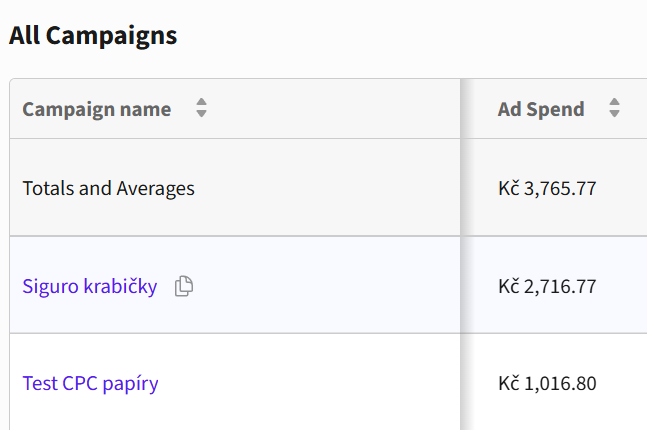
The invoice is sent within two weeks after the end of the billed period to the contact specified in the interface under “User settings/Billing”; payment is, where possible, settled by offset.
We recommend regularly checking that the billing contact is up to date. If you need to make a change to the billing address, you must contact [email protected] and also change it in the billing tag of the wallet. For any questions regarding wallets, please contact [email protected].
When invoices are issued, minor differences from the statistics in the interface may occur. This is due to currency conversion or a different time zone used for reporting for billing versus reporting in the interface. In case of larger differences, contact [email protected].
Creating a Campaign
Creating a Sponsored Products campaign is easy and quick. Thanks to the simple interface, anyone can do it without prior experience. Everything you need is described in this guide; if necessary, contact [email protected]. Proceed step by step; if needed, you can return to a previous tab and adjust the settings. At the end you will be able to check all the settings once again in a clear summary.
Start by clicking, on the main panel, the blue “New Campaign +” button:
Campaign Settings
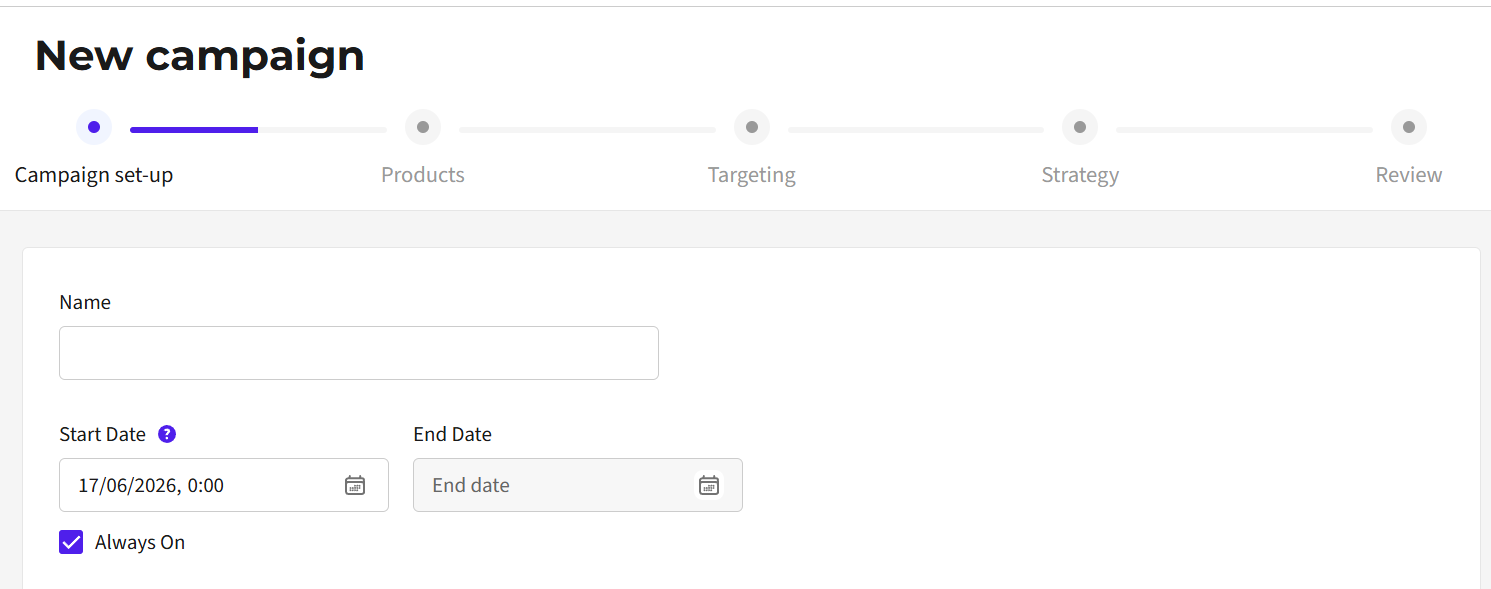
The first step is the basic campaign setup. Enter the campaign name; we recommend setting up consistent naming for all campaigns in your team for clarity. E.g., Brand – Campaign type (abbreviation SP for Sponsored Products) – Country – Product type – Time range.
Select the period during which your campaign will be active. We recommend selecting the option “Always on”. The campaign will then run from the moment of launch until the credit in the wallet is exhausted, while respecting any daily or total campaign spend limits (which can be set in a later step).
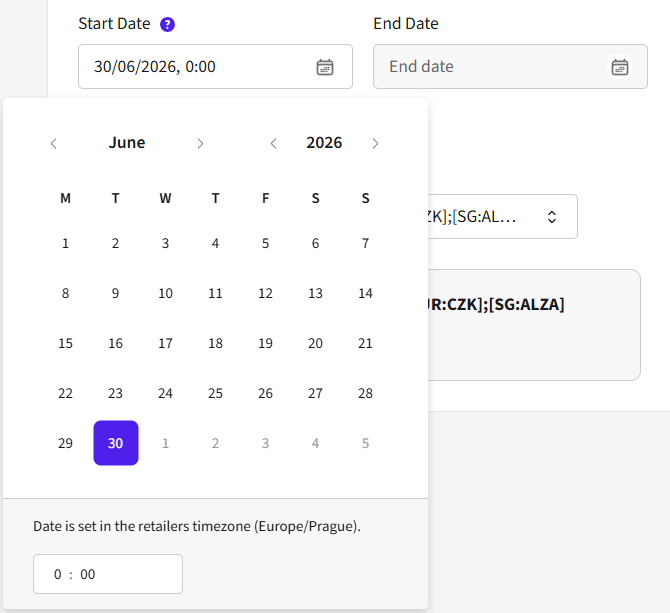
If you select “Always on”, you can choose a planned start date for the campaign. The default start date is tomorrow (the campaign will start delivering the day after launch). Alternatively, you can choose an active period in the calendar during which the campaign should run exactly. This is ideal for campaigns that have a clear time frame, e.g., a summer campaign.
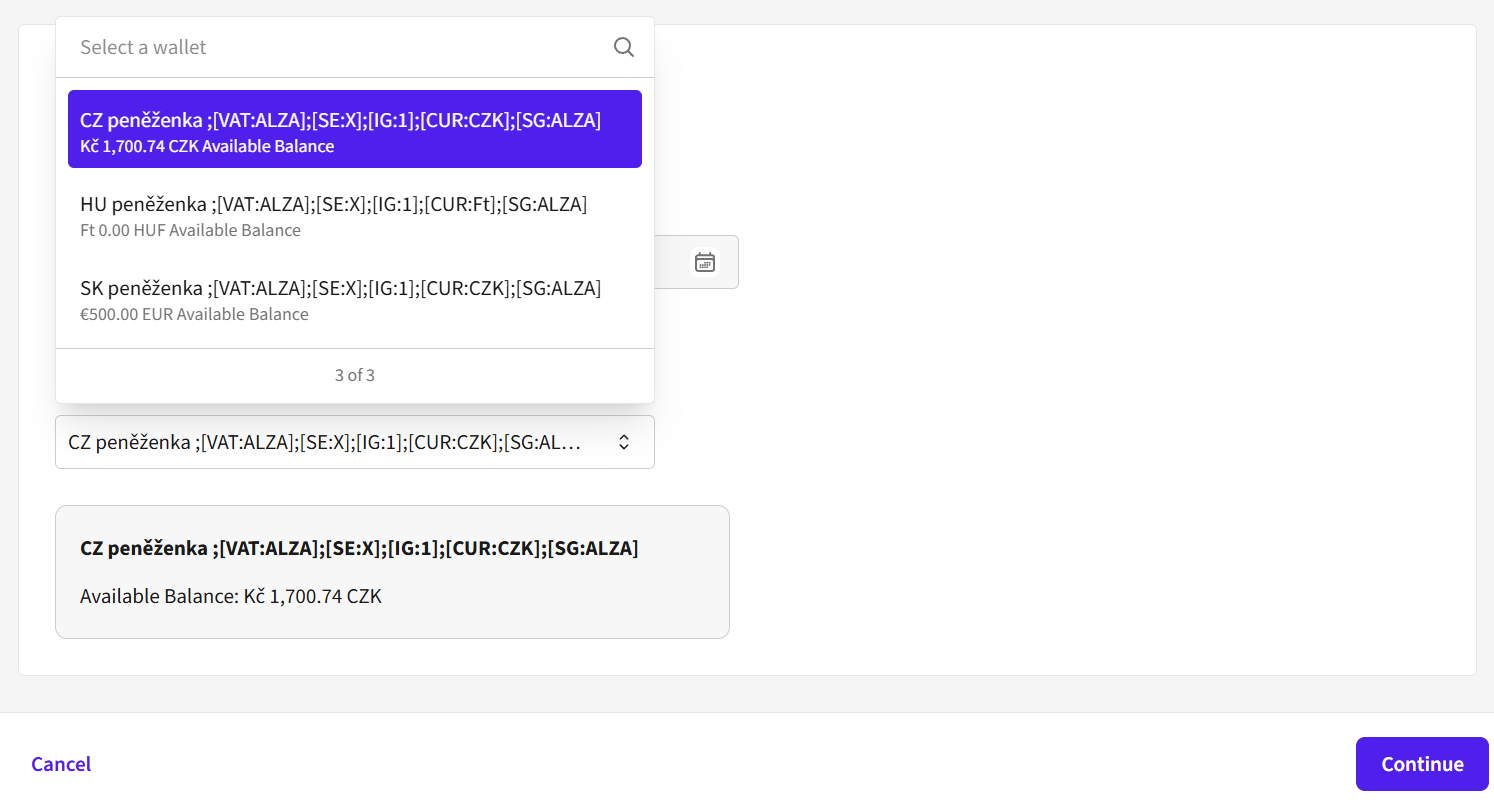
In the next step, choose the wallet from which the campaign will draw credit. By selecting a wallet in a specific currency, you also select the country in which your campaign will run. If you choose, for example, a wallet in CZK (Czech crown), you will select products from the Czech Alza catalog and your campaign will be displayed on the Czech website and in the Czech Alza app. If you also want to run a campaign in another country, e.g., Slovakia, you need to create a separate campaign and choose a Slovak wallet in EUR.
After selecting a wallet, click the blue “Continue” button.
Products
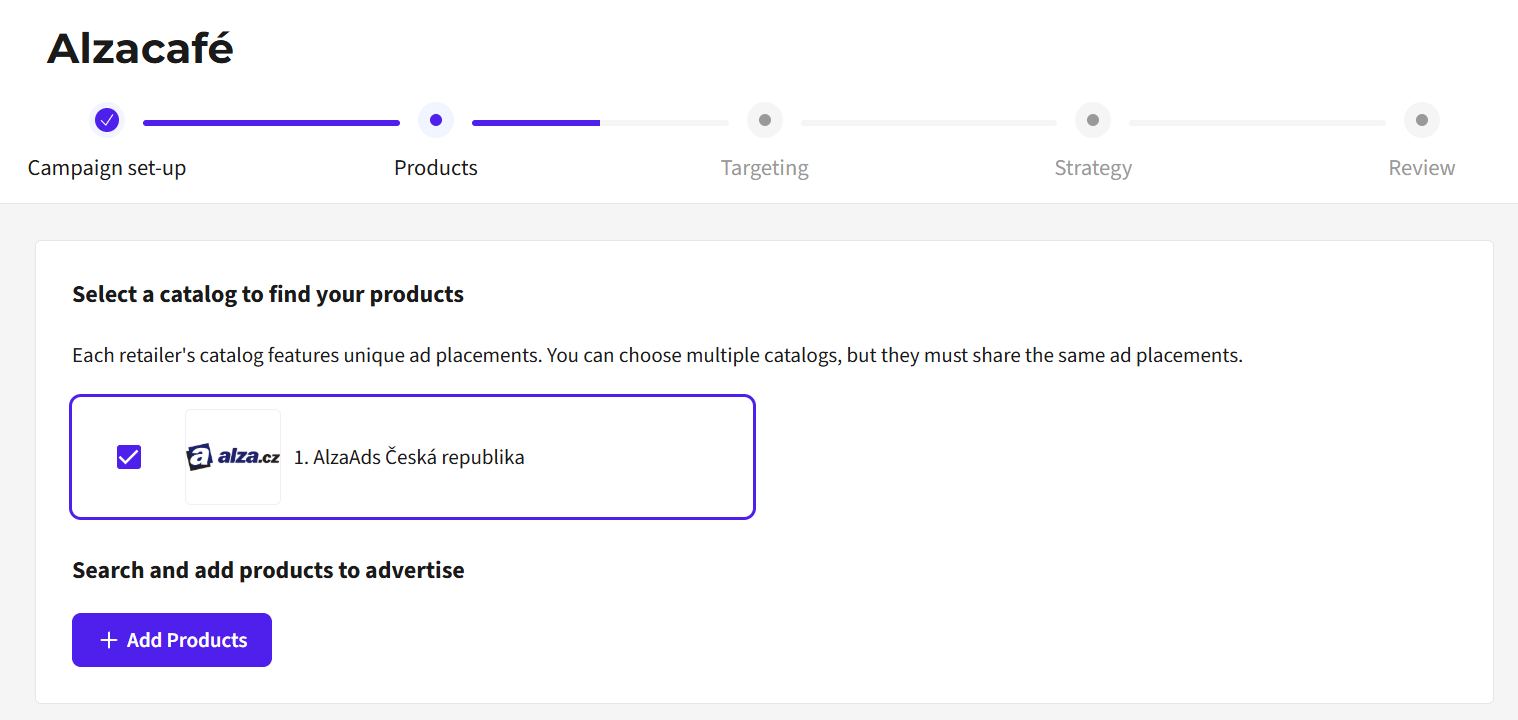
In the first step “Select a catalog”, do nothing. For each country there is exactly one catalog, which is already chosen by default based on the wallet you selected in the previous step (CZ wallet = CZ catalog, etc.).
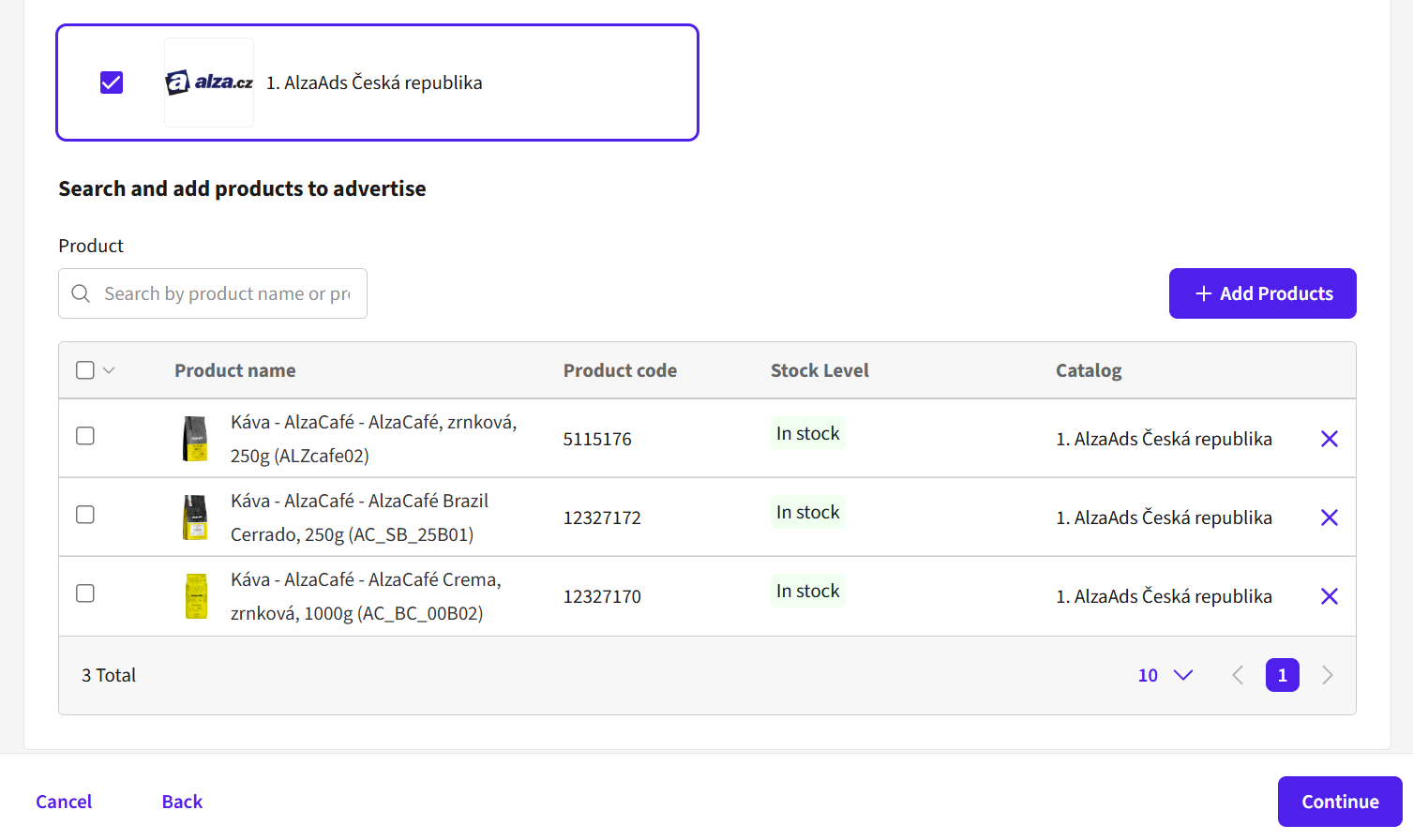
Select the products you want to advertise in this campaign. To add a product to the campaign, click the blue “+ Add Products” button.
A “Browse all products” pop-up window will open. Here you can search for your products in the search bar.
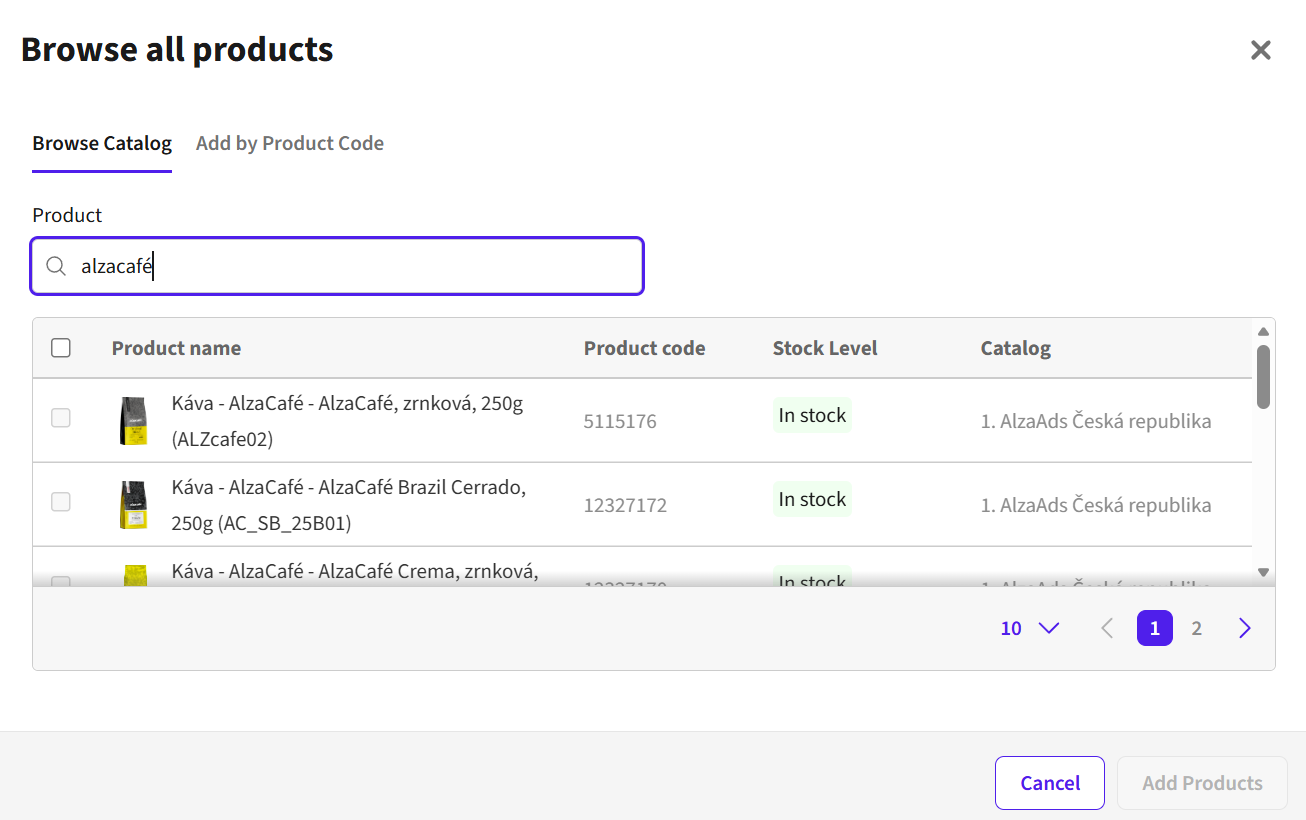
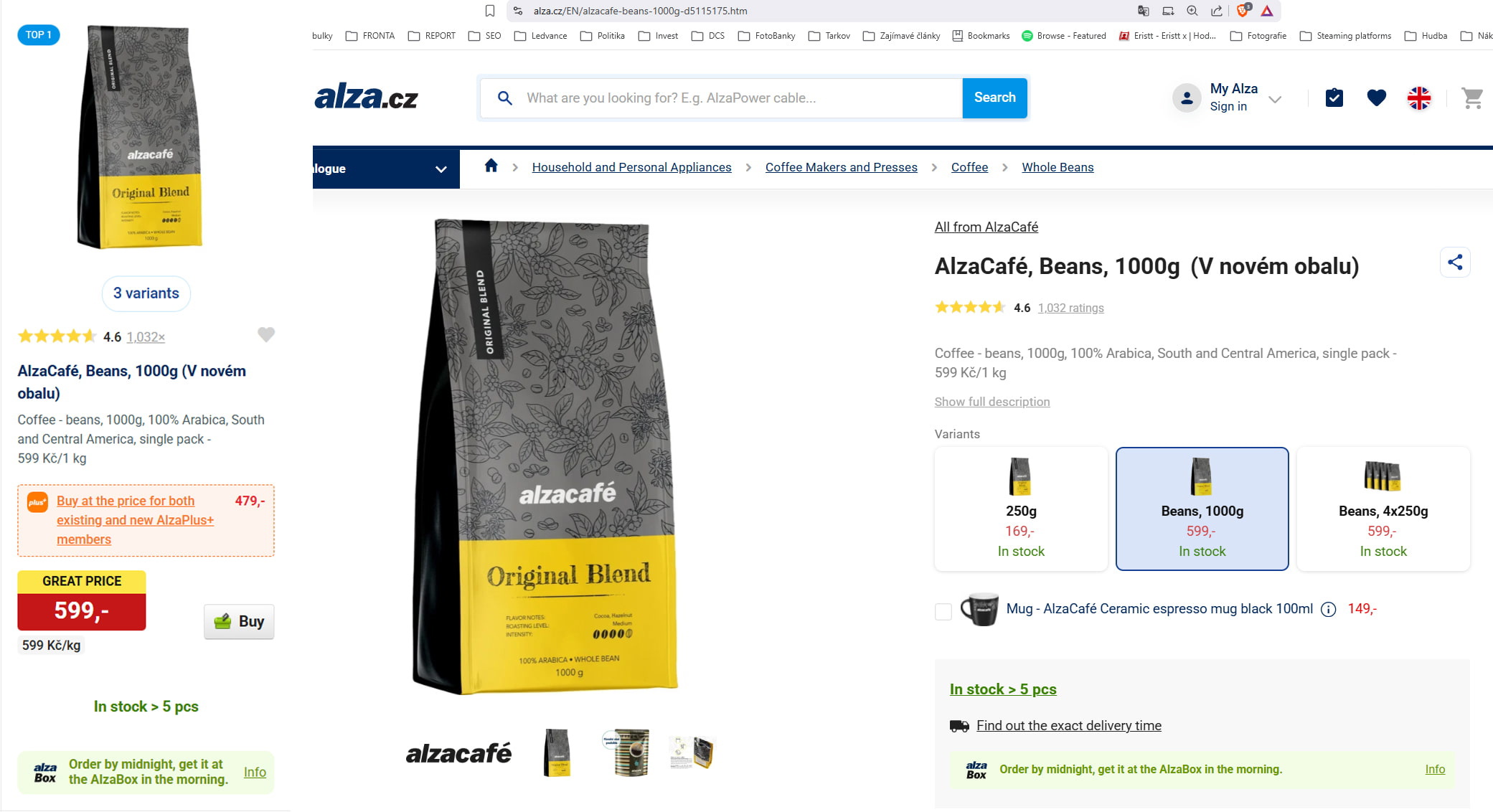
You can filter the product by its name on Alza, by brand, by product type (e.g., coffee, mobile phone, etc.), or by the order code on Alza or by the product code in the URL (combination of numbers following the letter d). The search is sensitive to exact product, category, and brand names. If you do not type them exactly, the product may not be found. We therefore recommend searching by product code – it is the most reliable.
For one campaign we recommend selecting at least two products to ensure it runs optimally. The AlzaAds system selects the more successful ones from your chosen products over the course of the campaign and slightly favors them in the auction; selecting at least two products also prevents the campaign from potentially being shut down if one of your products goes out of stock.
Only products that are in stock on the website at that moment can be selected for a campaign. Products that are out of stock will not be found in the search. Once they are back in stock, the product is automatically pushed back into AlzaAds, but there is a time lag of up to 48 hours compared to the Alza website. After selecting your products, click “Add products”.
After leaving the pop-up window, you will see a list of all the products you have selected for the campaign. If you are happy with your selection, click the blue “Continue” button.
Targeting
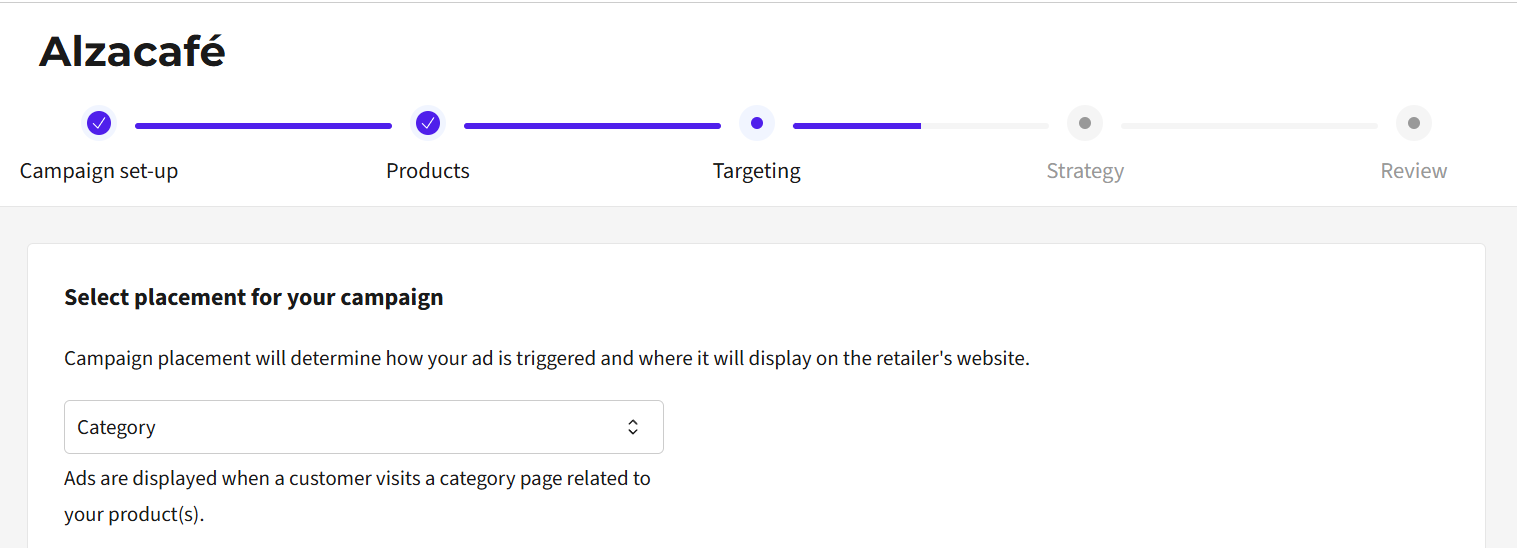
In this part you choose the placement of your campaign on the Alza website and the categories in which your campaign will be displayed.
As far as placement is concerned, the only possible format at this moment is a sponsored product within a category, i.e., the “Category” placement. So you do not change anything here.
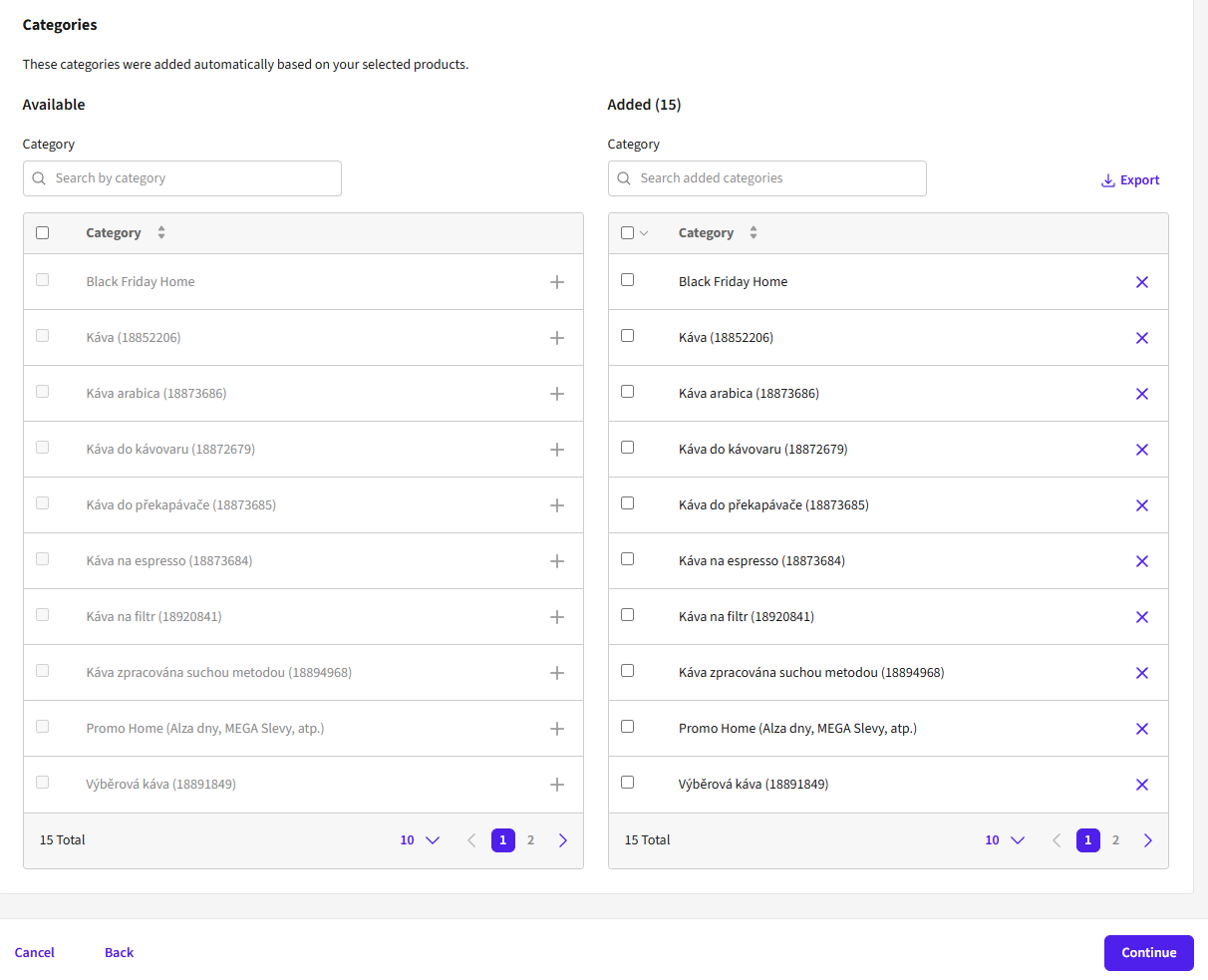
For the category selection, the AlzaAds system automatically offers all categories in which your selected products are listed on Alza = the selected products appear there automatically. We recommend keeping all categories in the selection for maximum visibility of your product. Smaller and therefore more specific categories will have lower overall traffic, but they are often the path taken by customers who have decided to buy a product, so smaller categories generally bring a higher ROAS. Smaller categories may also have less competition from other advertisers and therefore a lower required cost per click.
All available categories appear in the left column of the table. Categories added by default appear in the right column. If you want to remove a category from the campaign, remove it with the cross to the right of the name, and it will move to the left column.
After removal, the category appears in the left column of the table among the available categories. You can easily return it to the selection using the blue “+” button after the category name.
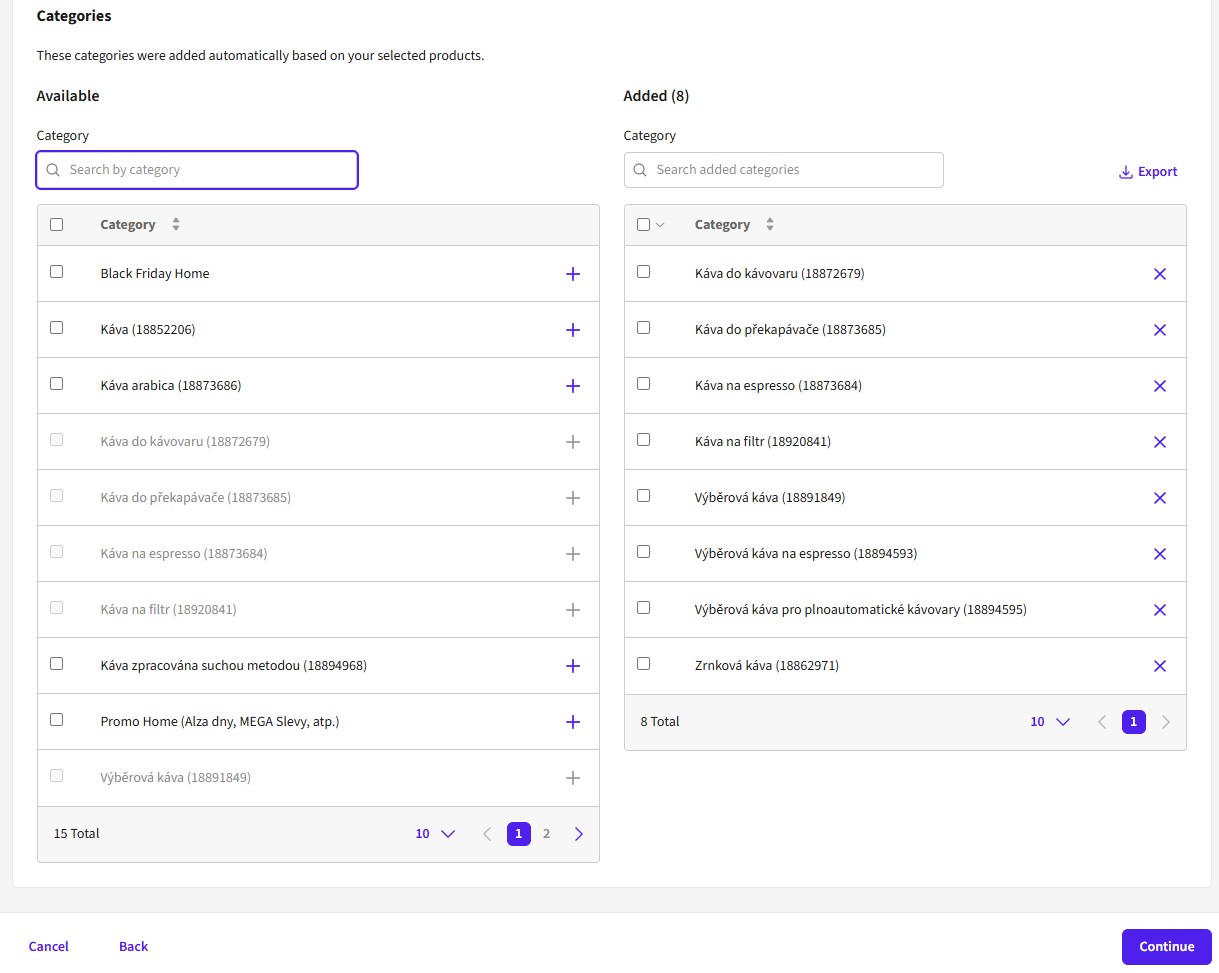
Each category has an ID in parentheses after its name, by which it can be uniquely identified on the Alza website. This ID always appears in the URL of the given category, and categories can be searched by it on the Alza website. Thanks to this, you know exactly where your ad will appear.
If you leave all the offered categories in the campaign unchanged, the system itself recognizes newly created categories that are relevant to you and automatically adds them to your campaign’s targeting. However, if you uncheck at least one category, new categories will not be added in the future and will need to be added manually in the campaign settings.
If you are happy with your selection of categories, continue to the next part of the campaign setup via the blue “Continue” button.
Strategy
In this step you set your bidding strategy. At the top you can see which wallet you will draw credit from for this campaign, and its available balance.
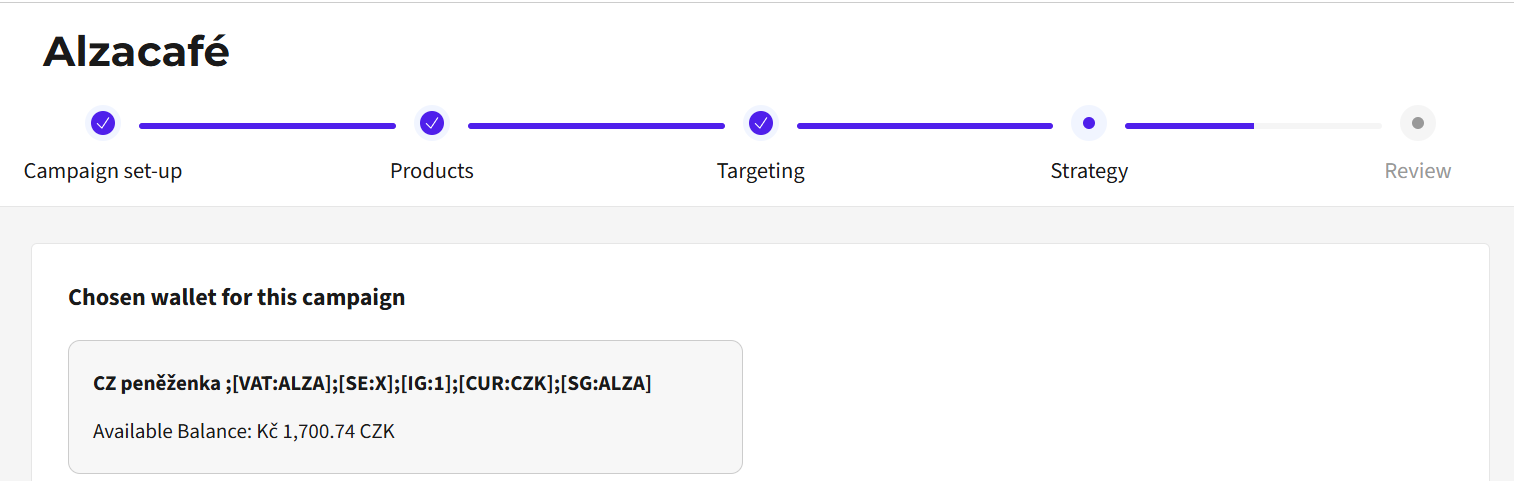
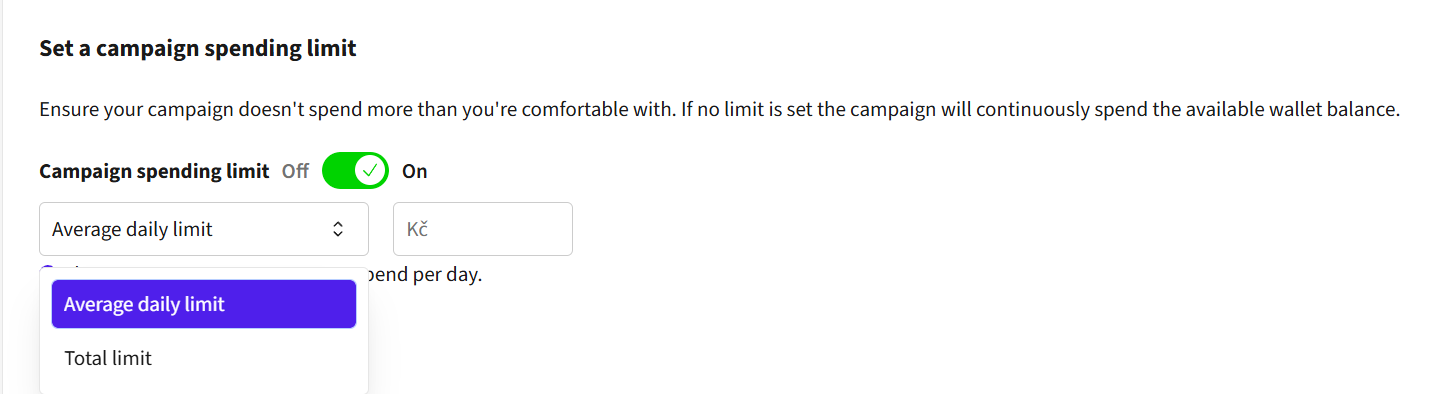
Next, you can set a spending limit on the campaign, either at a daily or a total campaign level. We recommend setting a total limit for the given campaign instead. This ensures that your campaign has a chance to be delivered throughout the day. If you set a daily limit, it can be reached in the morning, your campaign will stop for that day, and you will miss out on potential sales in the afternoon and evening. If you do not set any limit, the campaign will be delivered continuously as long as credit is available in the wallet assigned to the campaign.
For technical reasons, it can happen that your daily or total limit is slightly exceeded. This is because each auction runs for 5 minutes; if your campaign reaches its limit during an auction, the auction completes as it should, and any clicks during this time are credited to the campaign. If you need to strictly adhere to the budget, we recommend setting the limit slightly lower than your budget.
After setting your campaign limits you have an option to use automated bidding adjustments. This feature works only with daily spend limits. You select a campaign objective - either maximise clicks or maximise sales revenue. Bids are then automatically adjusted for each auction based on the campaign objective.
In the “Cost per click (CPC)” field, you set the maximum cost per click that you want to enter into the auction. The higher this amount, the higher the probability that your product will be displayed. You cannot set a maximum cost per click in the campaign lower than the minimum cost of the most expensive category in your selection. The minimum costs per click for the individual categories are visible at each product. There you can also see in which categories the given product will appear.
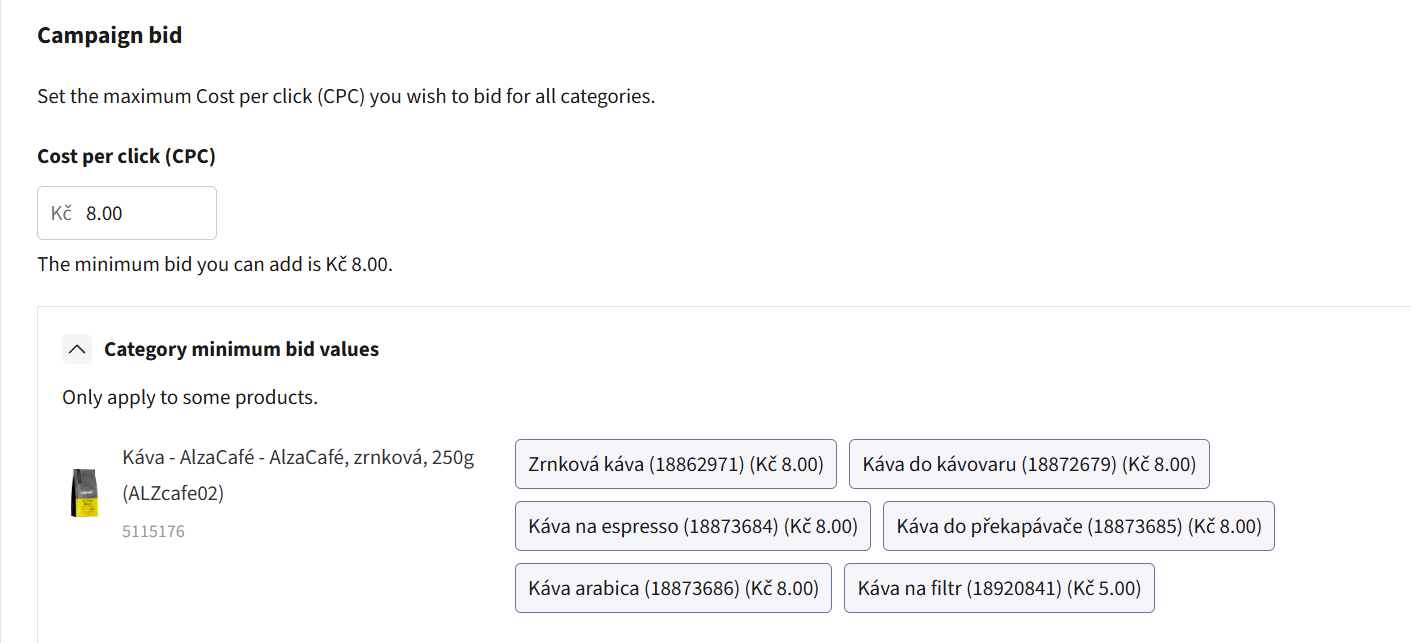
The actual cost per click needed to display your ad depends on competition in each category. It can therefore be significantly higher than the minimum value you see in the interface.
We recommend, for a good campaign start, setting the maximum cost per click rather higher and adjusting it after a few days based on the results. As a guide, you can look at the minimum cost-per-click values for the individual categories in your selection and the Bid Advisor alzaAds Recommended bid per Category. More information about the advisor can be found in the Bid Advisor help tab.
After setting the strategy, continue via the “Continue” button.
Review
On this tab you will see a summary of the campaign and you can launch it or save it for later as a draft. Check the campaign settings in the individual windows (Summary, Strategy, Selected products, Selected categories). If you want to adjust something, click the “Back” field in the lower left corner, or alternatively you can go directly to the step you want to adjust using the tabs at the top (Settings, Products, Targeting, Strategy, Review).
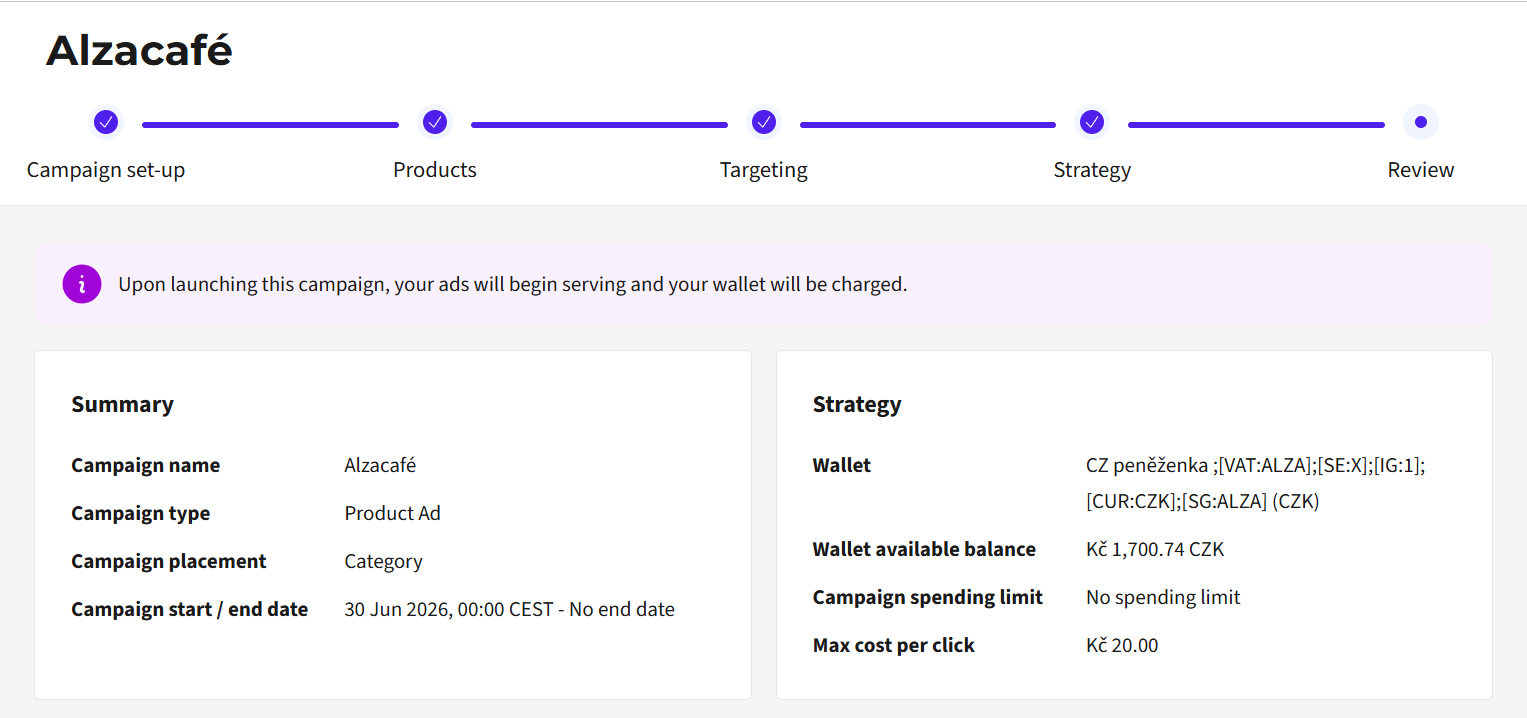
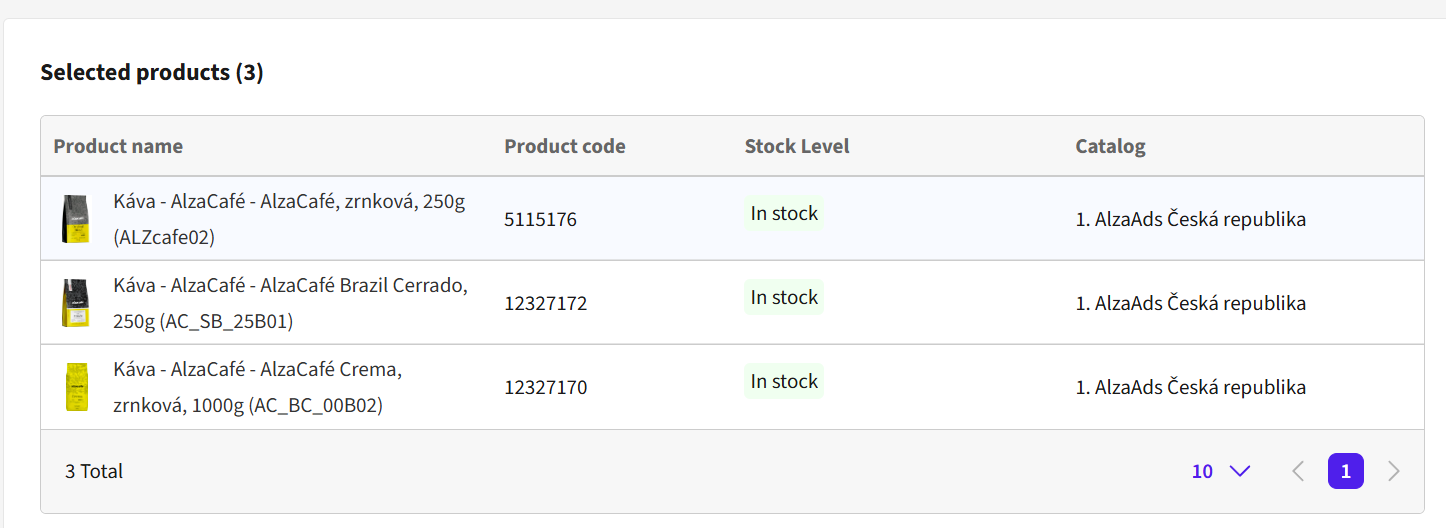
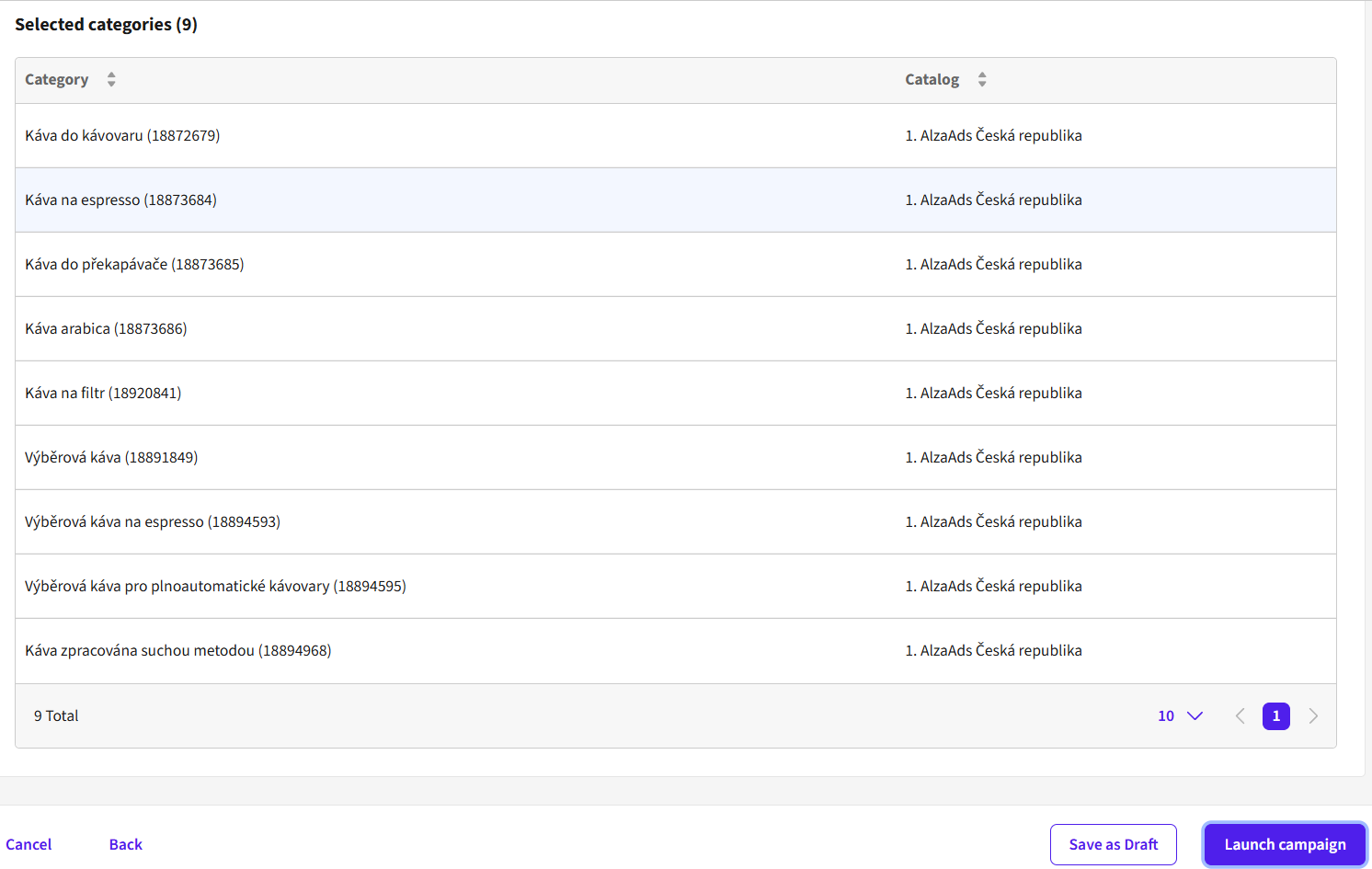
If you have everything set the way you want, you can launch the campaign right away by clicking the blue “Launch campaign” button. A successful campaign launch will be confirmed by a dialog window that will then redirect you to the campaign overview in the Campaign Manager tab.
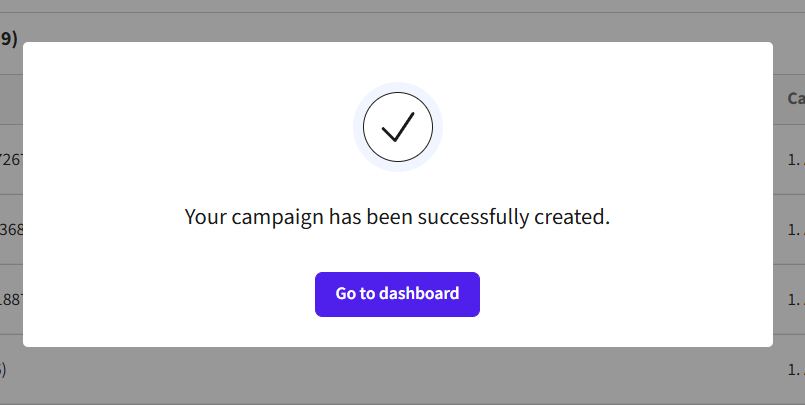
The campaign will start running within an hour of launch in categories in which someone is already bidding, and within four hours of launch in categories where nobody is yet bidding. Reporting will start to appear at the latest by the next day; more in the Reporting tab.
If you do not want to launch the campaign yet but want to have it prepared for later launch, save it using the “Save as draft” button. You can then find it in Campaigns/Campaign Manager. Note that this campaign must subsequently be launched manually, even when it has a start date set.
Campaign Manager
The Campaign Manager offers you an overview of all your campaigns, whether they are active, paused, prepared as drafts, or archived. You can easily edit and work with your campaigns here.
You can find it via the main AlzaAds on-site campaign manager overview in the “Manage Campaigns” tab. In the top panel, you can filter your campaigns by name, active status (Active, Paused, Draft, Archived), or wallet.
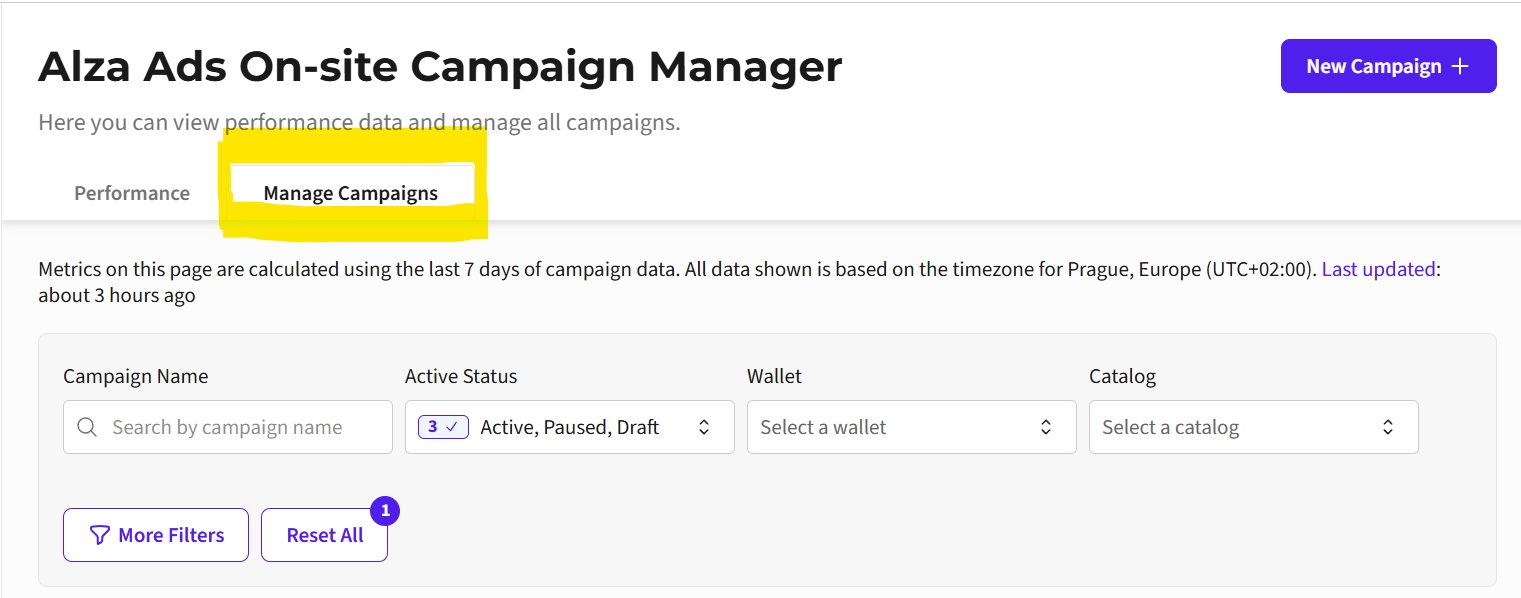
By default, the manager will show all of your campaigns. At a glance, you can see their name, status, the products they contain, and the dates of their start and planned end, if your campaign is time-limited.
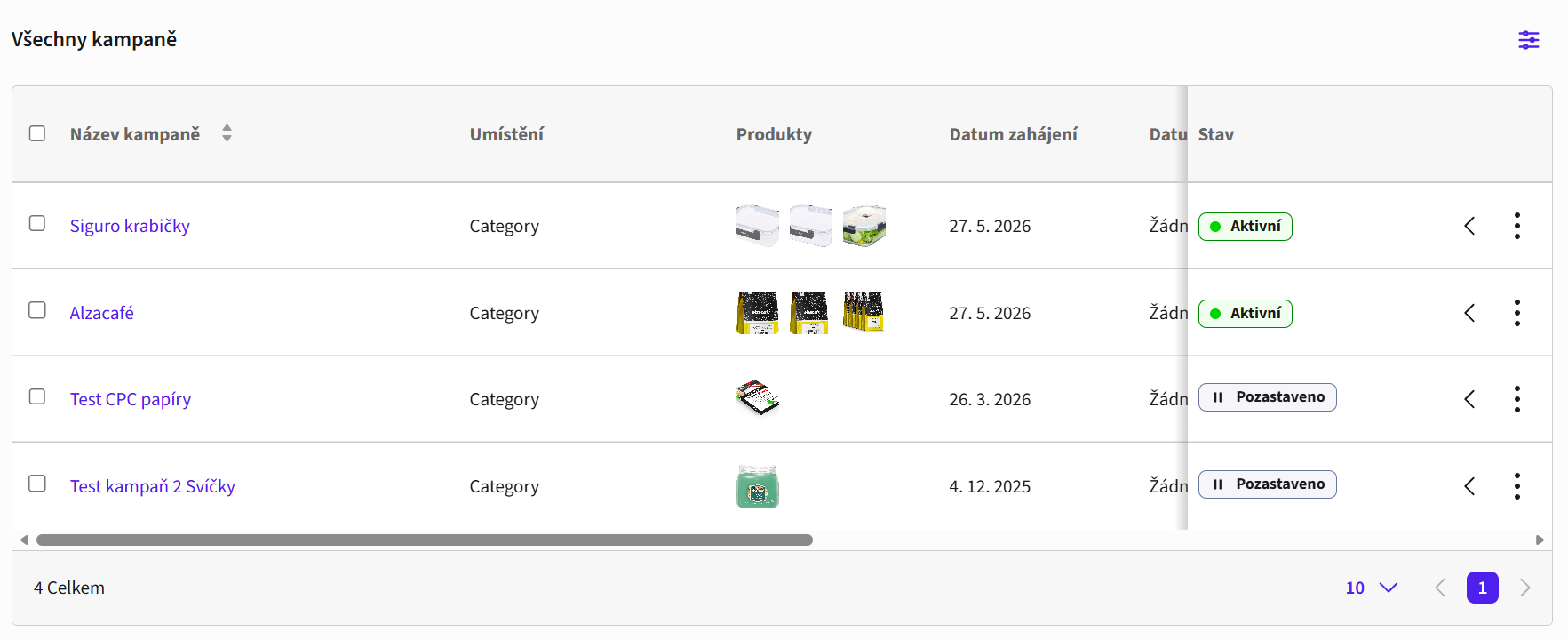
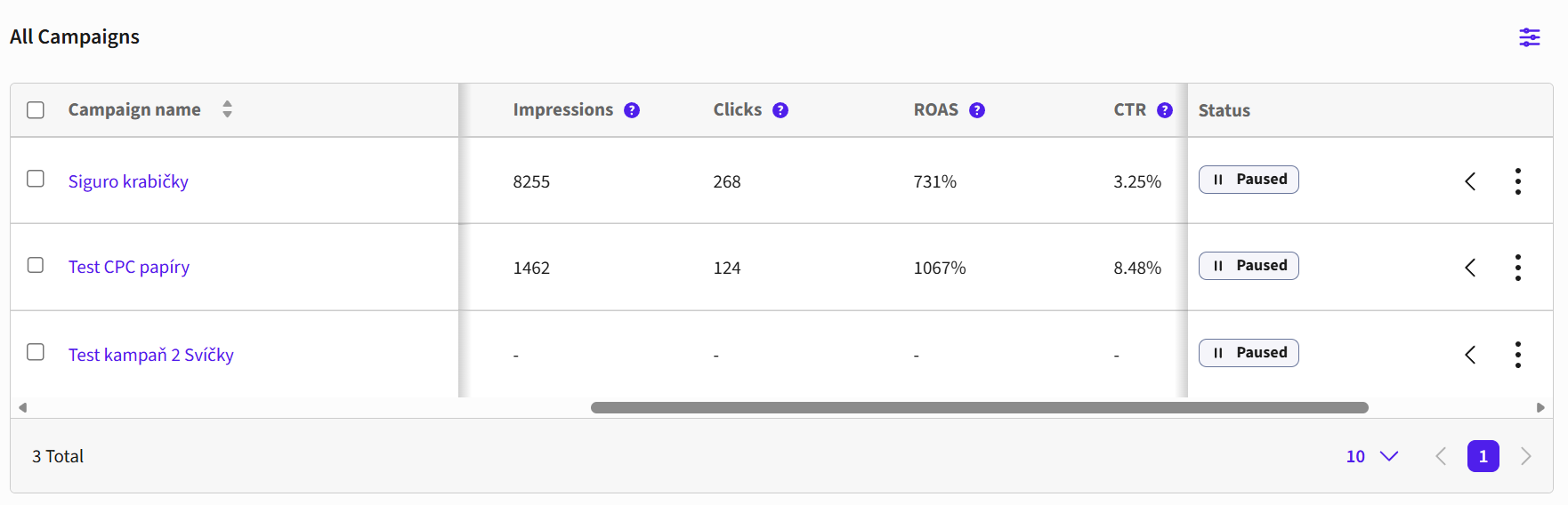
For each campaign you also see a basic overview of metrics – impressions, clicks, click-through rate (CTR), return on ad spend (ROAS), and cost per click (CPC). However, these are shown only for the previous 7 days, so for older campaigns these fields will be empty. You can display the performance detail of older campaigns by clicking on the campaign name, where you then set the correct period you want to look at.
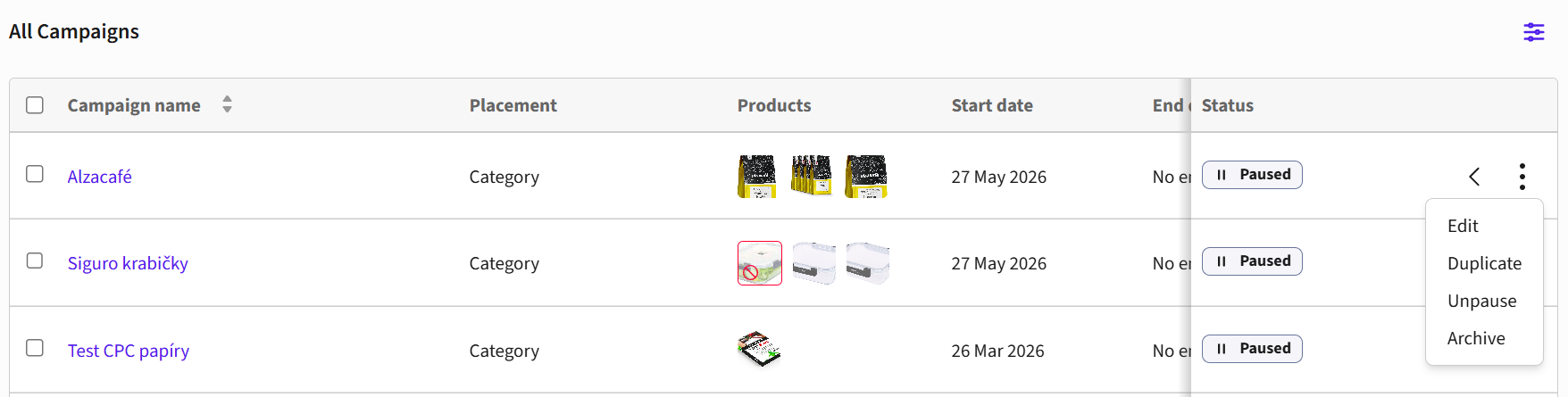
By clicking the three dots at the end of a campaign row, you can quickly change its status or return to the campaign settings and edit the campaign.
A useful feature here is also the “Duplicate” button, which lets you easily create a copy of the campaign (which you can then edit):
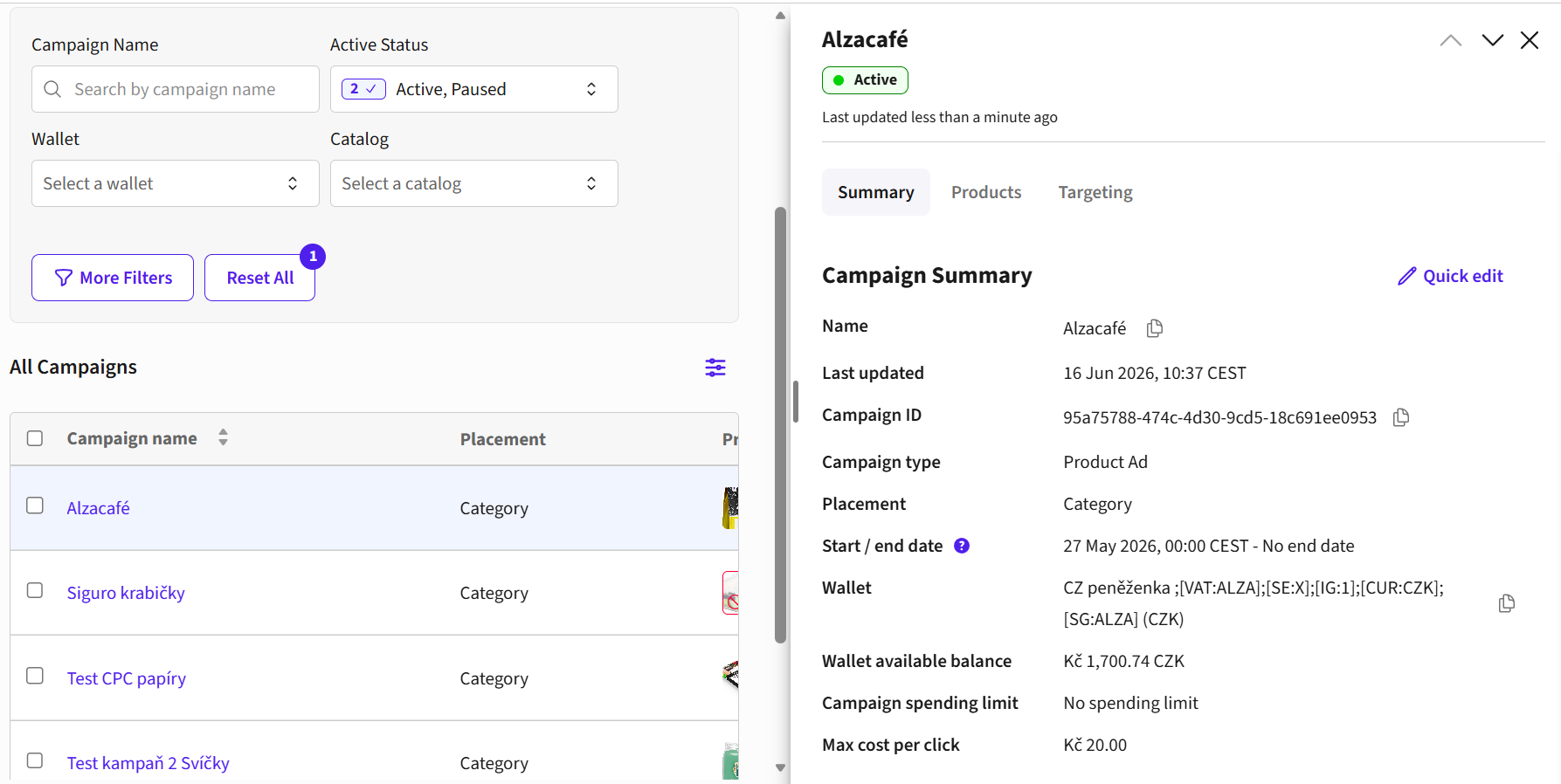
By clicking directly on the campaign row, a quick summary will appear on the right. Via the blue “Quick edit” pencil, you can edit the campaign name, start/end date, total campaign budget, and maximum cost per click.
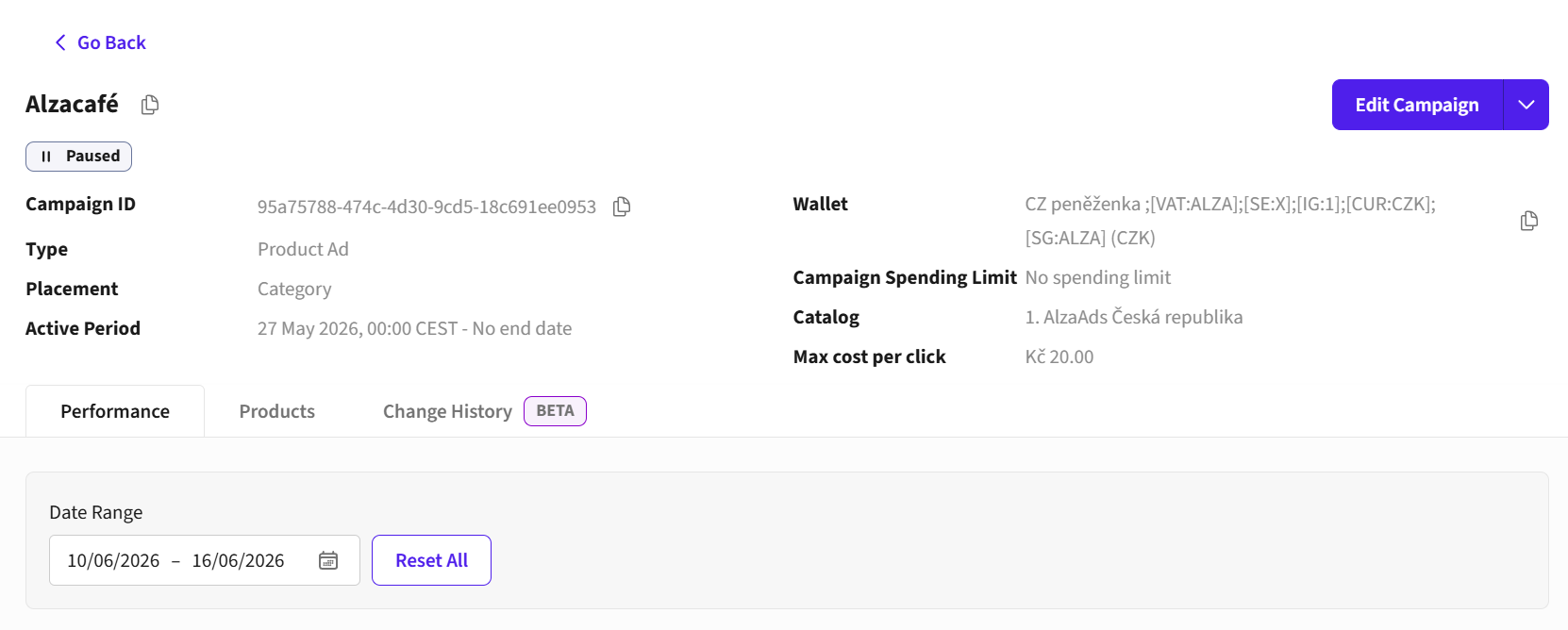
By clicking on the campaign name, you will go to a more detailed view. If you want to edit some aspects of the campaign in the detail, click the blue “Edit” button at the top right. This takes you to the campaign editor; here you can edit the product selection, their targeting, or the bidding strategy. After edits, the campaign must be launched again, just as when creating a new campaign.
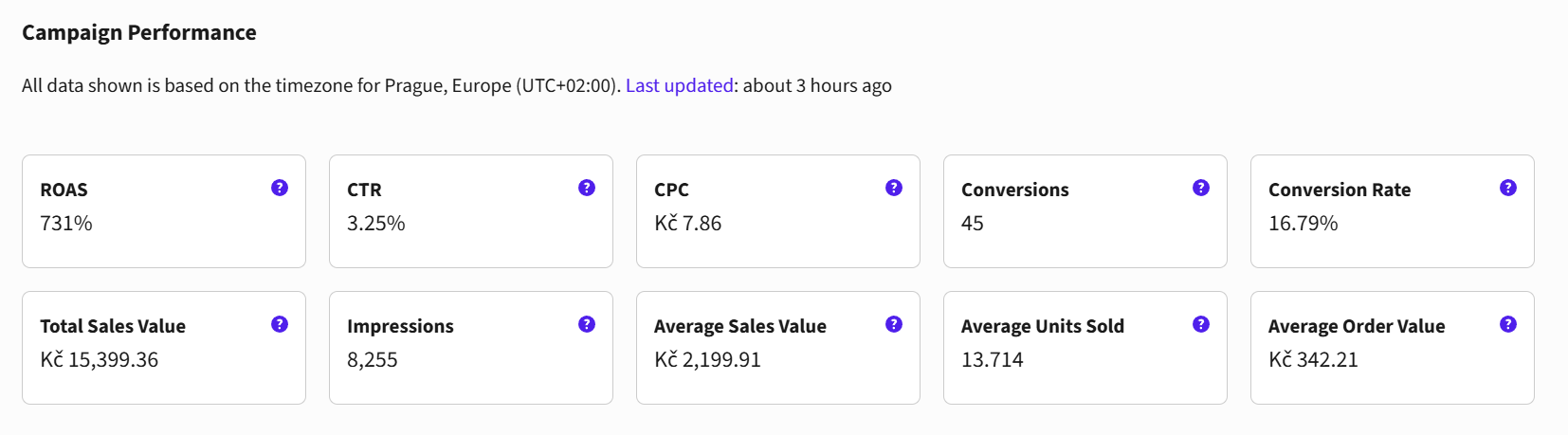
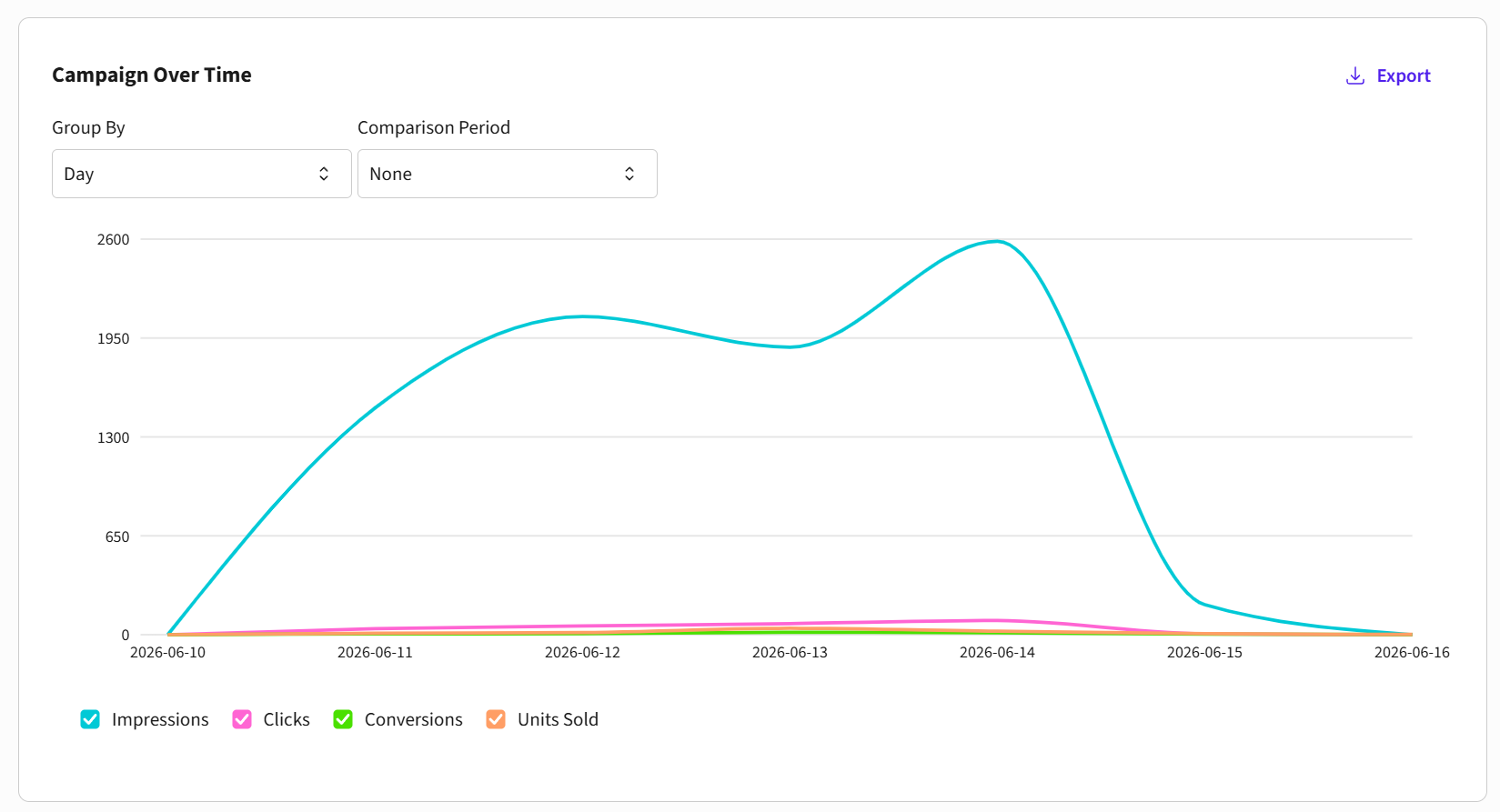
Below the main overview there are basic performance metrics for your campaign and a chart of its development over time. The chart shows impressions, clicks, conversions, and the number of units sold. If you want to look at one of the metrics in more detail, tick only that one in the chart’s legend.
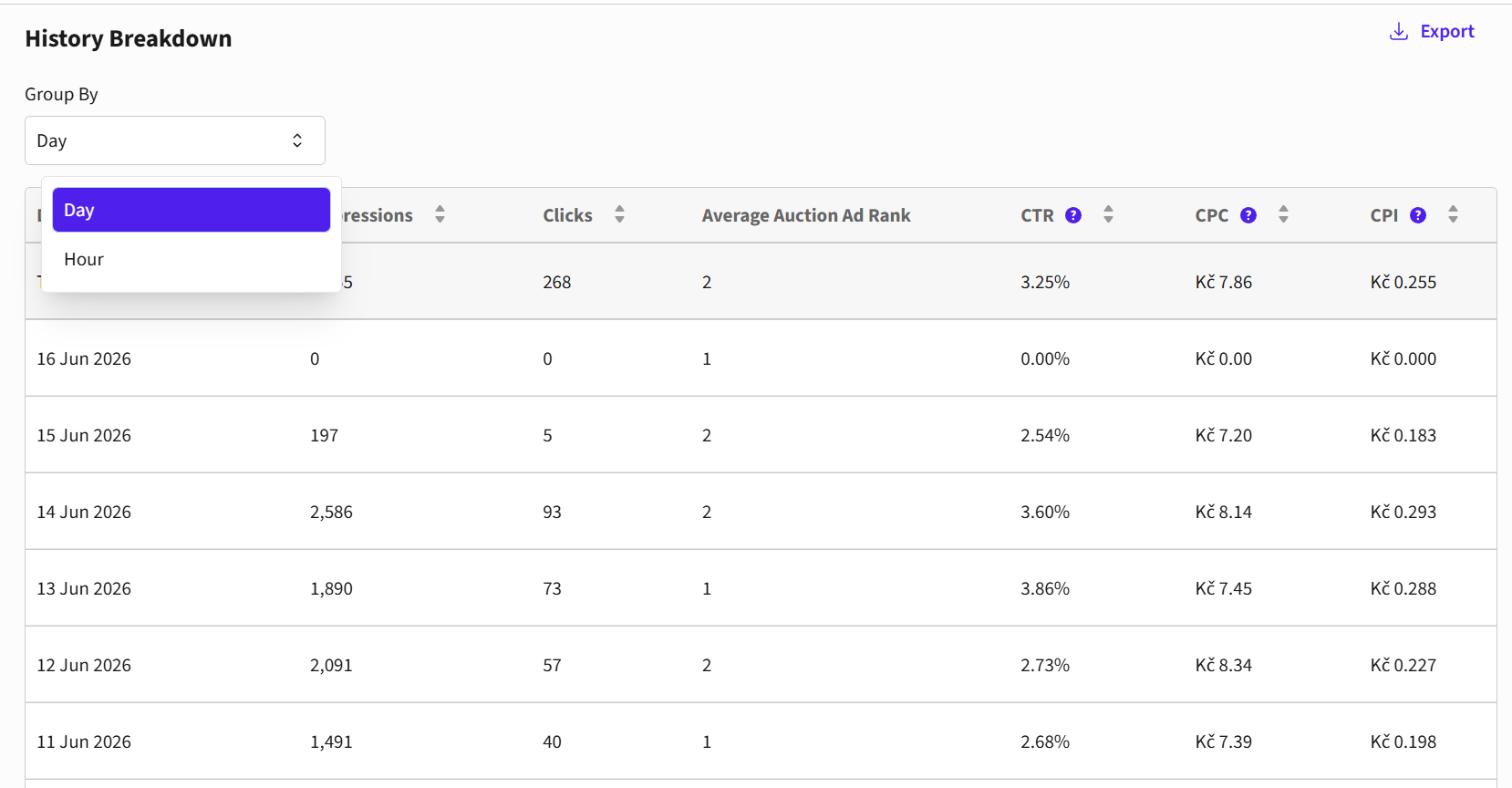
Below the chart you will also find a history breakdown of your campaign; you can set the display to days or hours. This tool is useful especially for optimizing your campaigns. We recommend monitoring the impression and average auction rank metrics, which best tell you whether your campaign is winning the auction in its categories and is visible on Alza. The average auction rank determines the notional position of all products entering the auction. The best value of this metric is 1 or 2, since most categories have exactly two sponsored positions. Exceptions are the large promotional categories, which exist in parallel with regular categories during sale events such as Alza Days, Mega Sales, Black Friday, etc.
Bid Advisor
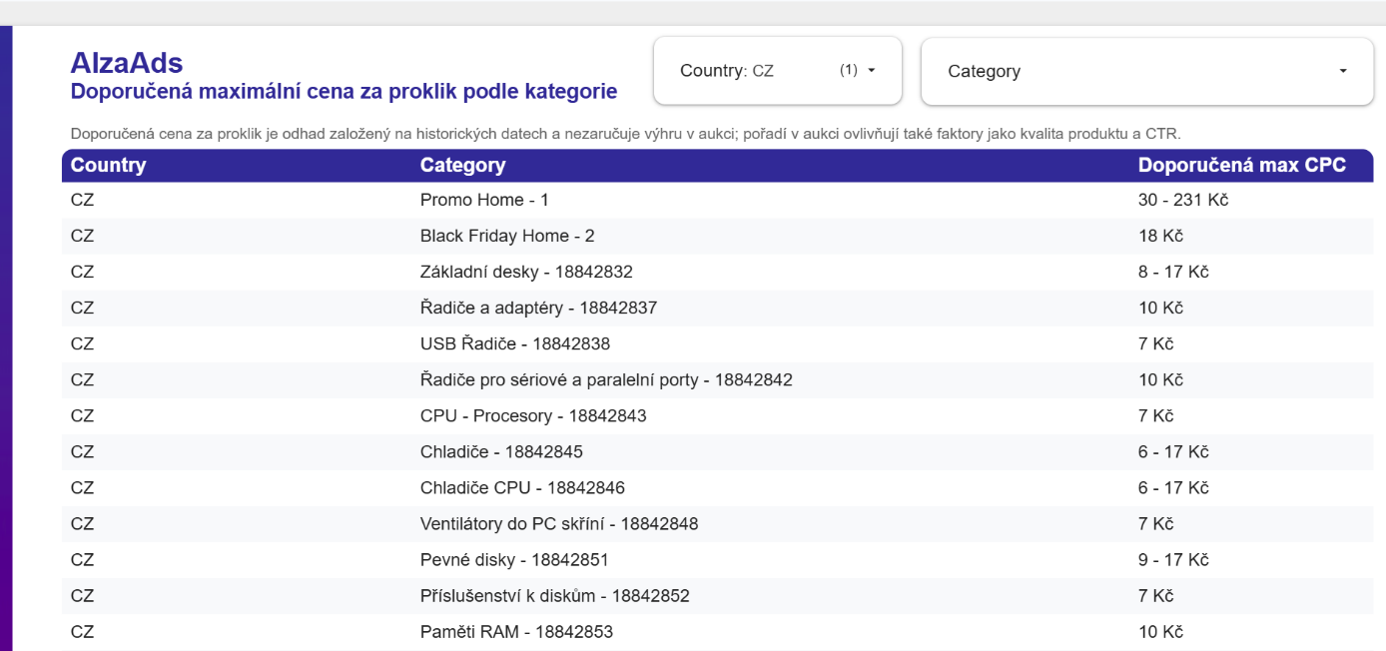
The Recommended Bid per Category report provides a clear overview of the suggested maximum cost per click for individual categories.
You can find the Bid Advisor here: alzaAds Recommended bid per Category.
Navigating the report is very simple. By default it shows all categories available on Alza; using the search and filters you can display only those that are currently relevant to you.
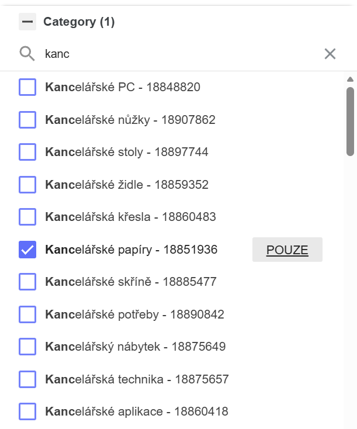
To choose a specific category, simply click on the field labeled ONLY.
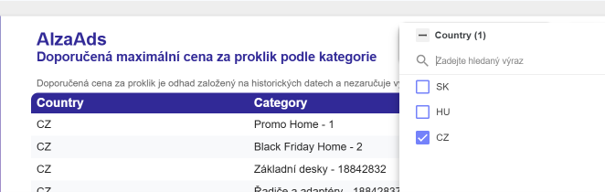
The report also allows switching between catalogs for the Czech, Slovak, and Hungarian markets.
When planning your strategy, we recommend going through the recommended CPC values for all categories included in your campaign and, based on these recommendations, then choosing an appropriate aggregate bid. A great advantage in this respect is the second-price auction system, thanks to which you do not need to worry that you would, for example in cheaper categories, pay unnecessarily high amounts. The system always charges you only the amount necessary to win a specific auction, not automatically your set maximum cap.
The Bid Advisor, as well as the AlzaAds interface itself, does not distinguish between regular and promotional categories. Bids are always placed on standard categories, and if your products are nominated for a promotion, the set bid values are automatically applied to the parallel promotional categories. Exceptions include only specific promotional categories such as Promo Home or Black Friday Home.
Finally, please note that the displayed recommended CPC is an estimate based on data from the previous day and does not guarantee an auction win; auction ranking is also influenced by other factors such as product quality and CTR.
Reporting – Performance Tab
The first screen you will see after logging in to the AlzaAds interface is the AlzaAds On-site campaign manager, the Performance tab. On this page you will find an overview of all your campaigns and their performance, the option to create a new campaign, and last but not least the campaign manager.
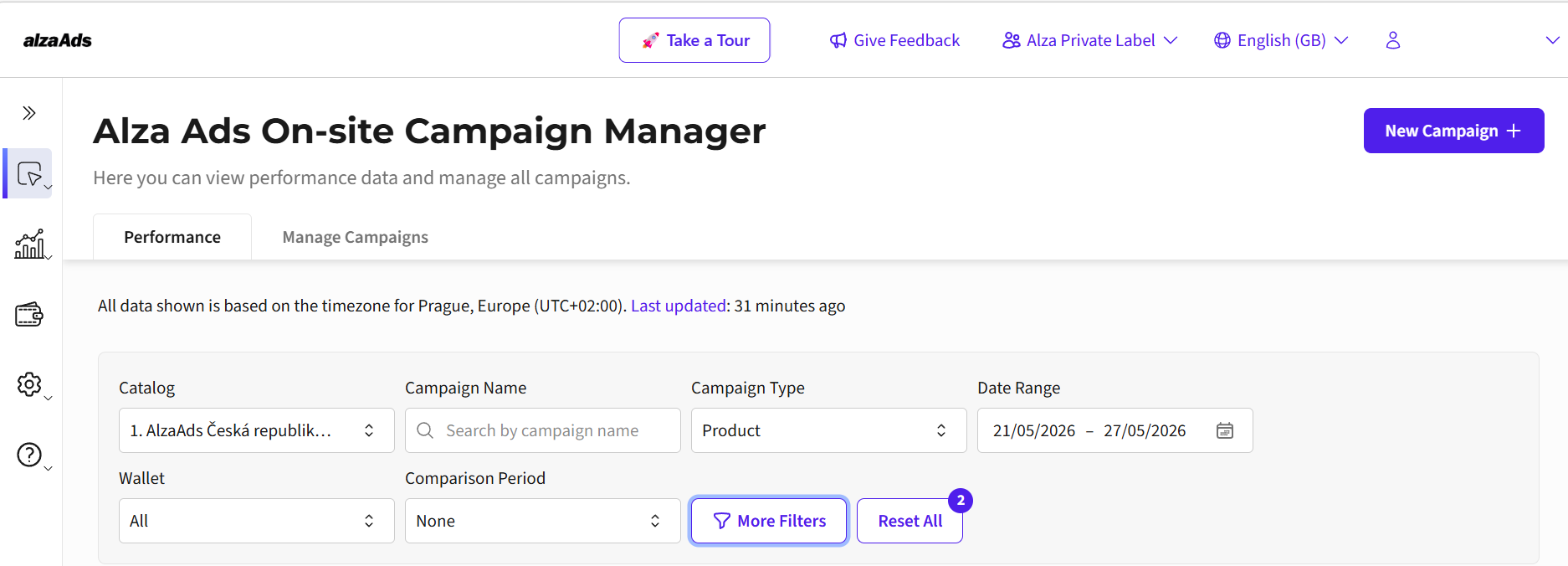
You thus have an immediate overview of how your campaigns are doing, including the main metrics, top-performing campaigns, and best-performing products. After the first login the overview will be empty, because no campaign data exist yet to be shown. For running campaigns, the overview looks like this:
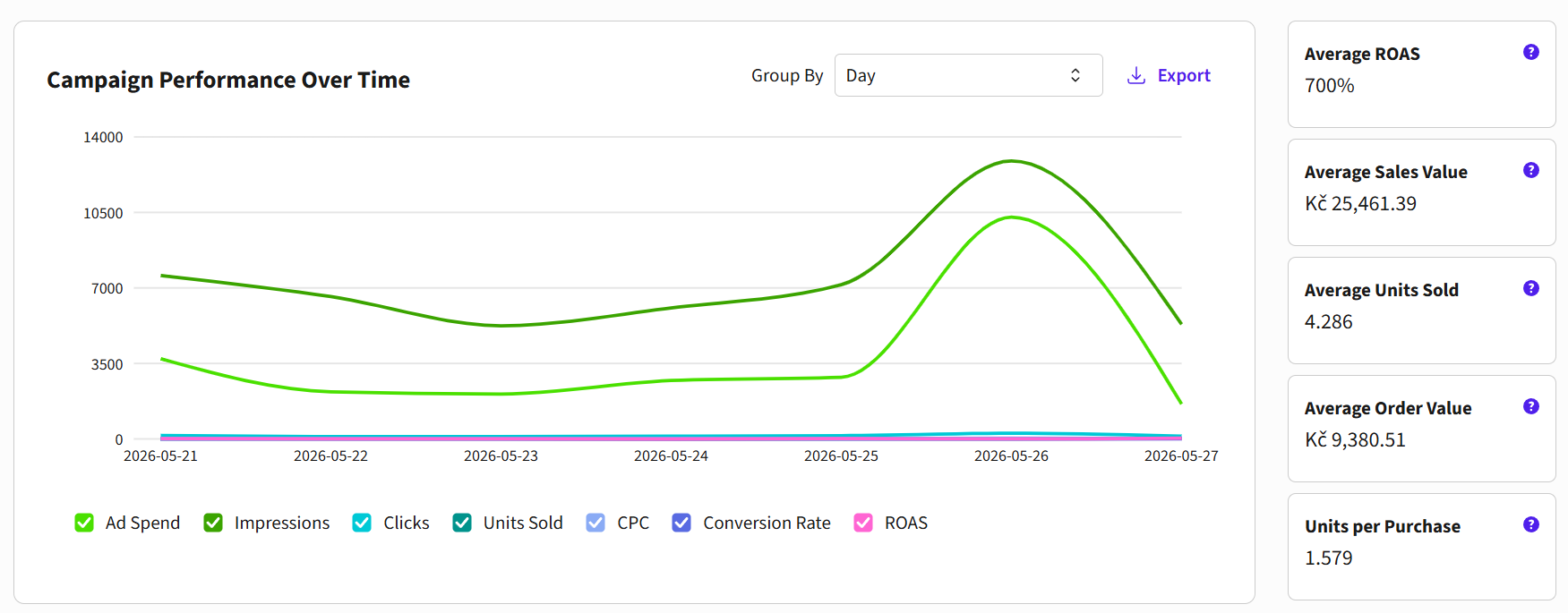
The “Campaign performance over time” chart shows the selected metrics of all your campaigns for the period you choose. You can choose from the metrics Ad spend, Impressions, Clicks, Sold, Cost per click (CPC), Conversion rate, and Return on ad spend (ROAS). You choose the period from the drop-down menu above the chart, as well as the catalog / country for which the report should be displayed (the selection also affects the campaign listing below the chart).
Description of the individual metrics in the basic chart:
Ad spend – total costs for campaigns.
Impressions – ad impressions (for Sponsored Products, product impressions).
Click – click on the ad (for Sponsored Products, click on the product or add to cart).
Sold – number of units sold.
Cost per click (CPC) – how much you pay for one click on a product you are sponsoring (CPC in the chart is aggregated across all campaigns of the selected period across all categories).
Return on ad spend (ROAS) – calculated as “revenue / ad spend * 100” and expressed as a percentage.
Conversion rate – calculated as “sales / clicks * 100” and expressed as a percentage.
On the right side of the chart, summary metrics for all your campaigns running in the selected period are also shown – ROAS, Average revenue, Average number of units sold, Average order value, and Number of units per purchase.
Basic Reporting
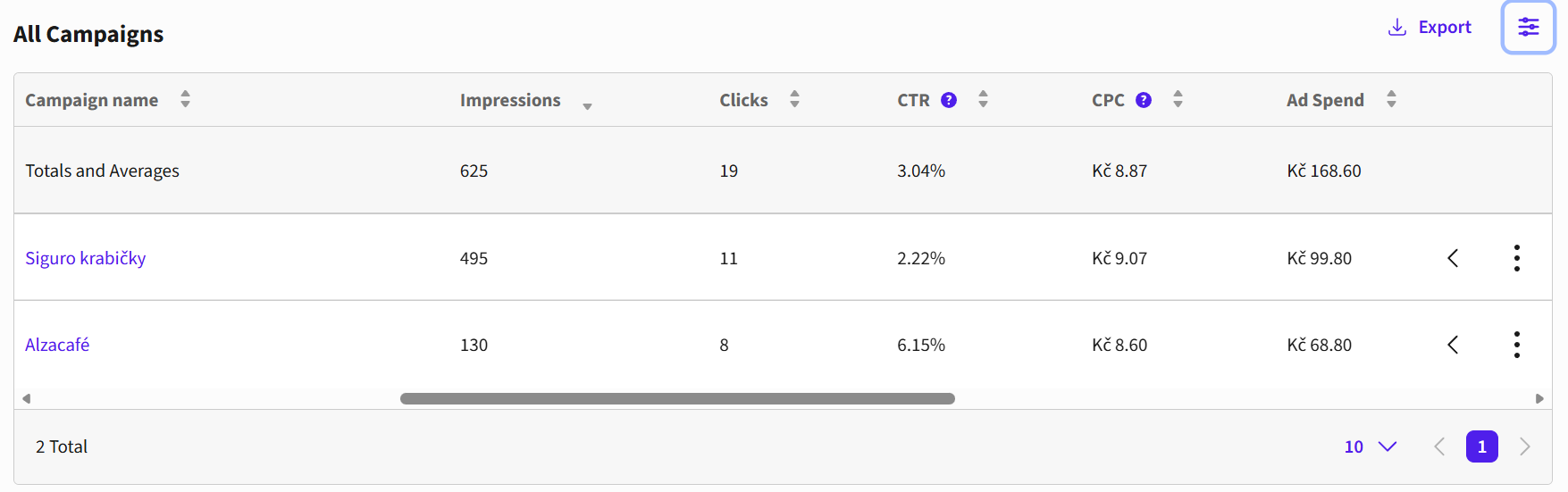
Below the chart there is the basic reporting of key metrics broken down by individual campaign. The first row of the table is the sum across all campaigns in the selection.
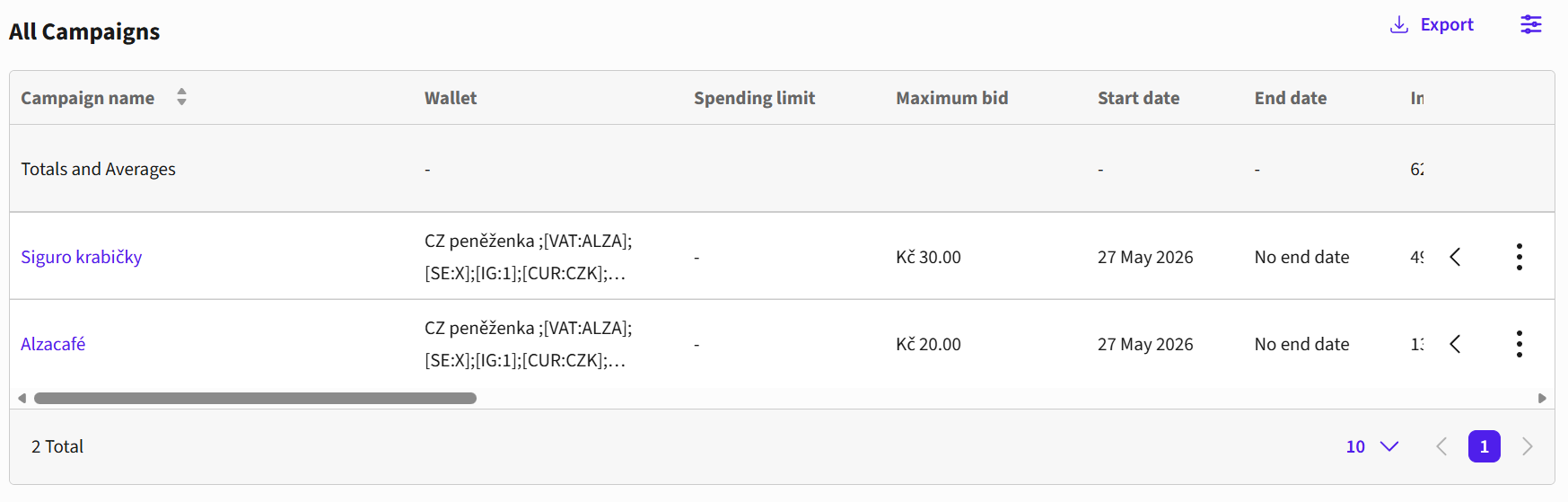
By clicking the blue options field in the top right corner above the table, you open a menu in which you can choose which metrics you want to display for your campaign.
You can choose from campaign attributes and performance metrics. For a comprehensive yet easily navigable view of the reporting, we recommend choosing the campaign attribute options and the selection of performance metrics as shown in the image. Don’t forget to save your selection.
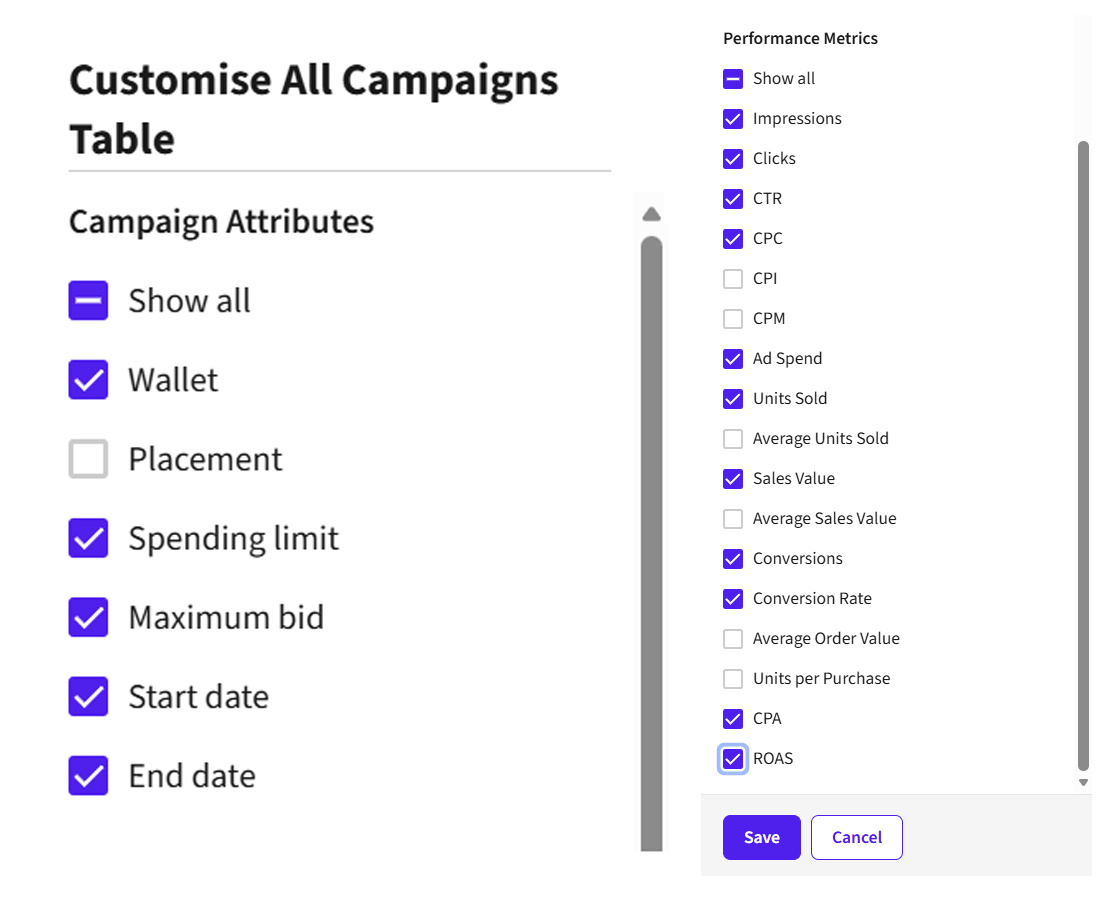
Campaign attributes:
Wallet – from which wallet the credit is drawn.
Placement – at present always “category”, can be excluded from the selection.
Spending limit – total set campaign budget.
Maximum bid – the currently set maximum cost per click.
Start date – launch date of your campaign.
End date – end date, if set.
Performance metrics:
Impressions – total number of ad impressions (for Sponsored Products, product impressions).
Clicks – total number of clicks on the ad (for Sponsored Products, click on the product or add to cart).
Click-through rate (CTR) – calculated as “clicks / impressions * 100” and expressed as a percentage.
Cost per click (CPC) – calculated as “ad spend / clicks”.
Cost per impression (CPI) – calculated as “ad spend / impressions”.
Cost per 1000 impressions (CPM) – calculated as “ad spend / impressions * 1000”.
Ad spend – total ad campaign costs.
Sold – total number of units sold.
Average units sold – average number of units sold per day of the selected time period.
Revenue – total revenue from sales.
Average revenue – average revenue generated by the ad for the selected period.
Conversions – total number of sales/conversions.
Conversion rate – calculated as “sales / clicks * 100” and expressed as a percentage.
Average order value – average value of one order for the selected period.
Units per purchase – number of units sold per conversion.
Cost per acquisition (CPA) – effectively the cost per one conversion, calculated as “ad spend / conversions”.
Return on ad spend (ROAS) – calculated as “revenue / ad spend * 100” and expressed as a percentage. It is not possible to say with certainty what a “good” ROAS is, as every campaign has its specifics, but from the point of view of AlzaAds specialists, a ROAS above 300 % is a good ROAS.
All the attributes and performance metrics you have chosen will be displayed in the drop-down table. All data can be exported to a CSV file.
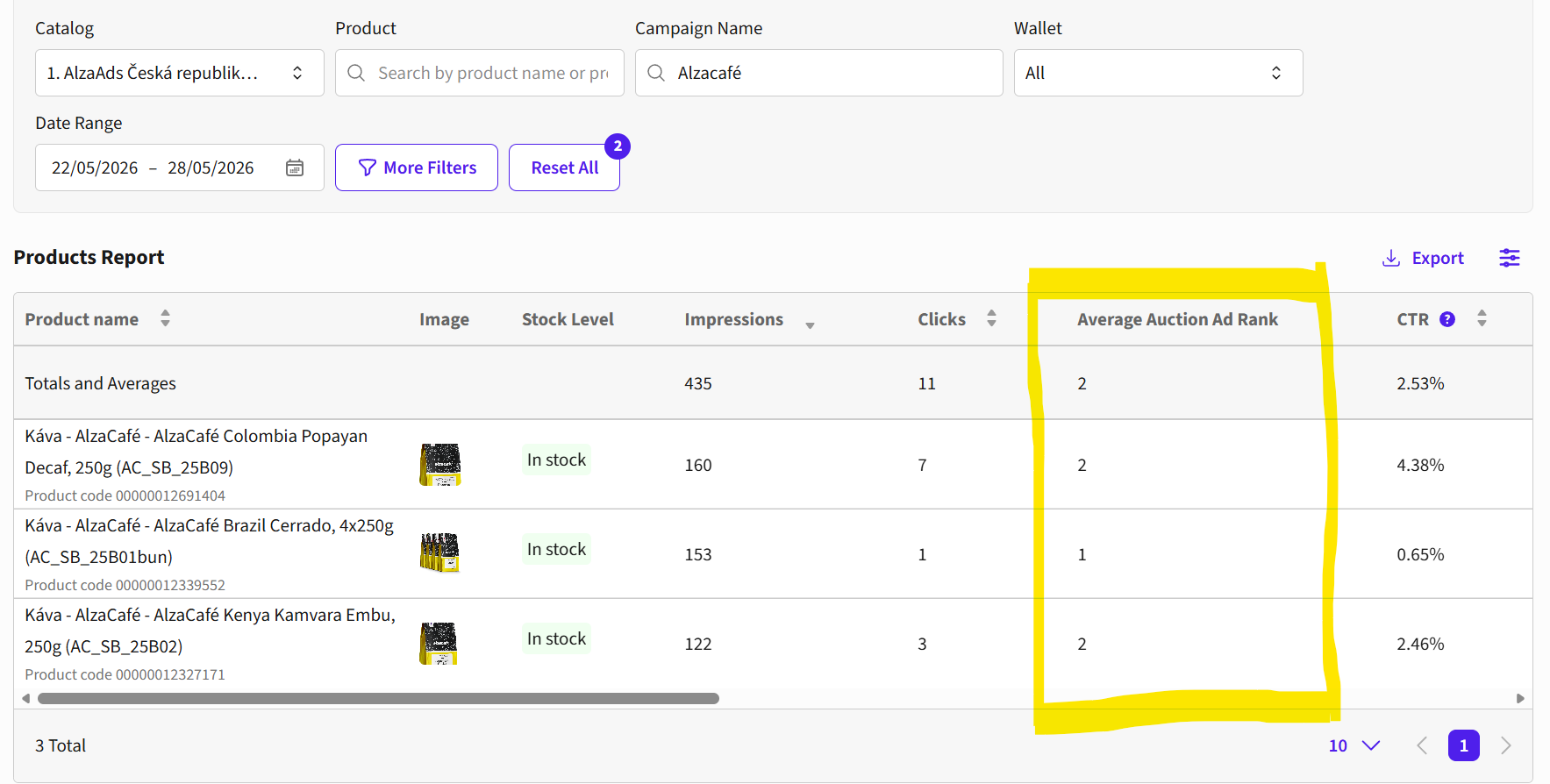
In the view of individual products (more in the “Products” tab) there is also the Average auction rank metric, which determines how the product you advertise appears in the sponsored positions. The best score is 1 or 2, thanks to the fact that we generally have two sponsored positions in all categories (except promotional categories). If the score for a product you sponsor is higher than 2, competition probably plays a bigger role and your product does not appear as often.
Advanced Reporting
Advanced reporting is located right below the basic reporting table named “all campaigns”. It gives you a better overview of the performance of your campaigns thanks to extended attribution, especially through the Halo ROAS and Total ROAS metrics.
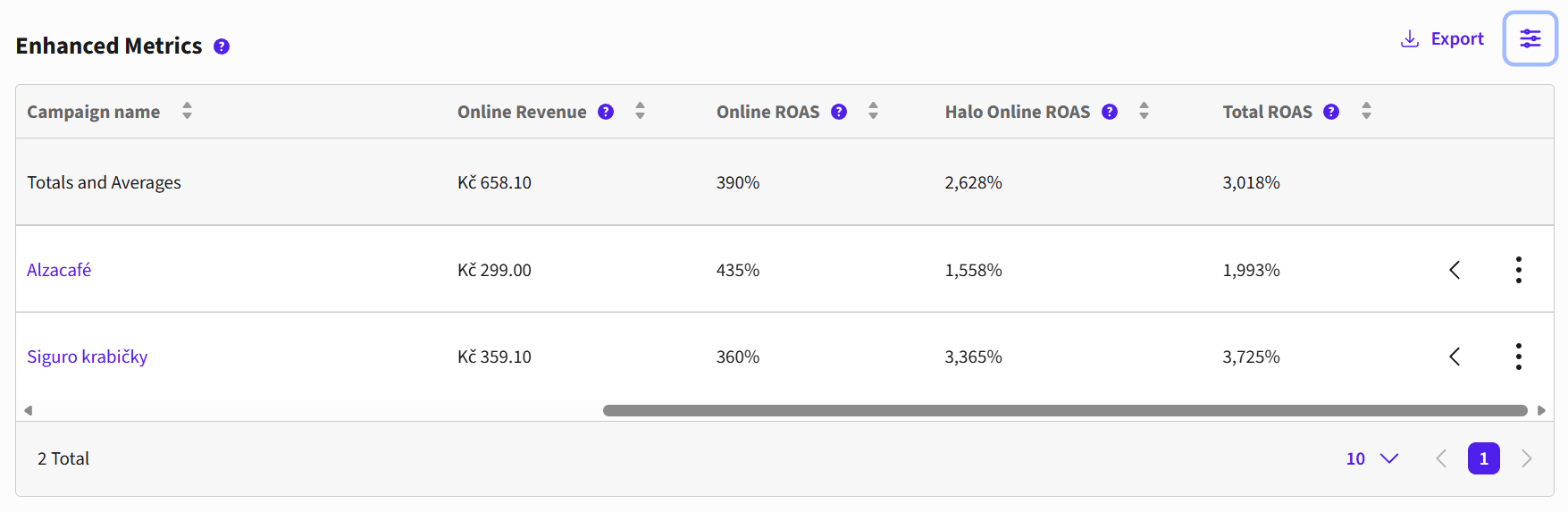
The table contains campaign attributes identical to the basic reporting table – wallet, placement, campaign start date, and end date. In addition, it includes extended metrics, the so-called halo metrics in stores and online. For AlzaAds, only online metrics are relevant; we therefore recommend hiding the in-store metrics, see images. You access the settings of the extended metrics table via the blue icon to the right next to the “Export” field.
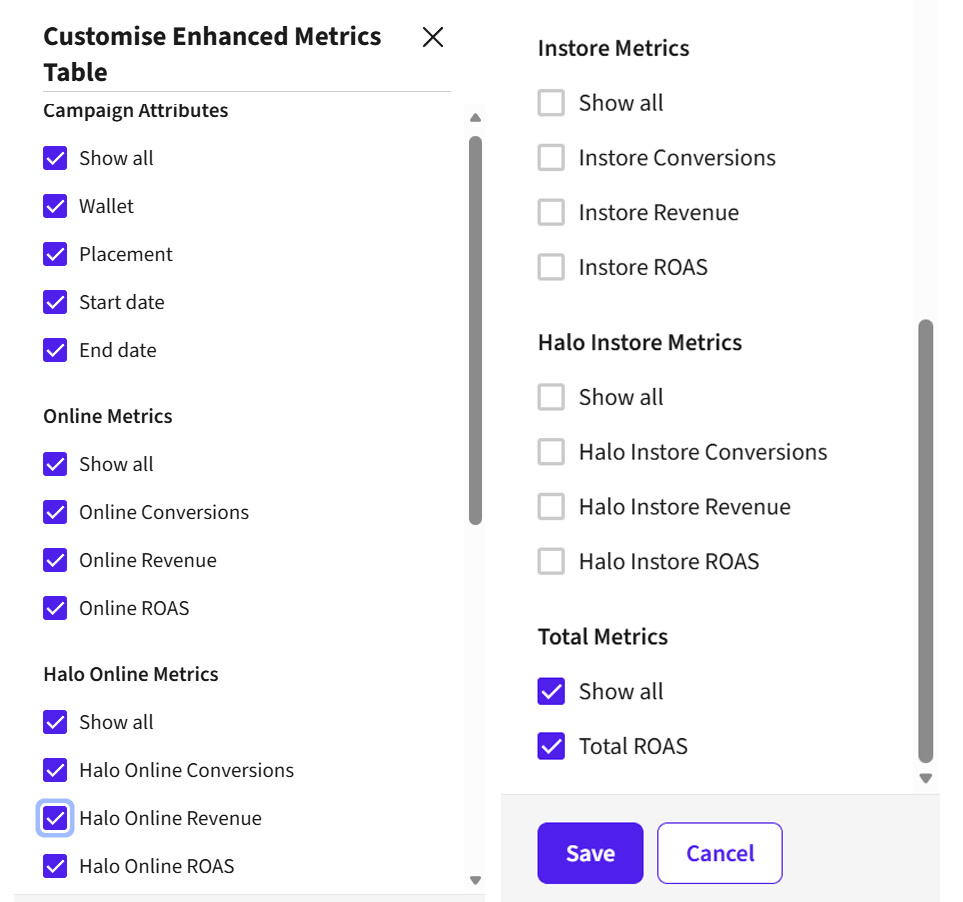
Online metrics
Online conversions – same as conversions in the basic reporting, total number of conversions.
Online revenue – same as in the basic reporting, total revenue from sales.
Online ROAS – the classic ROAS indicator from the basic reporting. Calculated as “revenue ÷ ad spend × 100” and expressed as a percentage. With the basic ROAS, only a conversion of the exact same product the user clicked on is counted.
Halo online metrics
Halo online conversions – conversions from indirect sales, i.e., conversions of all products of the same brand as the one whose product the user clicked on.
Halo online revenue – revenue of products from indirect sales.
Halo online ROAS – calculated like the classic ROAS. The difference is that conversions of all products of the same brand as the one whose product the user clicked on are counted.
! On 2.7. 2026, the Halo ROAS definition was adjusted to increase its relevance therefore a decline in values of Halo metrics caused by this change may be observed.
In-store metrics
Irrelevant for AlzaAds, they will be displayed with a zero value.
Halo in-store metrics
Irrelevant for AlzaAds, they will be displayed with a zero value.
Total metrics
Total ROAS – sum of online ROAS and halo online ROAS.
Insights
In the drop-down menu on the left, you can display more detailed overviews of your campaigns by individual products and their history.
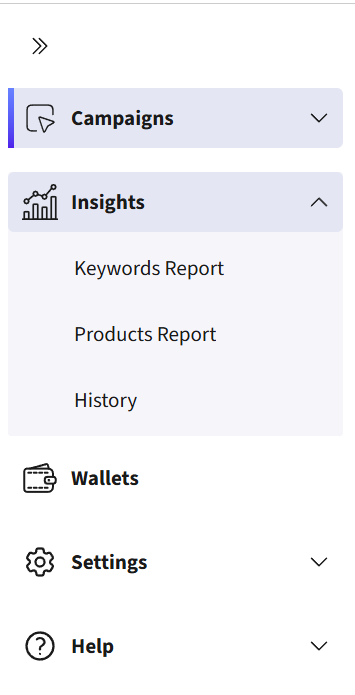
Keyword Summary
The Keyword Summary tab is not currently used and will be displayed empty.
Product Overview
The “Product Overview” tab allows you to look at the performance detail of your campaigns by individual products. We recommend filtering the data by campaign name; you can then compare which products in the campaign perform better. AlzaAds starts to slightly favor products with a higher CTR during the campaign, so it’s a good idea to also monitor the performance of individual products in the campaign and, if necessary, optimize the campaign by removing products that are not performing in it.
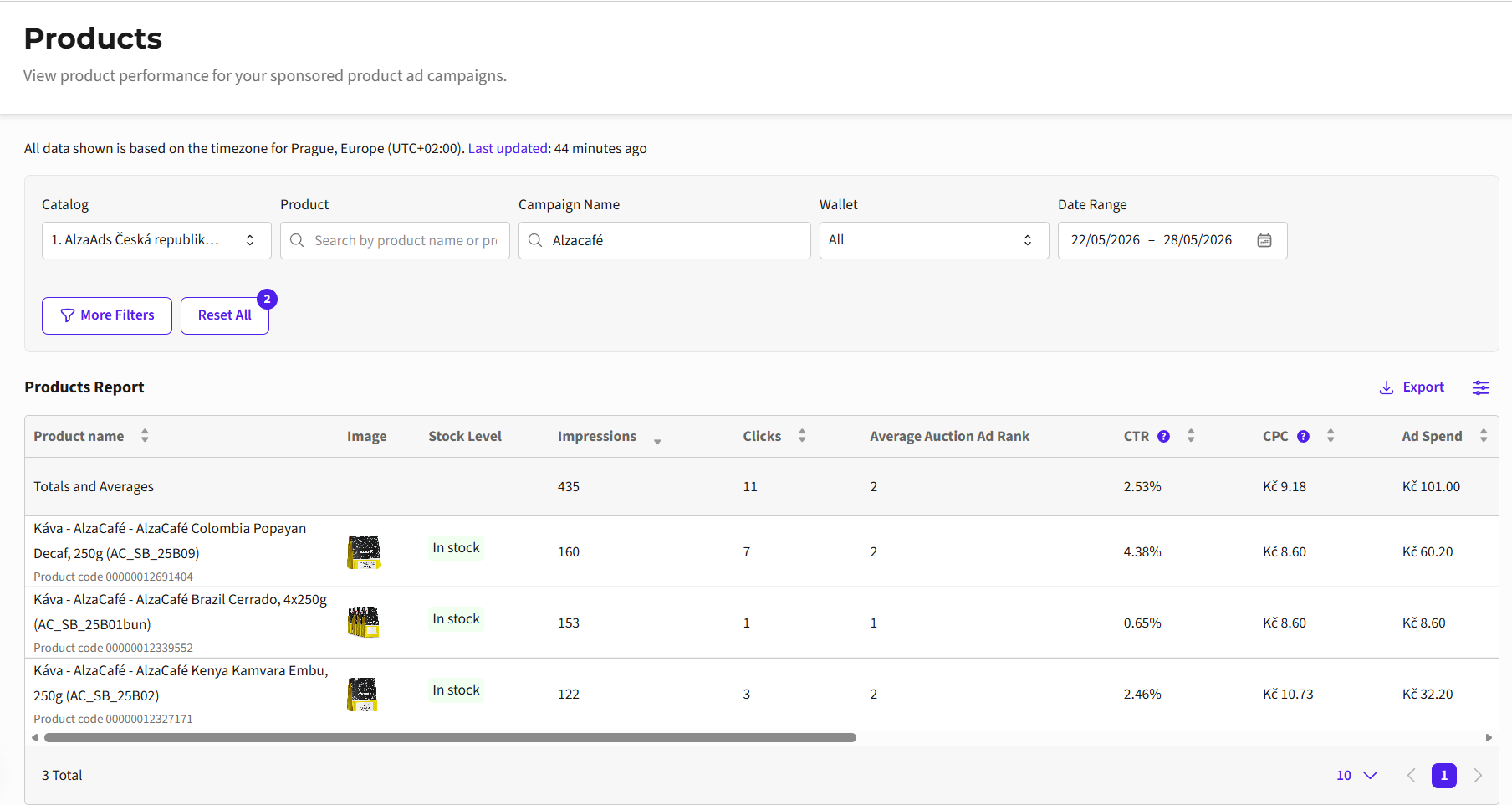
In the product table you will find the same metrics as in the basic reporting table, only broken down by individual product. In the top bar, you always see the aggregate numbers for the entire campaign.
In the view of individual products there is also the Average auction rank metric, which determines how the product you advertise appears in the sponsored positions. The best score is 1 or 2, thanks to the fact that we generally have two sponsored positions in all categories (except promotional categories). If the score for a product you sponsor is higher than 2, competition probably plays a bigger role and your product does not appear as often.
History
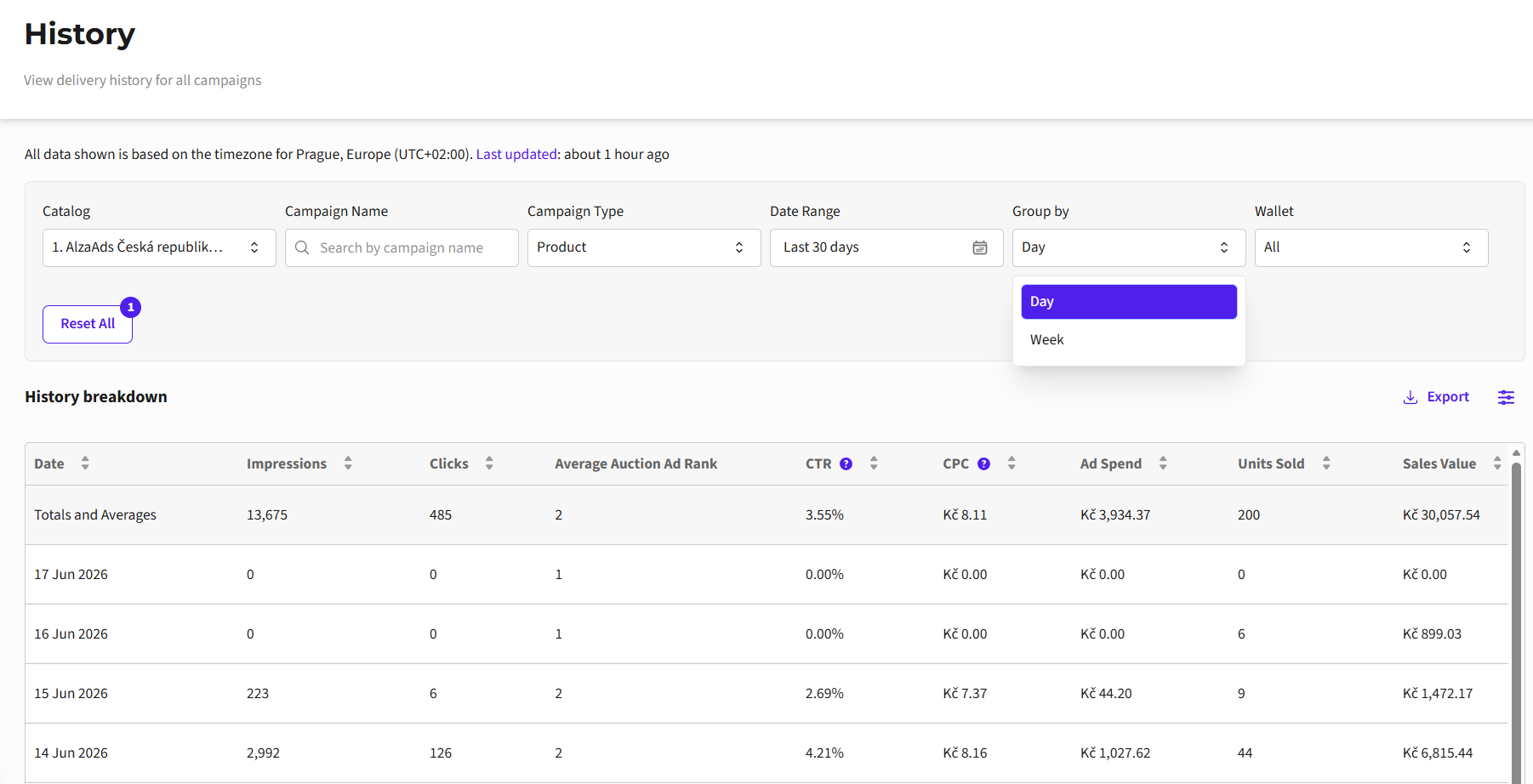
In the “History” tab, you can display the history of your campaigns by individual days or weeks. By default, data for all campaigns of your team together will be displayed for the selected period, but the data can be filtered by campaign name so that you display exactly what you want to see. In the table, you will see all the basic reporting metrics; you can choose which ones to display. The history can also be exported as CSV, more in the “Exports” tab.
Campaign Evaluation
First of all, it is good to determine what the goal of your campaign is.
Campaign Goal: Sales
If the goal of your campaign is sales, it is a good idea to monitor the sales metrics (number of units sold), conversion rate, ROAS, and halo ROAS, especially in cases where you have many similar variants of products of the same brand.
Recommended strategy:
We recommend promoting products that are successful with customers; the AlzaAds system remembers a product’s CTR during the campaign and considers more clicked-on products to be of higher quality, so they have a greater chance of being displayed.
Set up the campaign on more products; the ideal is roughly 2–8. During the campaign, AlzaAds will automatically prefer the more successful of the products; this gives you a chance to find out what works and to continuously optimize the campaign; at the same time you have the certainty that your campaign will not stop if one product runs out of stock.
Evaluating the success of the campaign:
Monitor the conversion rate – to what extent do customers buy the product after clicking on it? Does the product have good pricing compared to the competition? Does it have good descriptions?
The goal is a high ROAS together with a high number of units sold (direct sales).
For a brand with many products, also monitor halo ROAS (indirect sales).
Campaign Goal: Brand Awareness
If the goal of your campaign is brand awareness, you will be primarily interested in the number of impressions of individual products in the campaign, the average ad rank in auction metric, and halo ROAS.
Recommended strategy:
For the best brand awareness campaign, we recommend promoting products in large categories; the main segment categories are more expensive but have the highest traffic.
Take advantage of sale events and the main promotional category Promo Home; in the larger sale categories there are up to 4 sponsored positions, so there is a chance for great visibility, and sale events attract customers.
Set a higher bid in the auction – make sure that the products you are promoting are winning the auction in their categories and are continuously visible.
Evaluating the success of the campaign:
Monitor whether your products are winning the auction and being displayed – the best indicator is monitoring the “impressions” metric together with the “average auction rank” metric.
Are customers buying other products of your brand? This question is answered by the “halo ROAS” metric, which calculates the ROAS of indirect sales of your brand’s products.
If the impressions are high enough, a lower ROAS is not a problem, since the campaign is fulfilling the visibility goal for your brand.
Data Exports
Any report from any table or chart anywhere in the interface can be easily exported to CSV by clicking the blue “Export” button in the upper right corner above the table.
After downloading, open the CSV file as usual in MS Excel. Then select the “Data” tab and the “Get Data” field, then “From File”, and finally “From Text/CSV”.
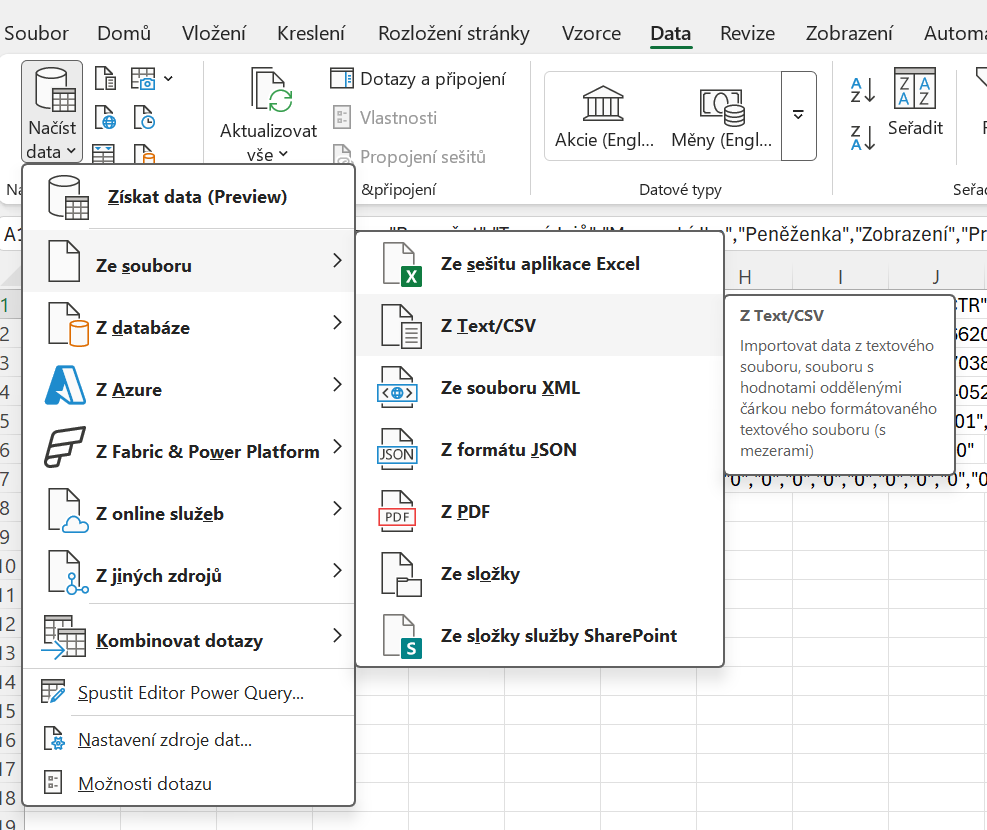
In the data selection, select the same file you already have open and choose “Import”; after the preview window opens, click “Load”. The data will be loaded into a clear table.

After that, you only need to change the format of the fields to % or currency (CZK).