



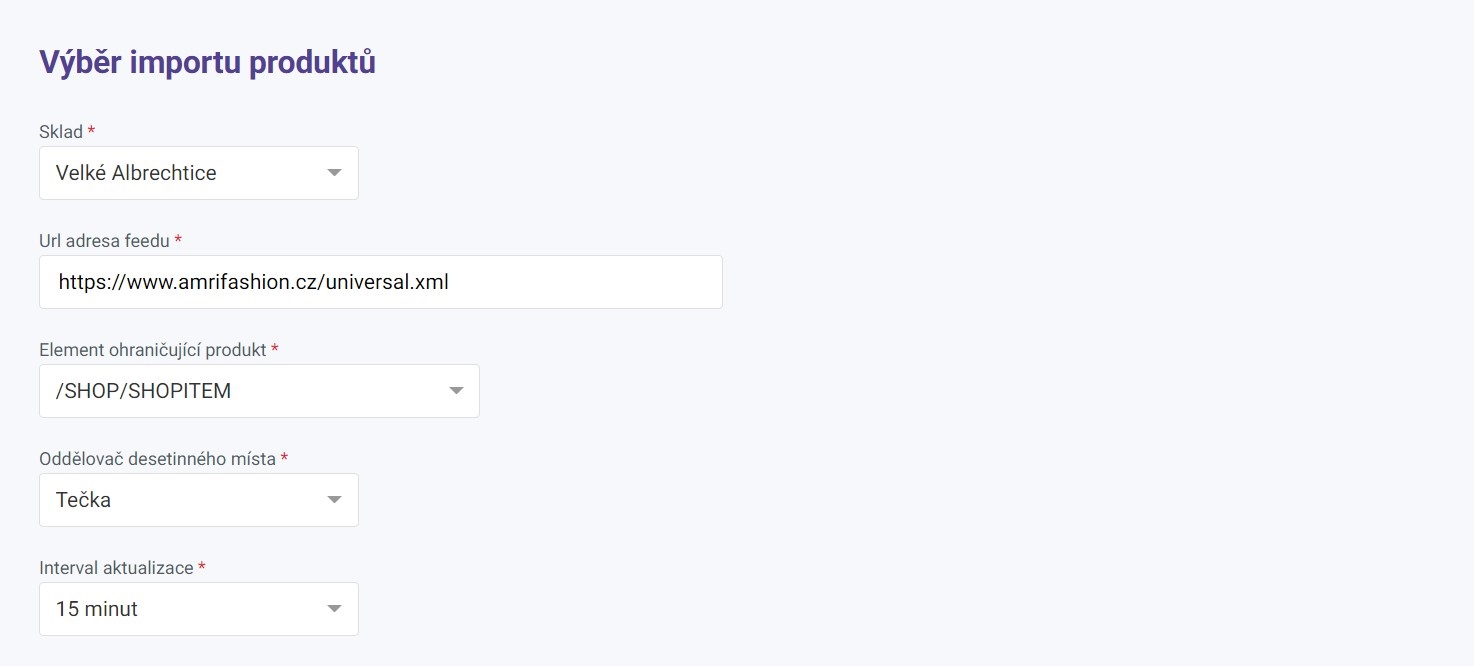
- Product import selection
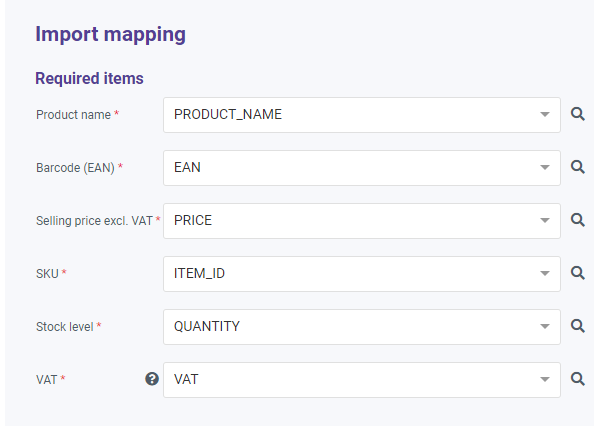
- Import mapping
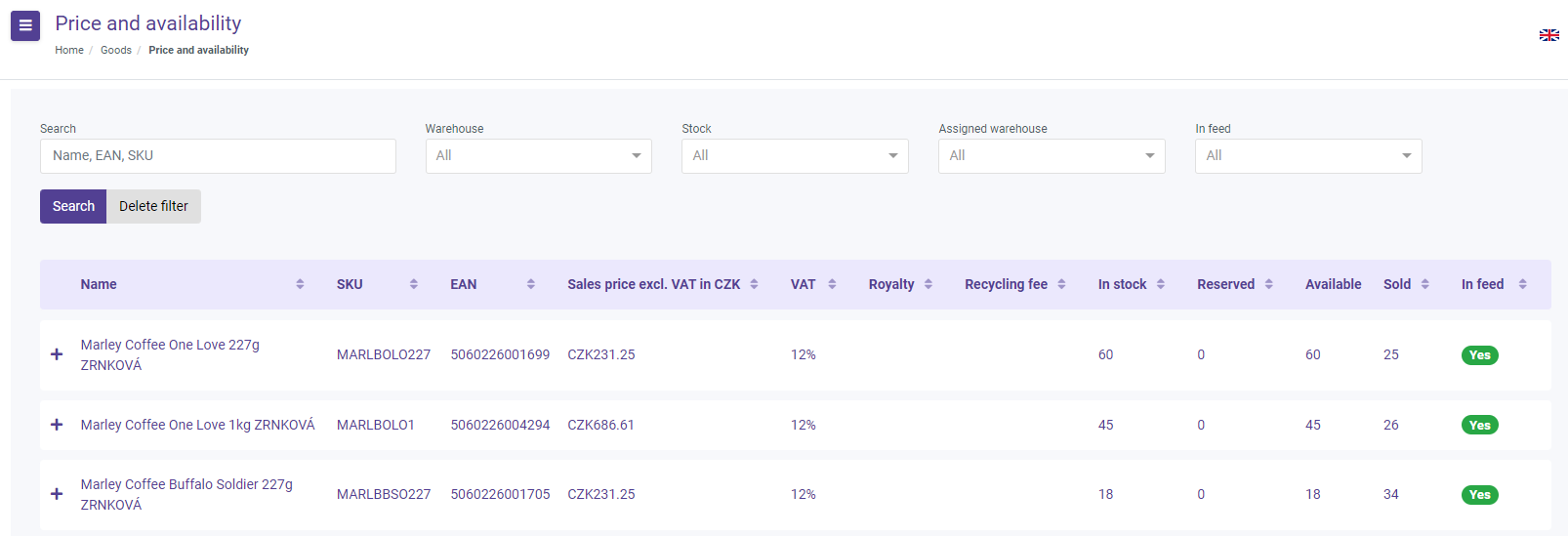
- Price and availability
- What to watch out for - most common mistakes
!
This section is displayed only in the case of integration via Alza Trade. For other integration options such as Expando or custom API integration, the settings are different, please see Choosing the Integration Method.
First, select the Products – Price and Availability Import tab and click the icon: Create New Product Import.
Product import selection
- Select the warehouse for which you want to import prices and availability. Only one import can be performed for each warehouse.
- Enter the URL address of your feed.
- Select the product delimiter, which determines how individual products are separated in the feed (for example, <SHOPITEM> or <SHOP>).
- Select whether decimal numbers in the feed are separated by a comma or a period.
- Update interval - we recommend leaving the default setting of 15 minutes.
Product mapping
Since each of our suppliers may have the same parameter named differently, for a successful import of products from the feed, it is necessary to link Alza's naming to what you have in your feed.
The following parameters are required:
- SKU – Your product code, select the appropriate option from the list. The code must not contain spaces and must be unique in your feed. The maximum length is 16 characters.
- Barcode (EAN) – The EAN code is essential for listing products for sale. It must be valid (you can verify it, for example, here Barcode Calculator & Check Digit Validator | eancheck.com) and unique for each product. The maximum length is 48 characters.
- Sale price excluding VAT – You need to send us recommended sale prices reduced by VAT. The parameter must only contain numeric values.
- VAT – The VAT rate for the product. The value must be entered as a whole number without any other characters, for example 10, 15, or 21 (values such as 0.21 or 21% will not be accepted).
- Product name – Your product name. The maximum length is 100 characters.
- Stock quantity – The number of products in stock. Only numeric values are allowed.
Finally, don't forget to save your settings. If the import was successful, you will see a list of your products in the Products tab.
Price and availability
Here you can see the price and stock availability of your products based on the price and availability import. You can click on the product details to see how many items you have in stock or how many items have been delivered so far.
What to watch out for - most common mistakes:
- Incorrectly selected product delimiter – You need to select the element that separates individual products in your feed. To check, use the "Example Element" window, which should always display only one product.
- Feeds containing XML namespaces (xmlns attributes) are not supported – For example, <g:id>6889</g:id> must be changed to <id>6889</id>.
- Invalid value – The fields Price and Stock Quantity must only contain numeric values. The feed parameters must not contain currency (for example, <PRICE>149.00 CZK</PRICE>) or yes/no instead of the actual stock quantity.
- SKU parameter must not contain spaces and must be 50 characters or less.
- EAN parameter must not contain spaces and must be 48 characters or less.
- Stock Quantity parameter must only contain whole numbers without decimal places and must not contain any other characters (for example, YES/NO instead of a number).
- Duplicate SKU or EAN – These should not be present in the feed.
- Prohibited characters - The element name must not contain the character ":" (for example, <g:PRICE>555</g:PRICE>).
-
Fixed spaces - The feed must not contain fixed spaces  .
The ideal feed structure is the Heureka feed. Here is an example of a product in the feed:
<SHOPITEM>
<PRODUCT_NAME>Product name</PRODUCT_NAME>
<PRICE>149.00</PRICE>
<VAT>21</VAT>
<QUANTITY>20</QUANTITY>
<EAN>802563602073</EAN>
<ITEM_ID>92172</ITEM_ID>
</SHOPITEM>
After uploading the feed, the products will be displayed in the Products tab. Here you can manually manage your product range. By clicking on a product, you can edit the price, EAN, and stock quantity.
After manually editing a product, the value will be locked and will no longer be affected by feed updates:

To unlock a product value, simply click on the lock icon with your mouse. The lock will be removed from the product and the product will be updated again according to the uploaded feed.